


Stanisław Chałupczak (ebielizna.pl)
Verified purchase


| CODE | Payment method | Price | ||
|---|---|---|---|---|
|
|
290
ss_invoiceocean
2026-11-02
1.1.3.9
|
1000.00 PLN
(Price without tax) |
||

|
725
ss_invoiceocean_sub_1Y
2026-11-02
1.1.3.9
|
400.00 PLN
/year
(Price without tax) |
||

|
724
ss_invoiceocean_sub_1M
2026-11-02
1.1.3.9
|
40.00 PLN
/month
(Price without tax) |
Extension for Store Builder and Multi-Vendor that connects your store with InvoiceOcean (Fakturownia.pl) and brings invoicing into the admin panel. Every order carries data that the accounts later have to reproduce on a document: the buyer, the address, the tax ID, products with their options, VAT rates, shipping and the payment method. Our add-on assembles from it an invoice, a proforma or any of the thirteen InvoiceOcean document types, stores the number with the order and makes the PDF available to the store team and to the customer in the order history. The document is created in a form where every detail can be corrected before it is sent, for many orders at once, or on its own when the order status changes. On a Multi-Vendor marketplace, every vendor can invoice on a separate InvoiceOcean account, while the operator settles commissions with a monthly invoice and documents vendor payouts.
Key Features
Connecting the account starts on the General tab, with the InvoiceOcean login and API token. This is also where you point to the profile field in which customers enter their company name and to the tax ID field, so buyer data reaches the invoice without retyping. The Multi-Vendor operator decides here whether orders of a vendor without their own configuration are invoiced from the main account or blocked. In CS-Cart with several storefronts, the add-on settings are kept separately for each store:
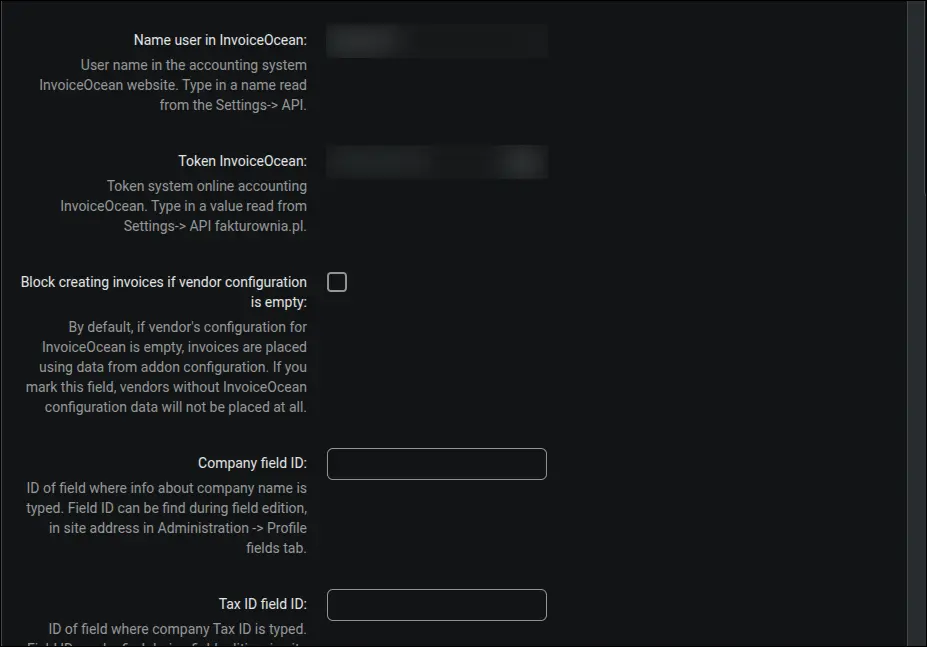
Screenshot 1
The Settings tab defines how documents behave across the whole store: the document type, the default invoice language, emailing the invoice to the customer from InvoiceOcean, carrying order notes over to the invoice, and a VAT invoice payment date taken from the proforma. Next to them sit the marketplace options, including consent to vendor payout invoices and the way tax is charged on such documents:
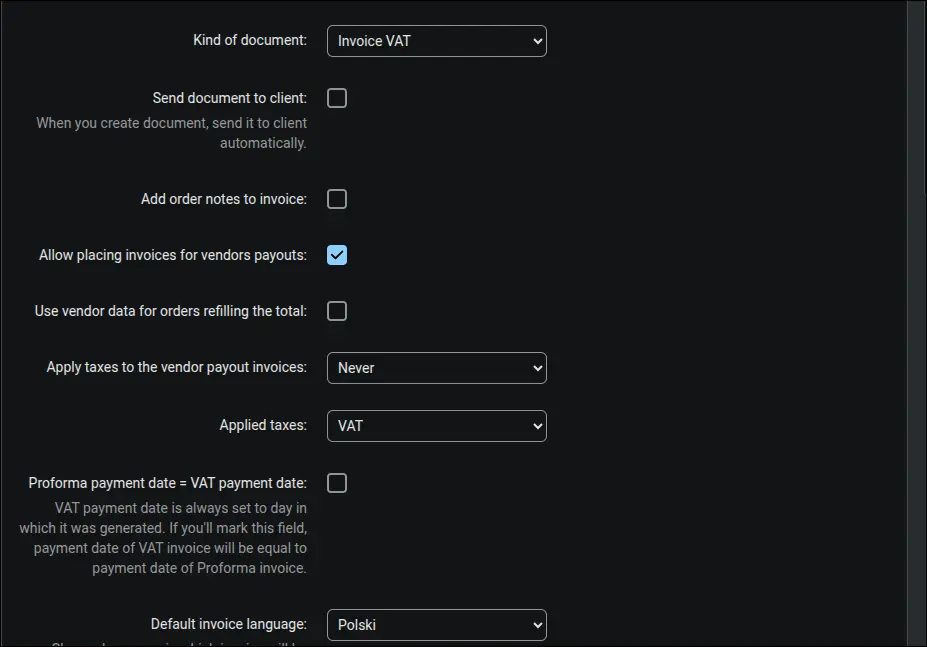
Screenshot 2
Automation takes the burden of remembering invoices off the store team. It is enough to choose the statuses at which a proforma is created and those at which the store issues a VAT invoice, for example a proforma for an open order and an invoice once it is paid. When the order already has a document, the automation does not issue a second one:
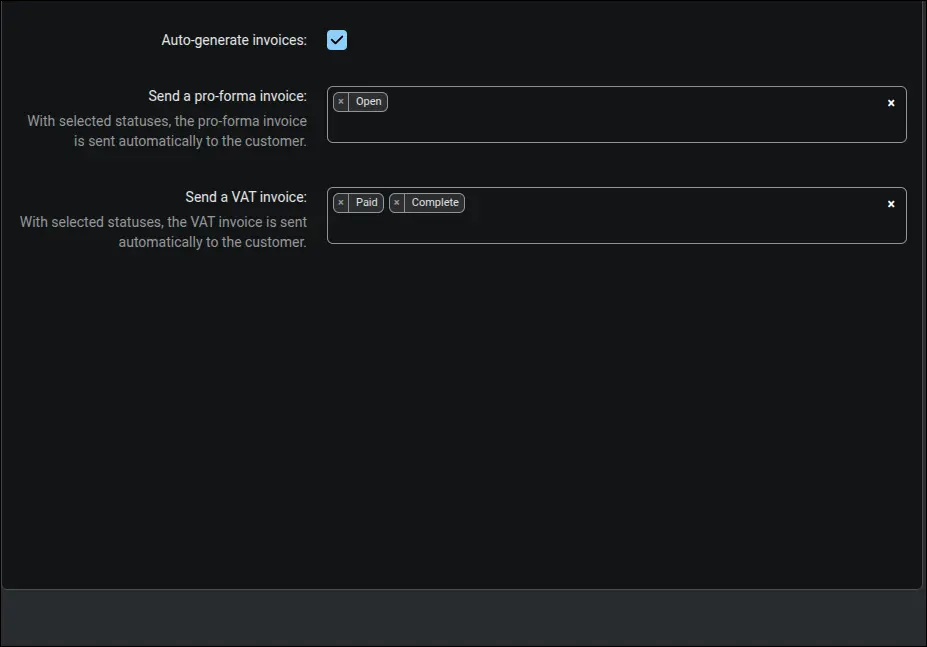
Screenshot 3
The whole flow looks like this: an order status change issues a proforma, and a later status turns it into a VAT invoice built from the proforma data and marked as paid right away. The PDF is available in the order tab and in the customer order list, and InvoiceOcean emails the document only when that option is enabled:
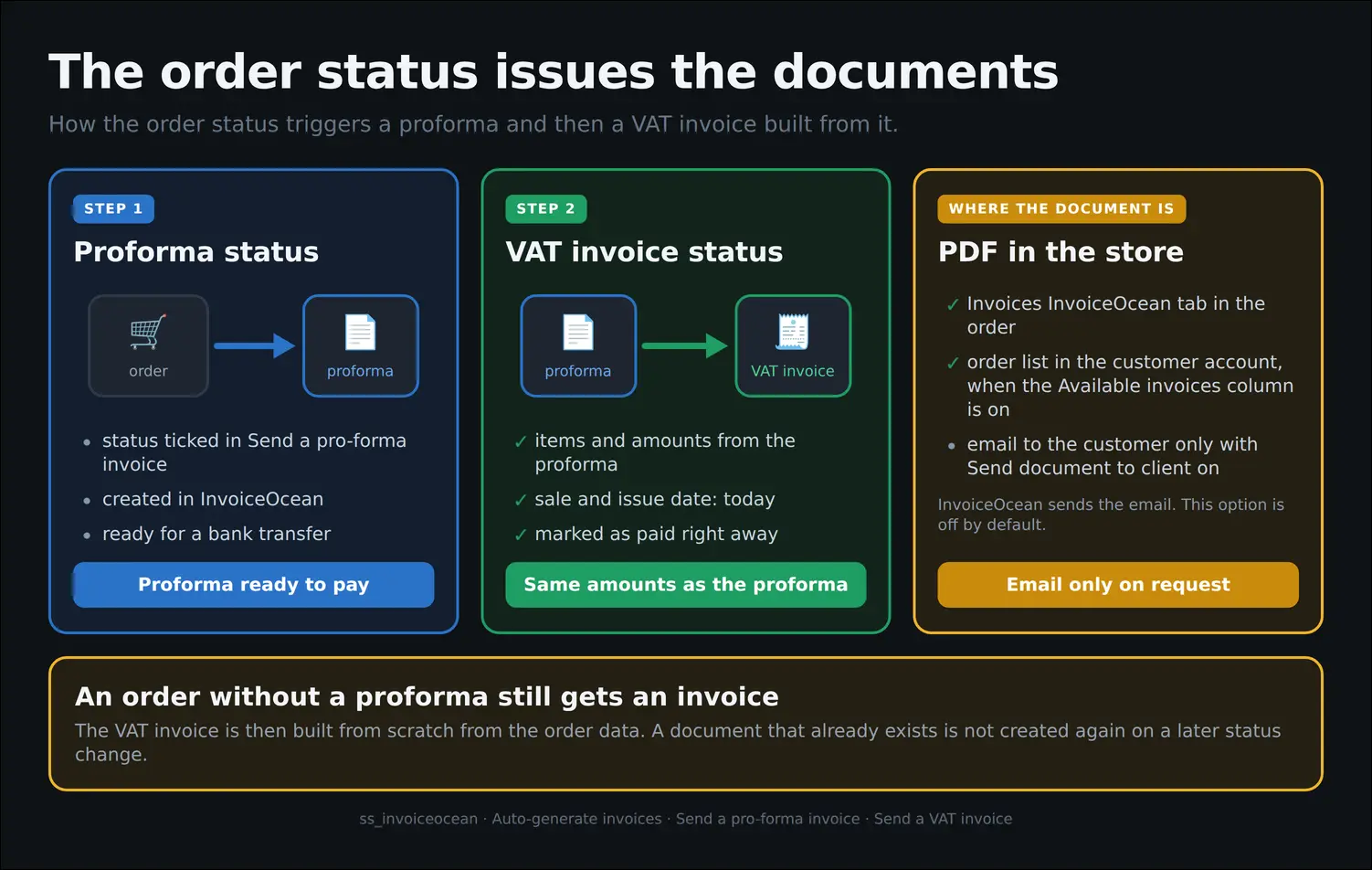
Diagram 1
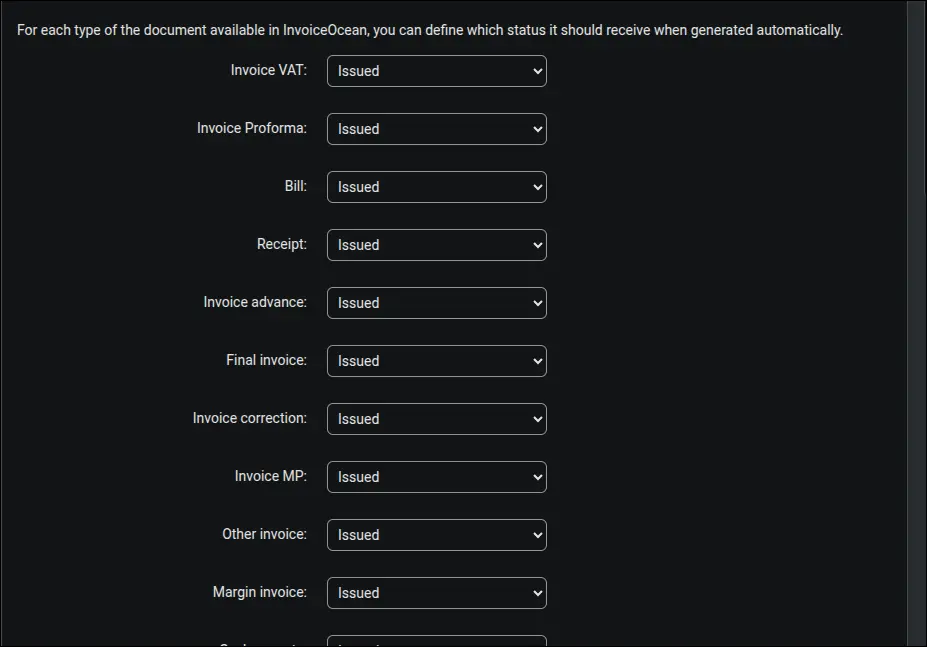
A document issued automatically receives the right status in InvoiceOcean straight away. The status is set separately for every document type, from the VAT invoice and the proforma to the bill, the receipt, the advance invoice, the correction and the margin invoice:
Screenshot 4
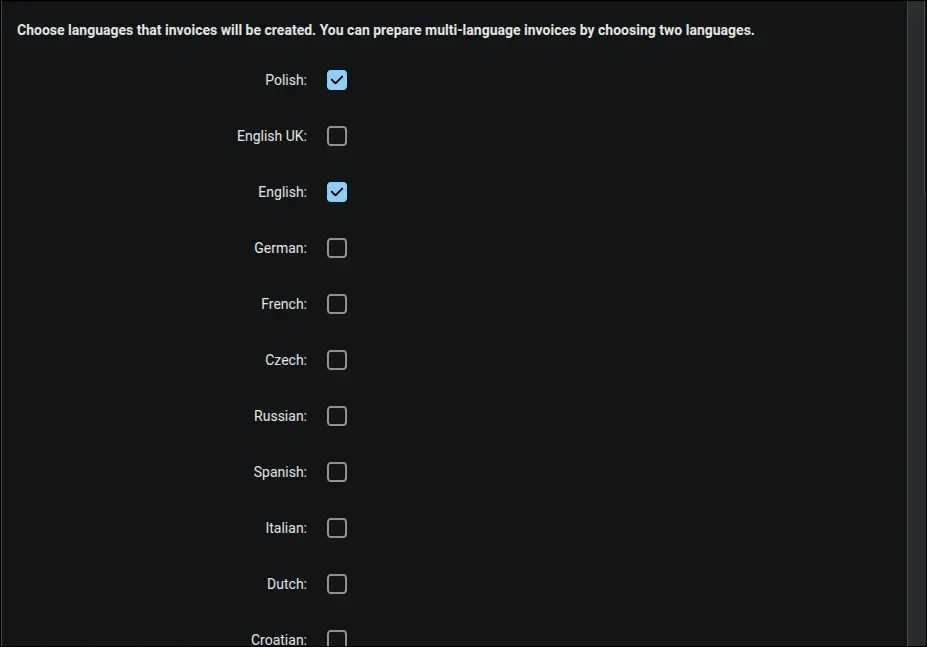
A foreign customer should receive the document in their own language. On the Language tab you choose the languages in which the store may issue invoices, and the selected ones later appear in the document form:
Screenshot 5
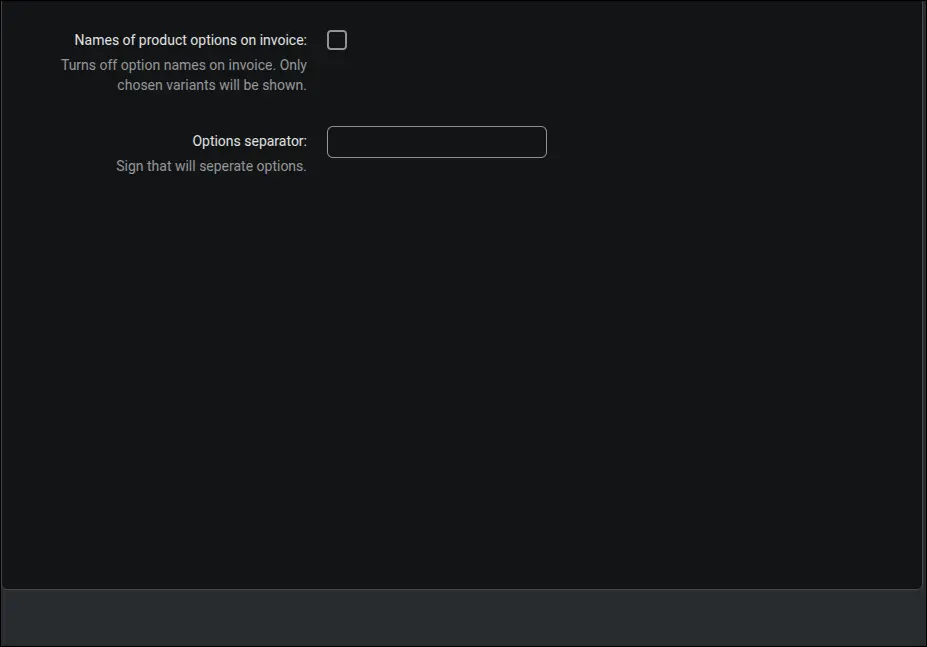
An invoice should describe exactly the variant the customer bought. On the Products tab you decide whether option names, such as size or colour, appear in the line name and which character separates them from the product name:
Screenshot 6
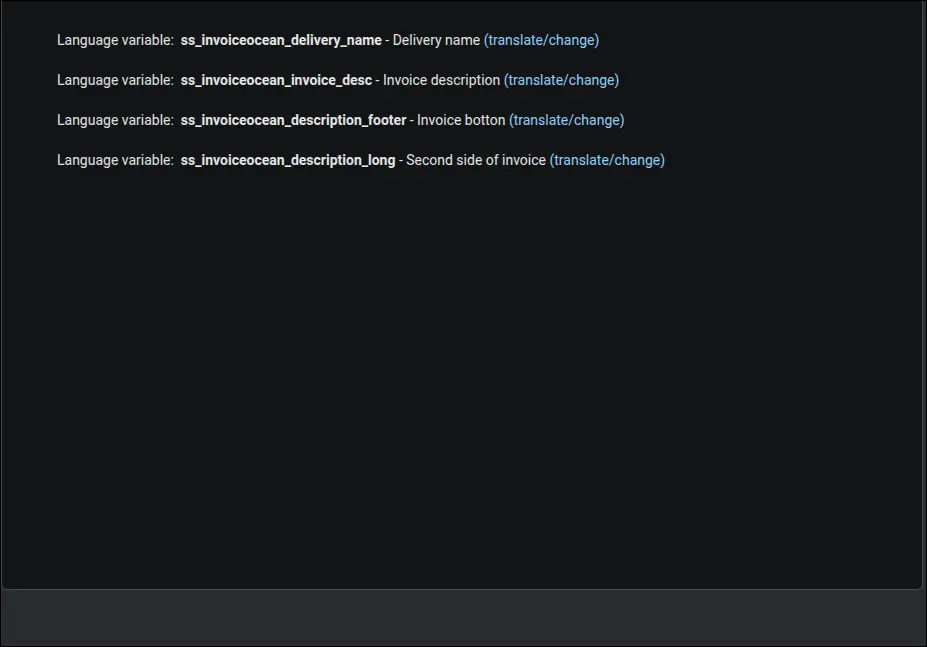
Fixed document texts, namely the invoice description, the footer, the second page and the name of the shipping line, are edited as translations, separately for every store language. Bank details or return terms entered once appear on every following invoice. A company with several departments or brands can also download the list of departments from its InvoiceOcean account with one button and issue documents on behalf of the right one:
Screenshot 7
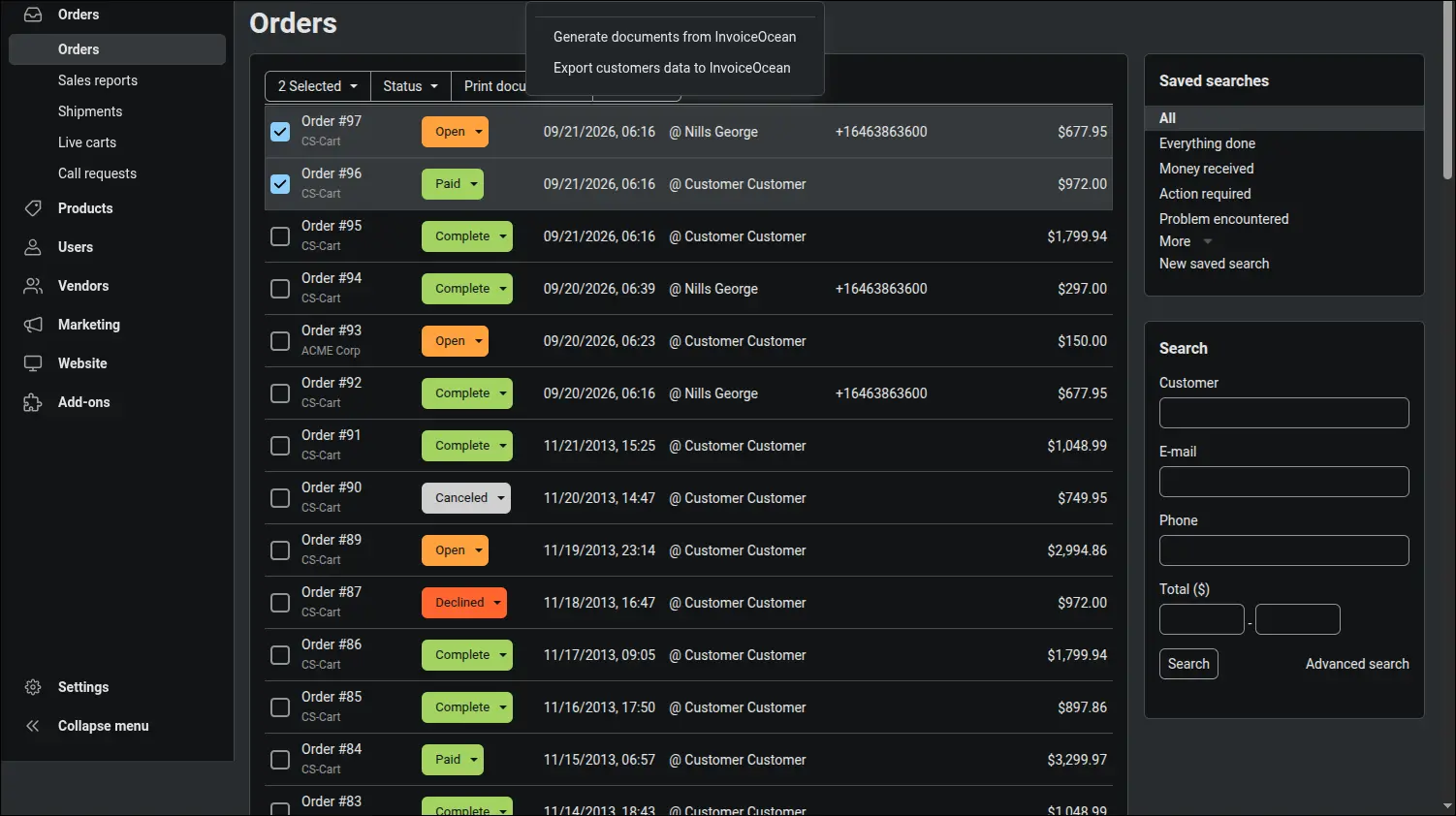
On the orders list, the tools menu gains two new entries. After selecting orders, the team opens a shared document form or passes the buyers' data to the InvoiceOcean client base, where the same customer is never added twice:
Screenshot 8
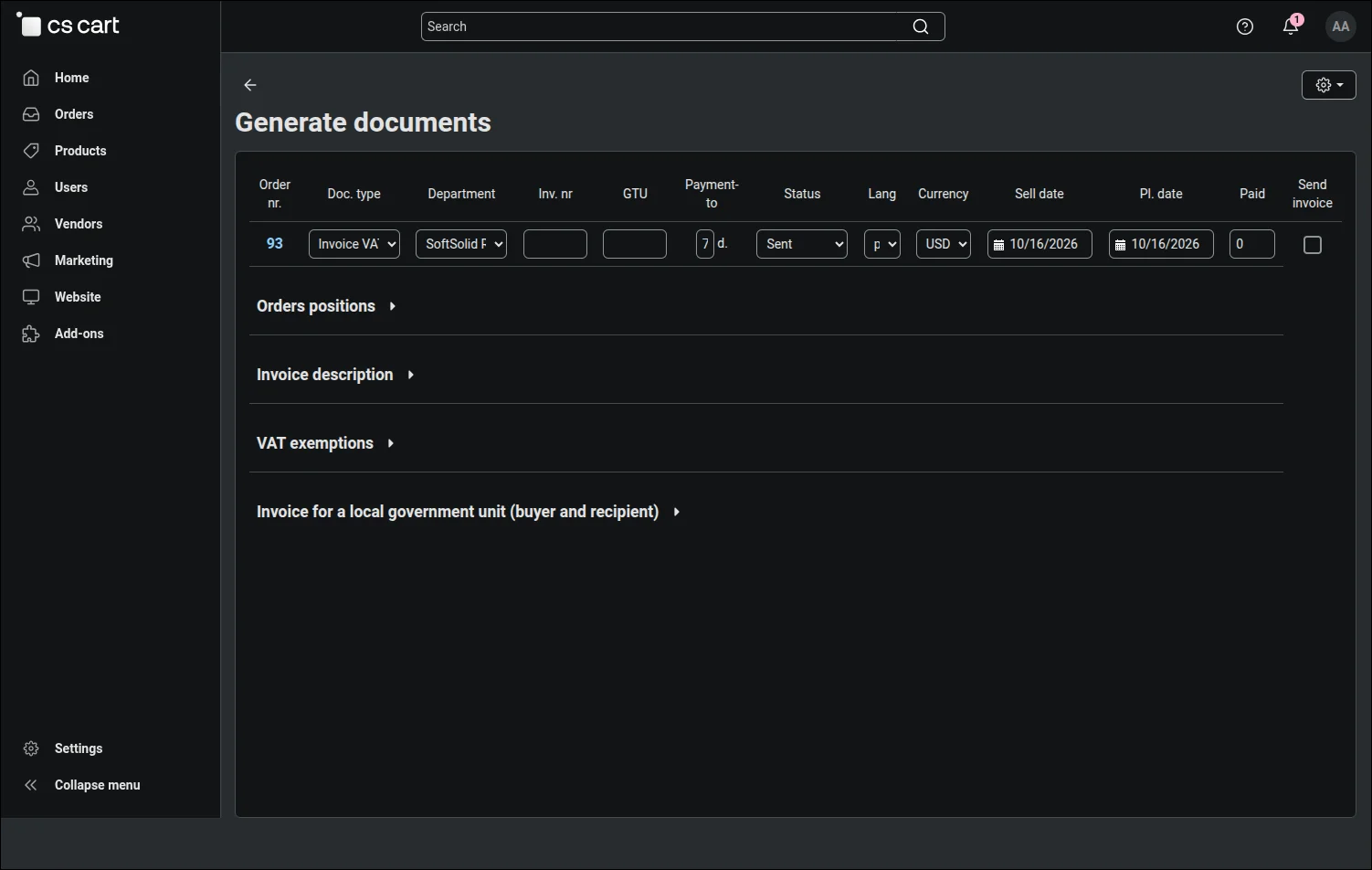
The document form gathers everything that will go to InvoiceOcean: document type, department, number, GTU codes, payment term, status, language, currency, sale and issue dates, and the amount paid. Every field arrives filled with the order data and the store settings, so it usually only needs confirming, while an unusual case can be corrected before issuing. After confirmation, the panel reports the issued document with its invoice number:
Screenshot 9
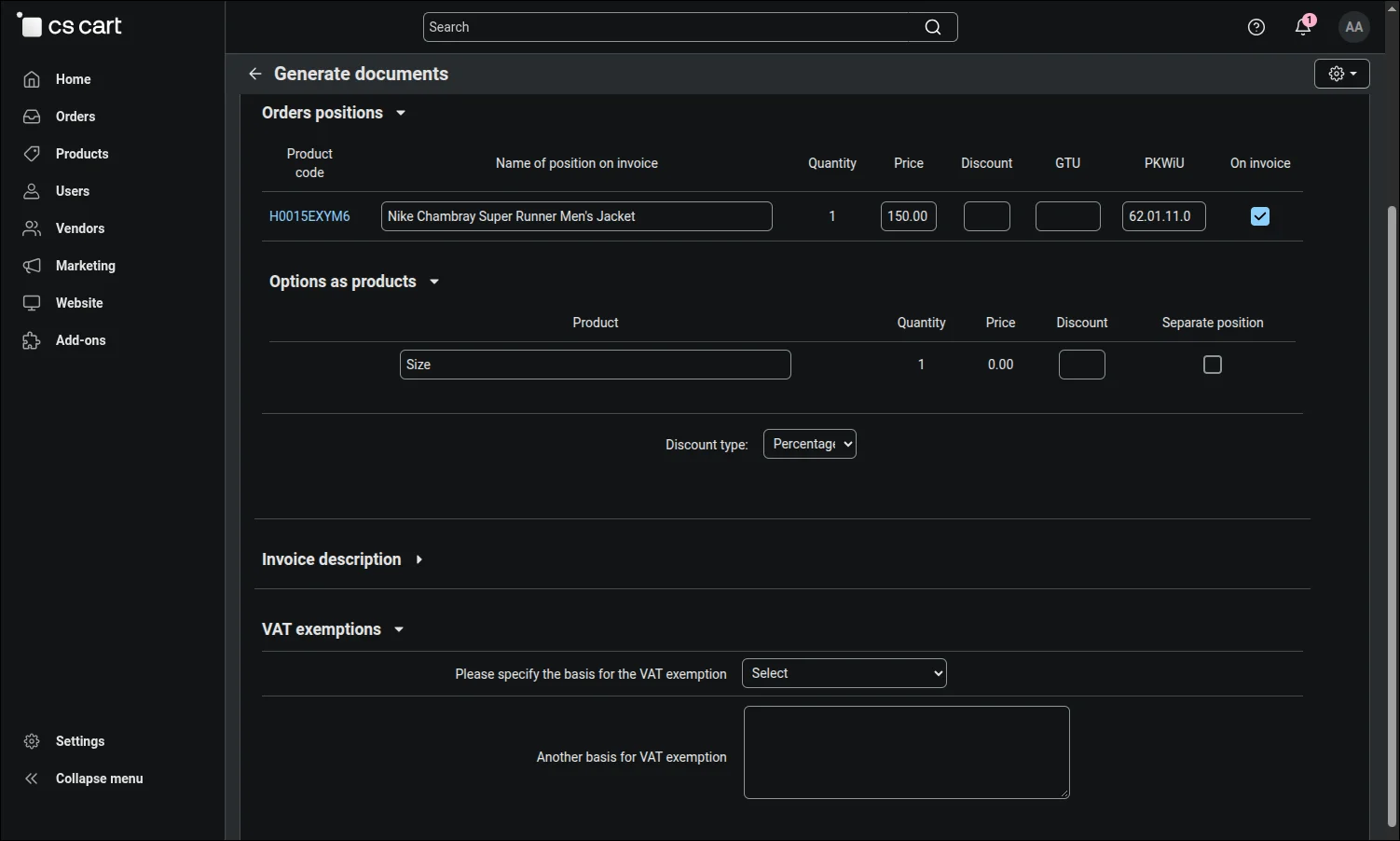
Order lines can be refined before issuing: change the name and price, leave a line out, add a fixed or percentage discount, set a GTU code, and split a product option into a separate line. The VAT exemption basis is chosen here as well. Shipping reaches the document on its own, and when the order has several shipping methods with different VAT rates, each method receives its own line with its own rate:
Screenshot 10
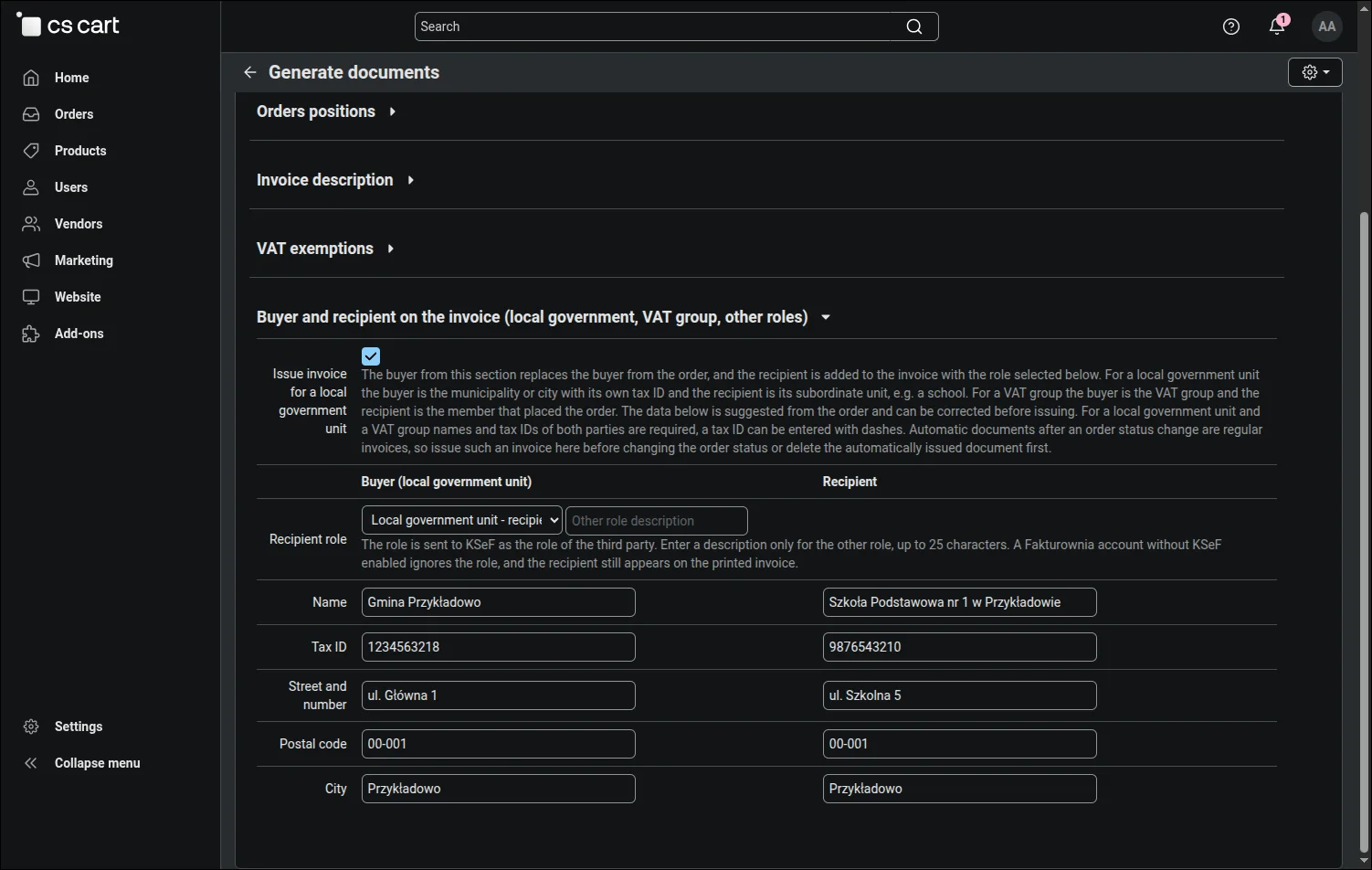
Public schools and kindergartens in Poland buy as units of the municipality, so the invoice has to name the municipality or city as the buyer and the school as the recipient. Once the local government unit option is ticked, the form suggests the data of both parties from the order and lets you correct it, and without the name and tax ID of either party the document is not issued. A VAT invoice issued later from such a proforma keeps both parties:
Screenshot 11
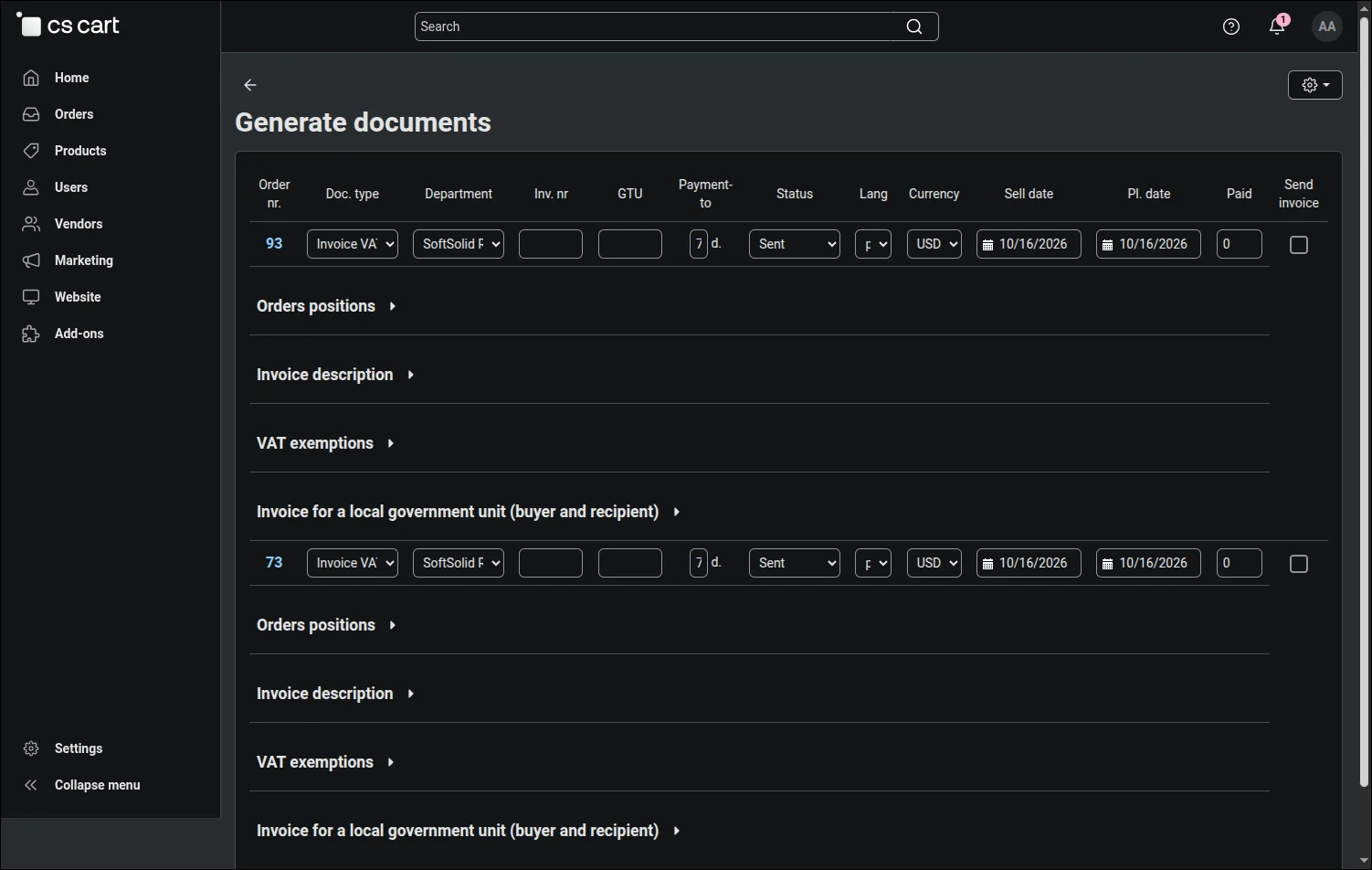
Selecting several orders on the list opens a single form in which every order has its own document header and its own sections for lines, description, exemptions and the local government unit invoice. One confirmation issues all the documents in turn, which closes a day of invoicing on a single screen:
Screenshot 12
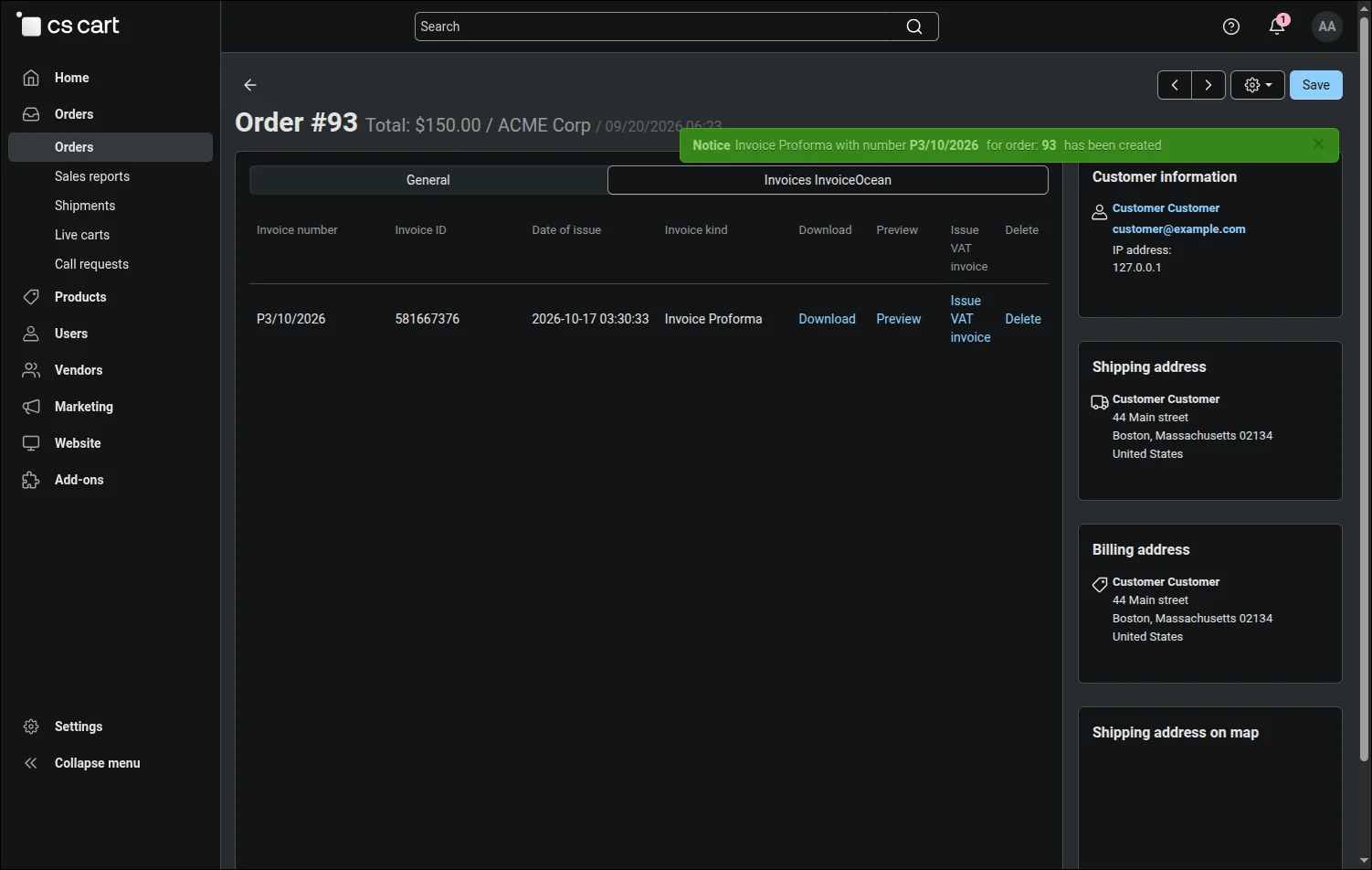
The issued document is stored with the order, on the Invoices InvoiceOcean tab. The team sees the number and date there, downloads the PDF, opens a preview, and removes a document issued by mistake from InvoiceOcean and from the store at the same time. Next to the proforma waits a link that turns it into a VAT invoice:
Screenshot 13
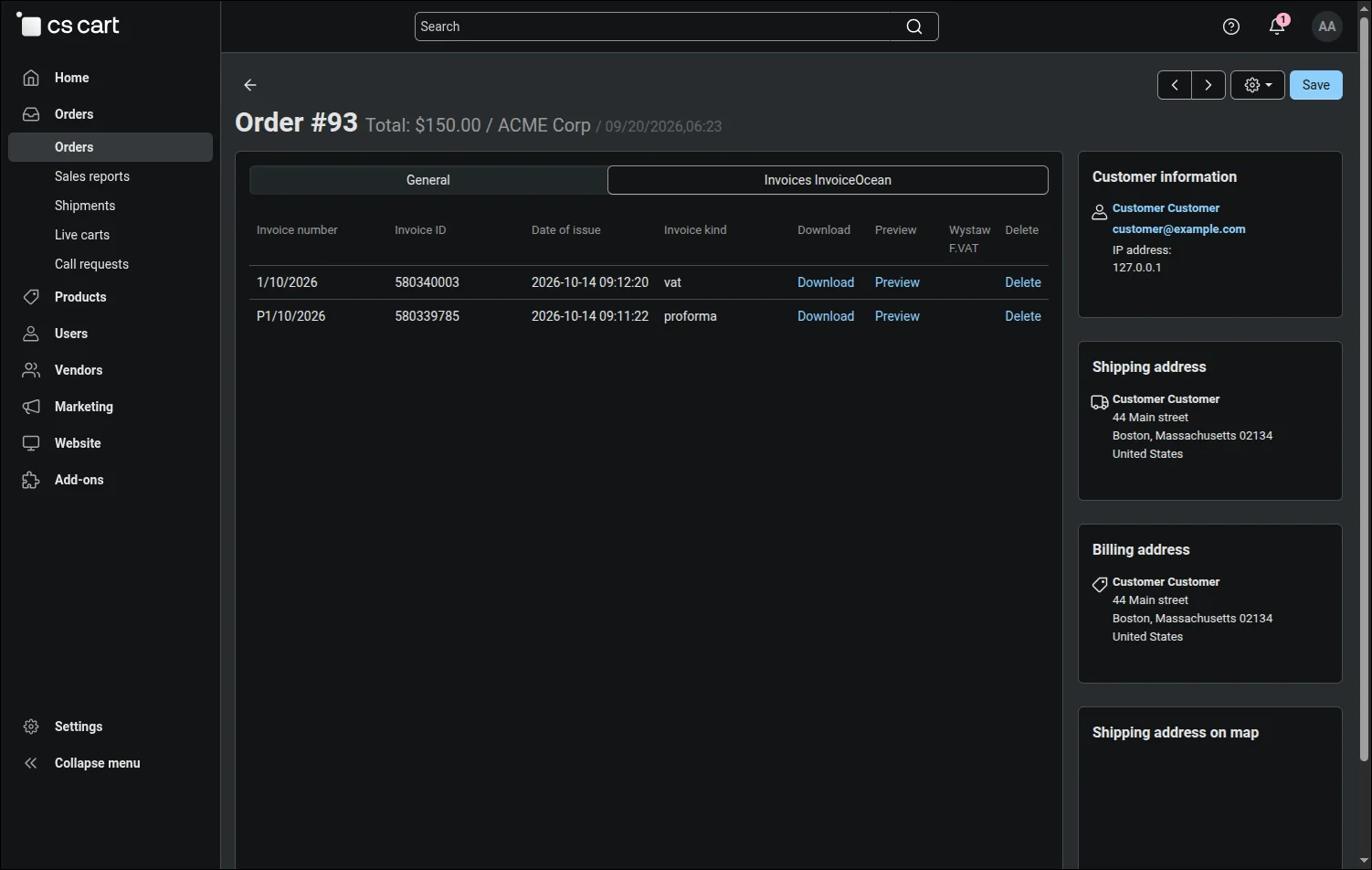
Once the payment is booked, the VAT invoice is created from the proforma with a single click and carries exactly the same lines and amounts the customer paid. The new document appears above the proforma and the conversion link disappears, which guards against a second invoice for the same proforma:
Screenshot 14
The orders list shows at a glance which orders already have a document. The add-on column displays the proforma and VAT invoice icons together with the number, and a click opens the PDF. The preview shows the finished InvoiceOcean document right in the store admin panel; the store server fetches it, so the API token never reaches the browser and the team does not have to log in to InvoiceOcean:
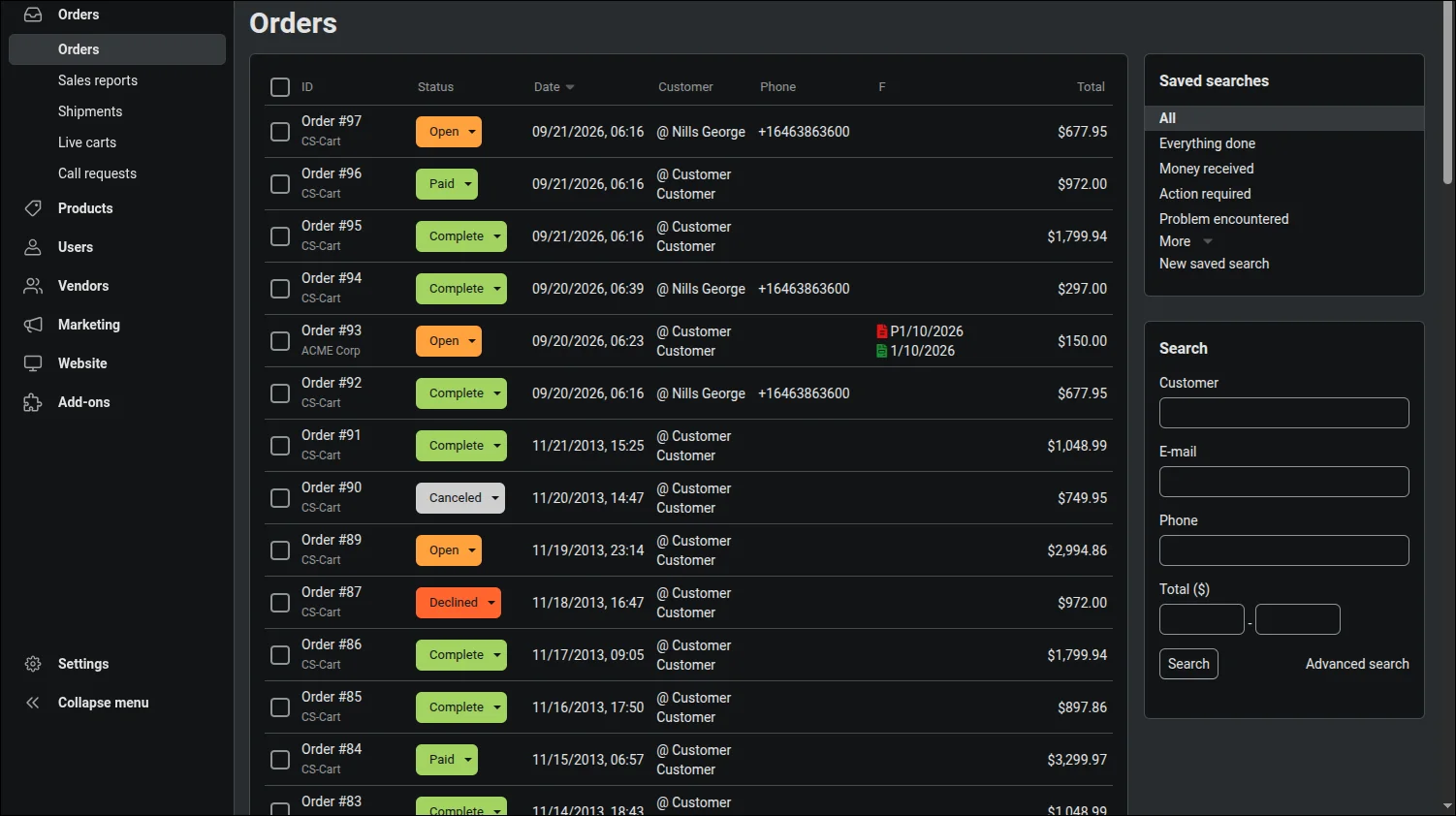
Screenshot 15
Customers download their invoice themselves from the order history in the storefront, in the Available invoices column, so the store no longer has to answer requests to resend a document. The link opens only documents of the signed-in customer's orders, and for a guest only those of orders placed in the current session:
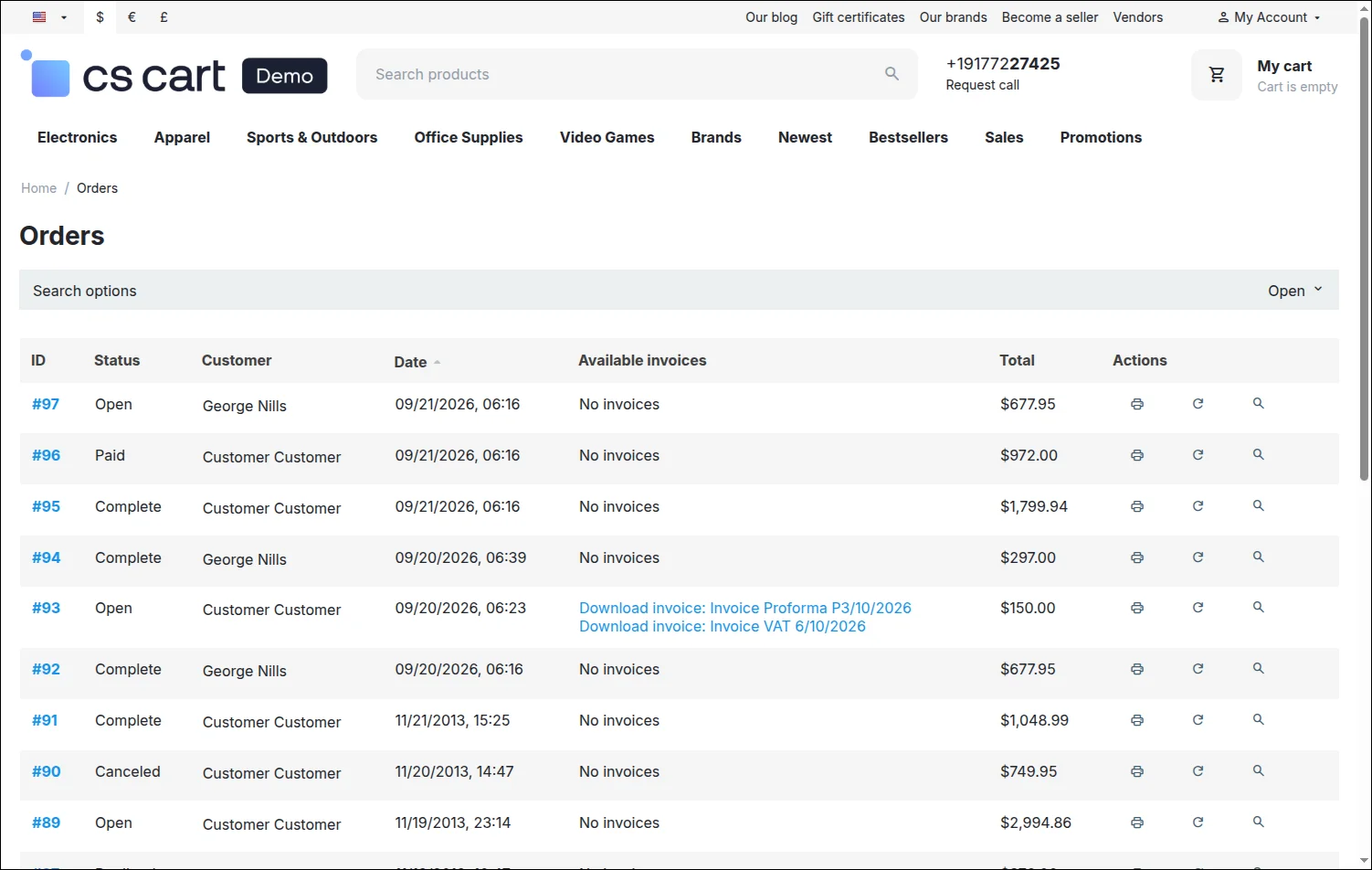
Screenshot 16
Each store payment method is mapped to its InvoiceOcean counterpart, for example bank transfer, card, cash or cash on delivery. The invoice then shows a payment method that matches the service's own list:
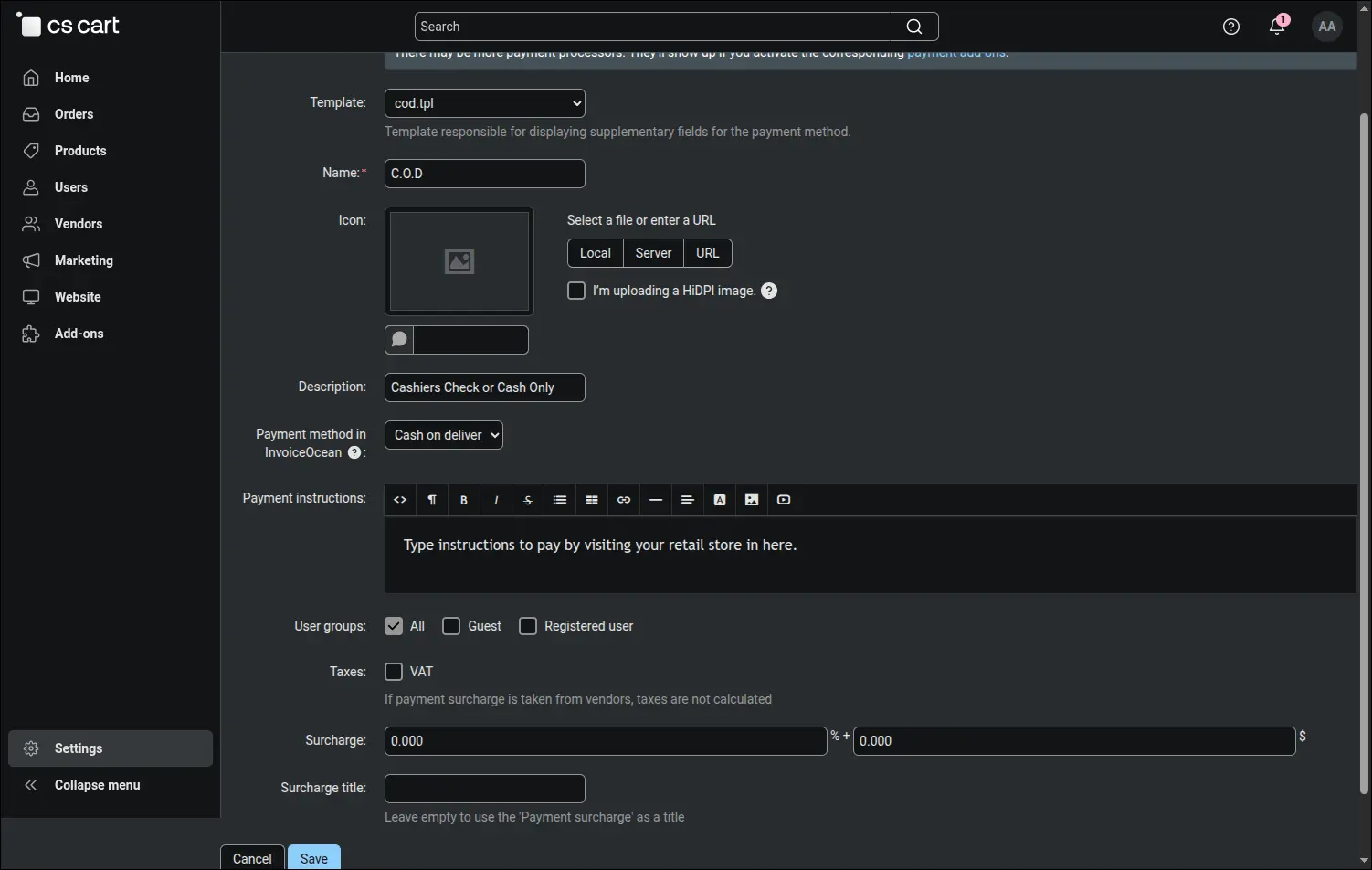
Screenshot 17
A store that uses a VAT exemption sets the legal basis directly in the tax settings, choosing it from the list or entering its own wording. A document with the exemption carries the correct basis from the start, with no corrections in InvoiceOcean:
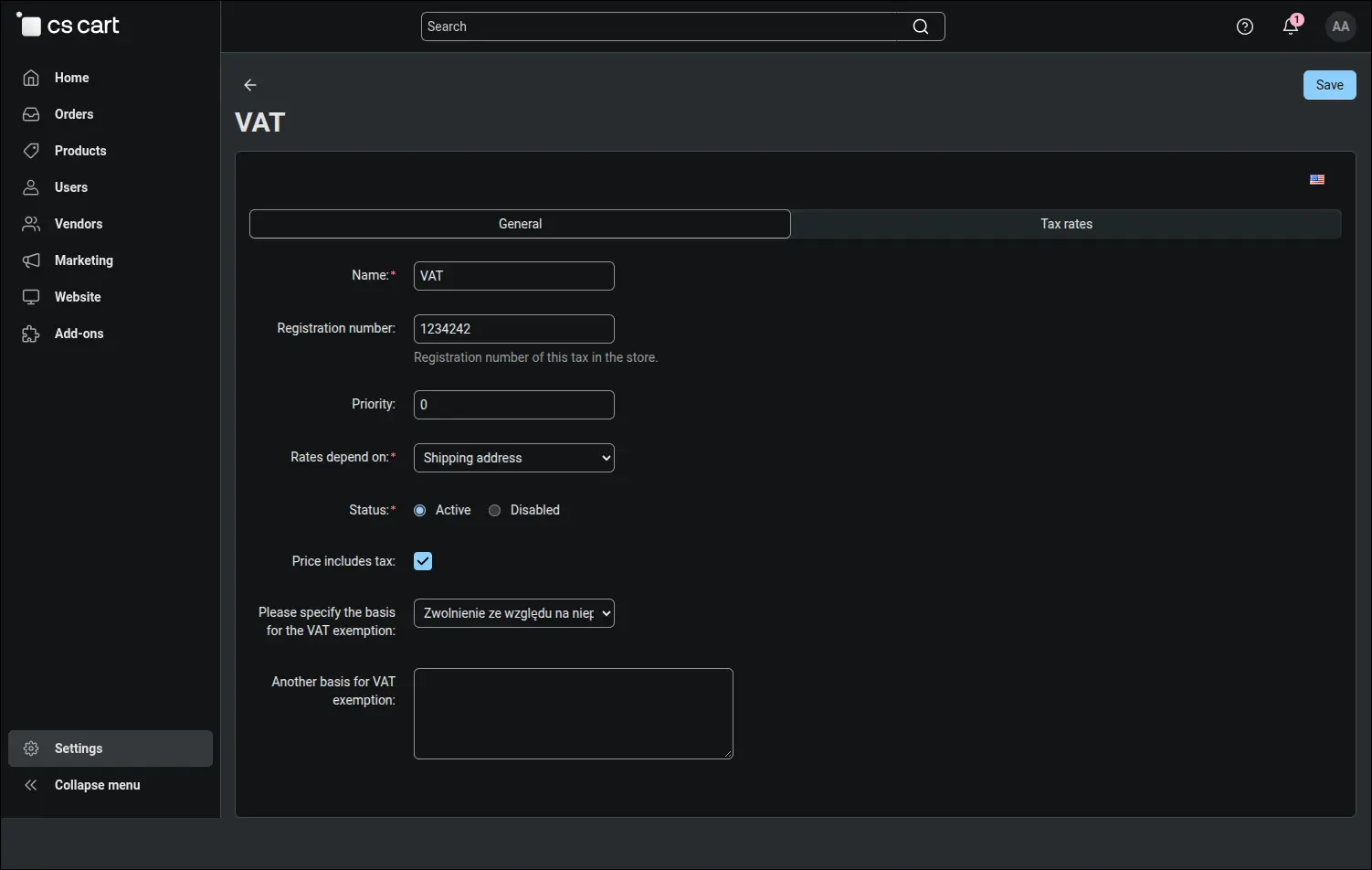
Screenshot 18
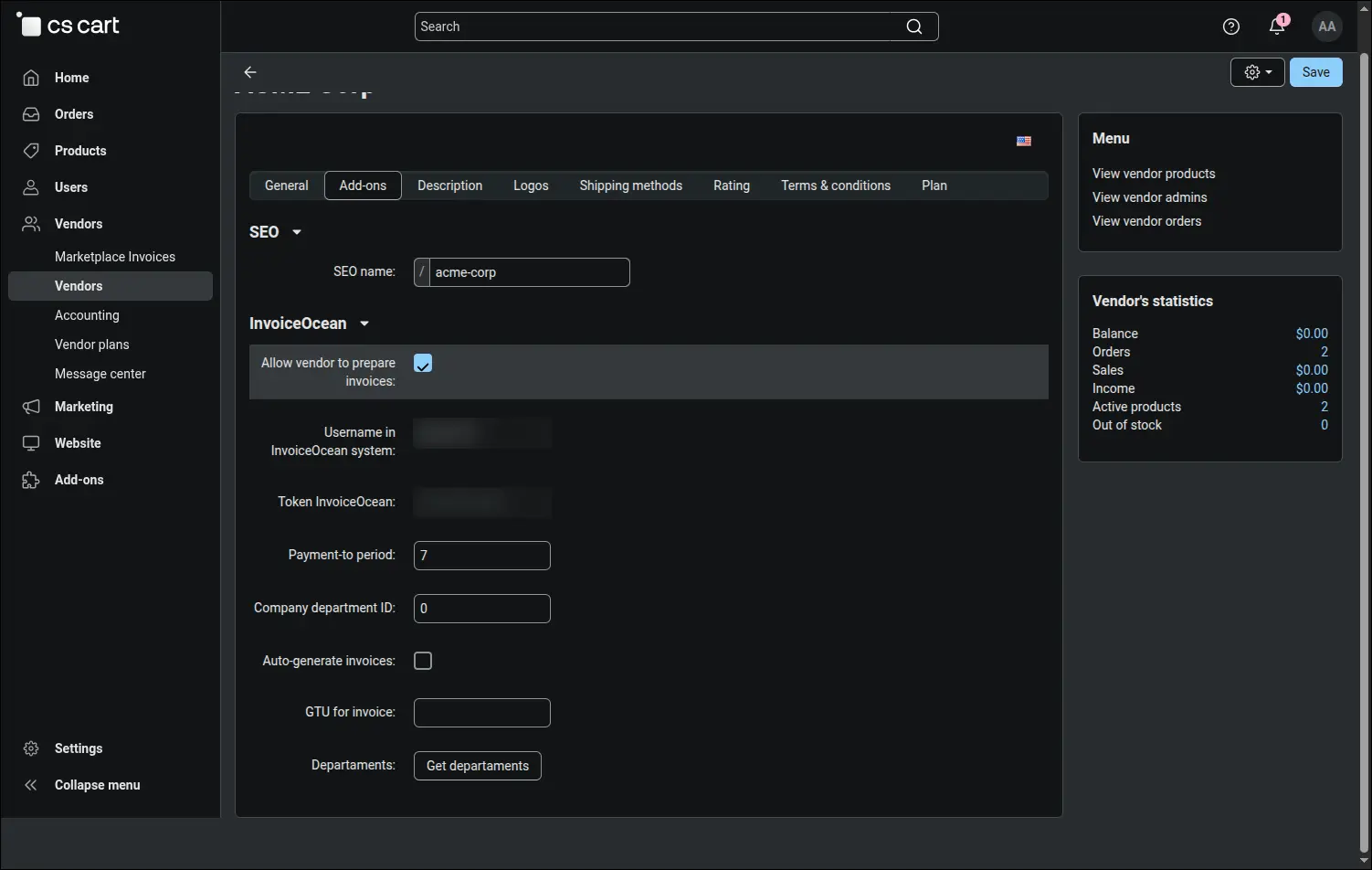
On a Multi-Vendor marketplace, the operator decides which vendor issues invoices on their own account. In the vendor profile the operator ticks the consent, and the InvoiceOcean section takes the login, token, payment term, department, GTU codes and the automation switch for that vendor's documents. The consent can also be tied to a vendor plan, which grants InvoiceOcean access to every vendor on that plan:
Screenshot 19
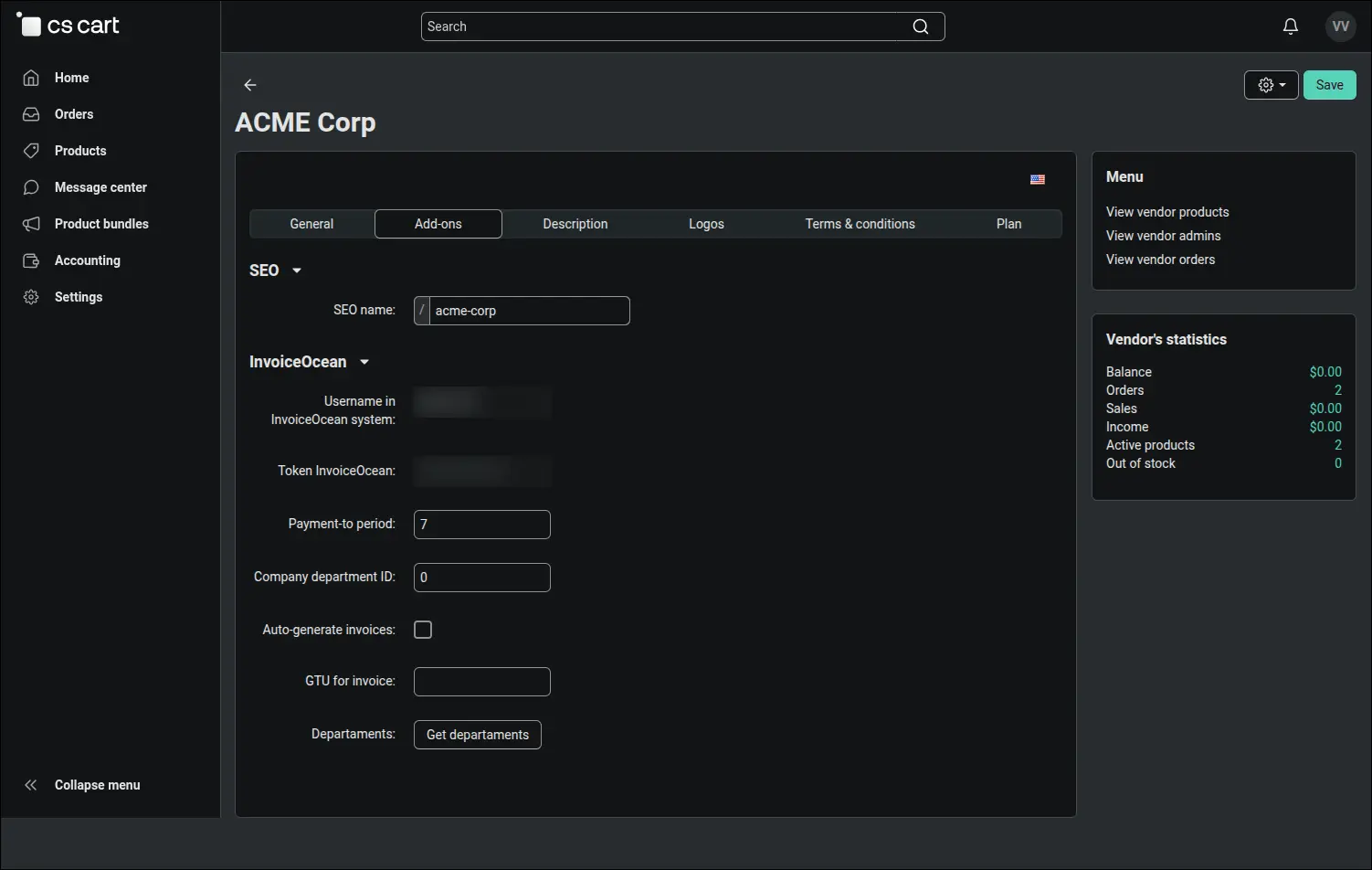
Vendors see the same section in their own panel and connect their InvoiceOcean account themselves, including downloading their departments. From then on, documents for their orders are issued in their name, and the add-on tools cover only the orders of their company. For commissions, the operator sets the commission line name, the tax, the statuses treated as paid and the refund status, and a cron job protected with a key issues every vendor an invoice for the previous month's commissions once a month, or a correction when the balance is negative. A commission register shows each order, its status, date, customer, value and the commission due:
Screenshot 20
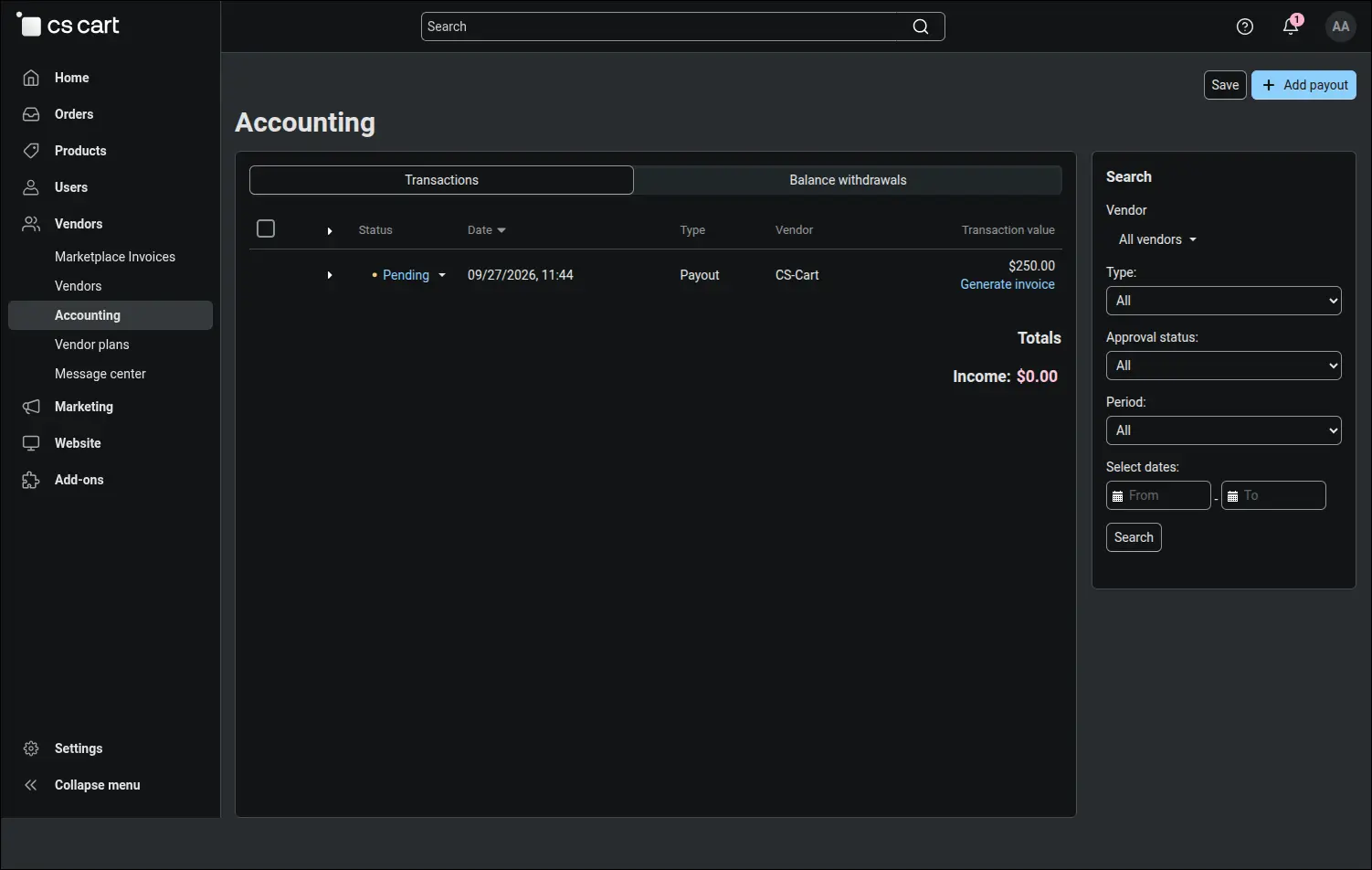
Every payout to a vendor can have its own accounting document. In the marketplace accounting, a Generate invoice link appears next to the payout, and the finished invoice, issued to the name and tax ID from the vendor profile, is available for download right away:
Screenshot 21
The Integration with InvoiceOcean add-on turns an order into a finished document without retyping any data. The invoice is created in a form, in bulk or on its own after a status change, its lines match the order, including product variants and shipping split into methods with different VAT rates, and it reaches both the admin panel and the customer. The store can also serve public sector buyers by issuing an invoice for a local government unit, while a Multi-Vendor marketplace gains invoicing on vendor accounts and order in commission and payout settlements.
Feel free to contact us and purchase the add-on!
Choose the most convenient form of payment for the add-on. You can pay once and use the add-on. Choosing a subscription payment (monthly or annual) means that you pay for the add-on at regular intervals and have access to the latest versions of the addon and technical support.