


Razvan Iosif
Verified purchase

| CODE | Payment method | Price | ||
|---|---|---|---|---|

|
407
ss_baselinker
2025-12-28
1.1.5.3
|
1375.00 PLN
(Price without tax) |
||
|
|
589
ss_baselinker_sub_1Y
2025-12-28
1.1.5.3
|
550.00 PLN
/year
(Price without tax) |
||
|
|
588
ss_baselinker_sub_1M
2025-12-28
1.1.5.3
|
55.00 PLN
/month
(Price without tax) |

Extension for Store Builder and Multi-Vendor that connects your store with BaseLinker (Base.com), so that the catalogue, stock, prices and orders from every sales channel are managed in one place. A store that sells on its own site and on marketplaces at the same time keeps the same goods and the same orders in two systems, and copying data between them by hand costs time and invites mistakes. Our add-on turns the store into a full data source for BaseLinker: the platform pulls products with variations, prices and stock, collects the orders placed in the store, and sends back stock and price changes, marketplace orders, statuses and tracking numbers with a tracking link. The connection needs only a data exchange address and a password, with no API token and no cron jobs.
Key Features
- A connection through the BaseLinker integration file, protected by a communication password, with no API token and no cron on the store side.
- Catalogue, variations, prices and stock served in pages of a thousand products, so synchronisation covers very large stores as well.
- Marketplace orders created in the store with the right status, without duplicates and with control over the emails sent.
- Tracking numbers with a tracking link, statuses and stock levels return from BaseLinker to the store, including to a chosen warehouse.
- A pickup point map at the delivery step, with the chosen point passed to BaseLinker and shown on the order.
- In Multi-Vendor, a separate BaseLinker account for every vendor, operator consent for data exchange and locking of chosen settings.
First, the direction of the connection, because everything else depends on it. BaseLinker connects to the store, not the other way round: it pulls the catalogue, prices, stock and orders, then sends back whatever has changed on its side. The store never sends anything on its own, which is why it needs neither an API token nor a task schedule:
Screenshot 1
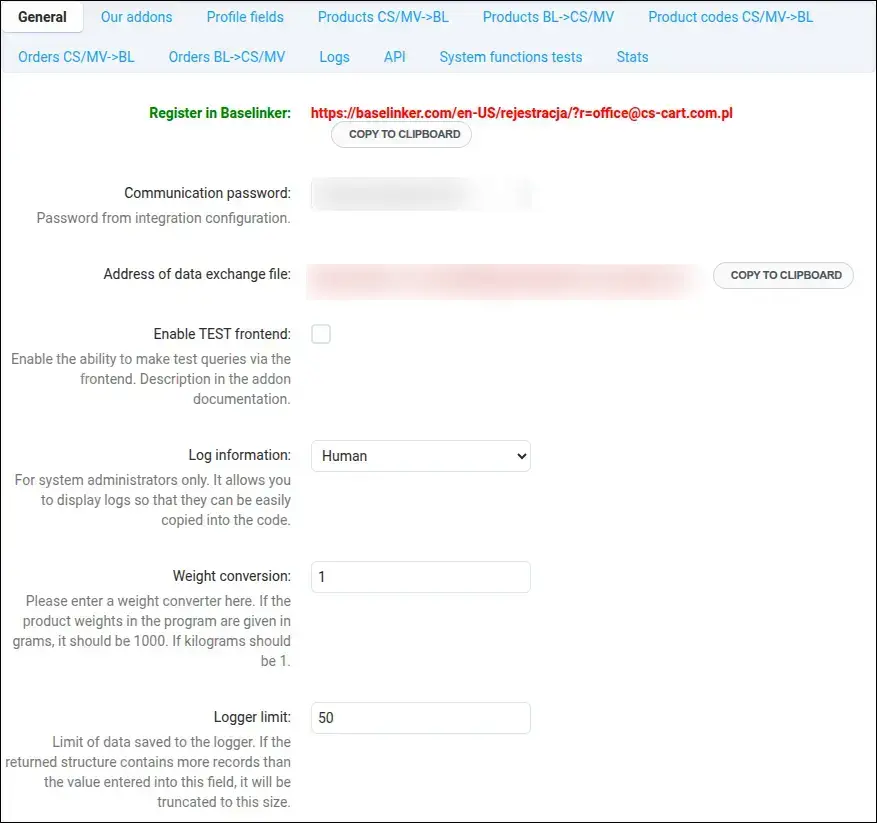
Setup begins in the General section. Here you set the communication password and copy the data exchange file address with a single button, then paste both values into the BaseLinker panel. Next to them you will find a link for registering a BaseLinker account and a weight converter, useful when the store measures weight in a different unit than the platform:
Screenshot 2
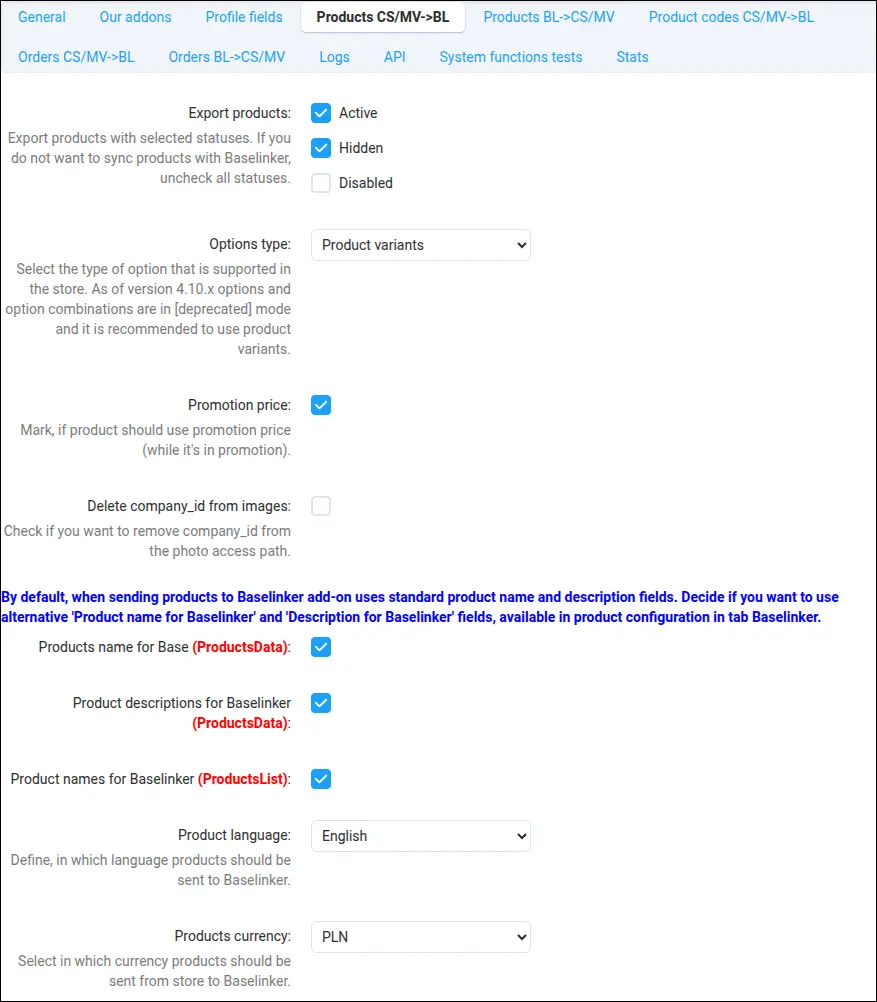
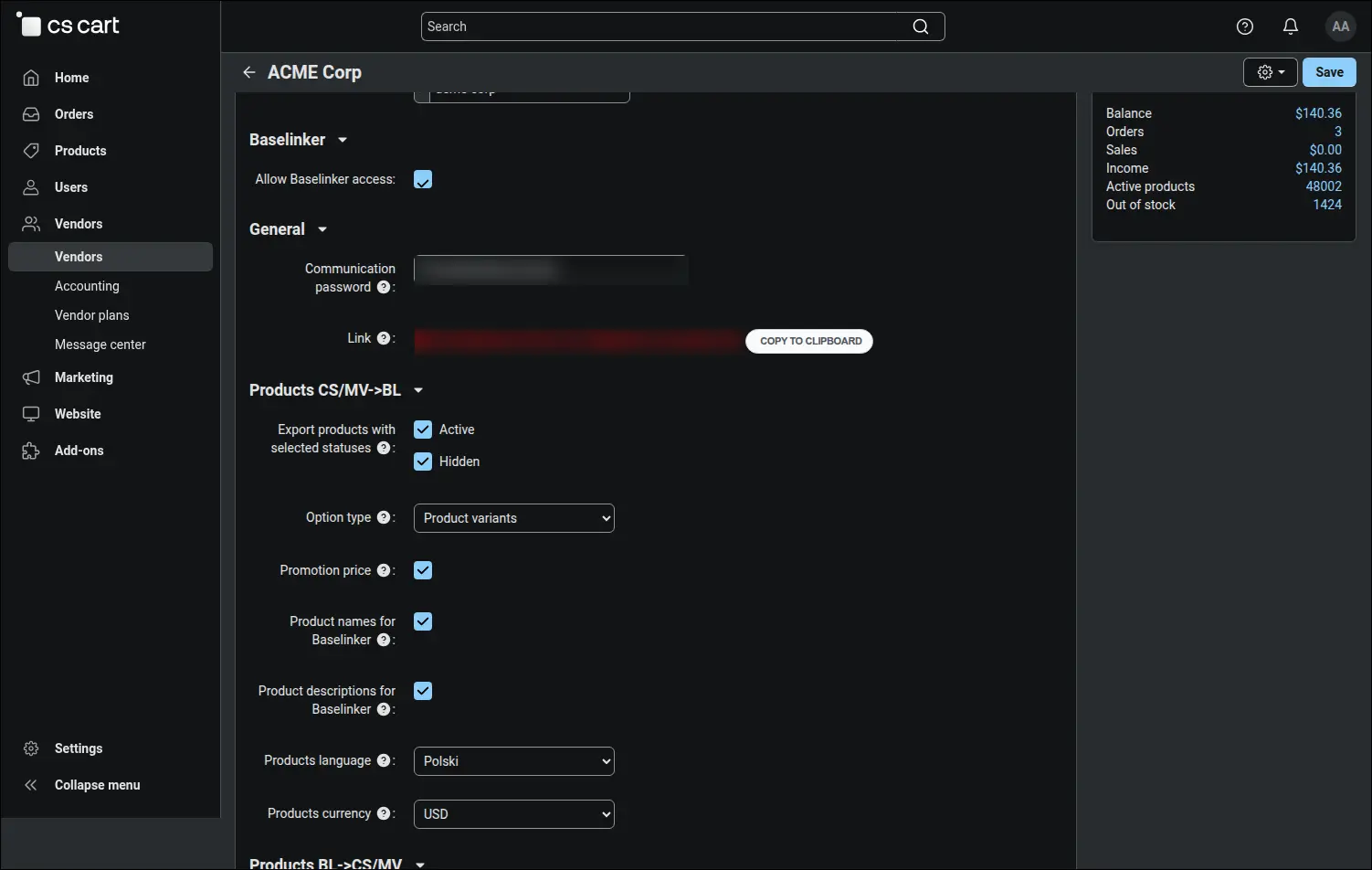
Only what you choose reaches the marketplaces. You select the statuses of exported products, for example active and hidden, the way variations are passed on, the promotional price for products on promotion, and the language and currency of the offer. Separate switches decide whether BaseLinker receives names and descriptions written especially for it:
Screenshot 3
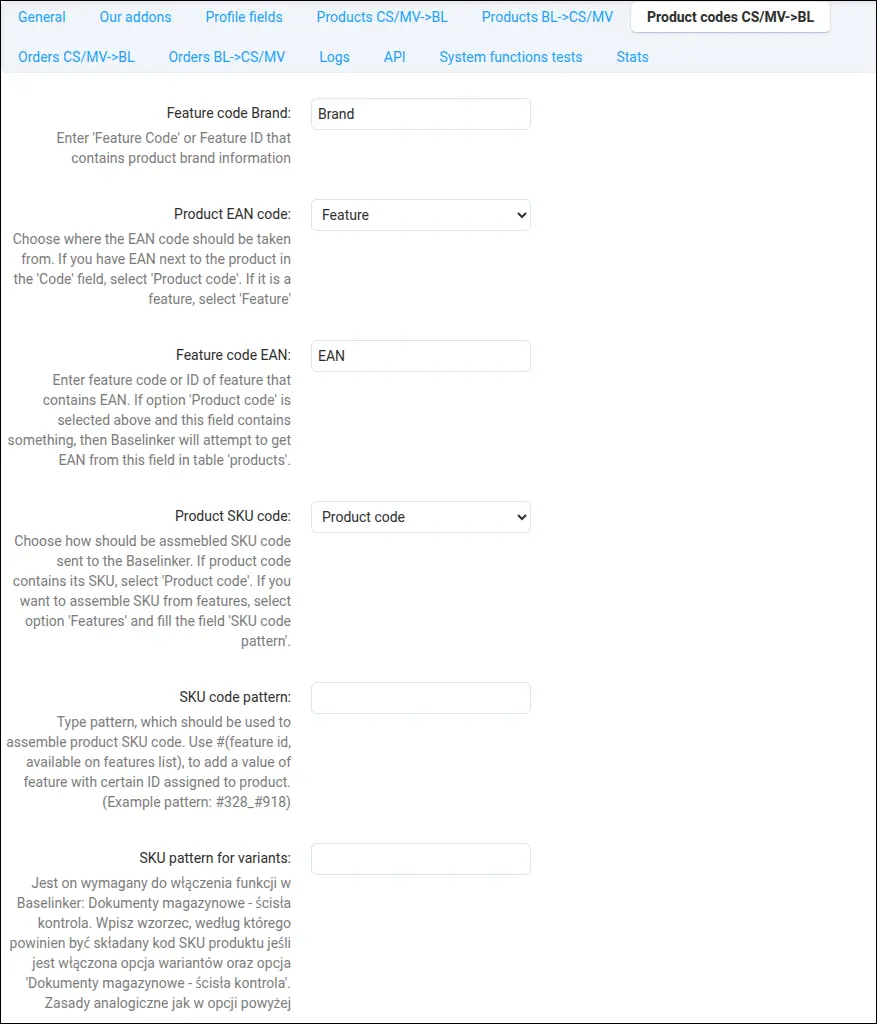
Marketplaces and warehouse software expect correct codes. EAN, SKU and brand can come from the product code or from chosen features, and when the catalogue calls for it, you build the SKU from several features using your own pattern, with a separate rule for variations:
Screenshot 4
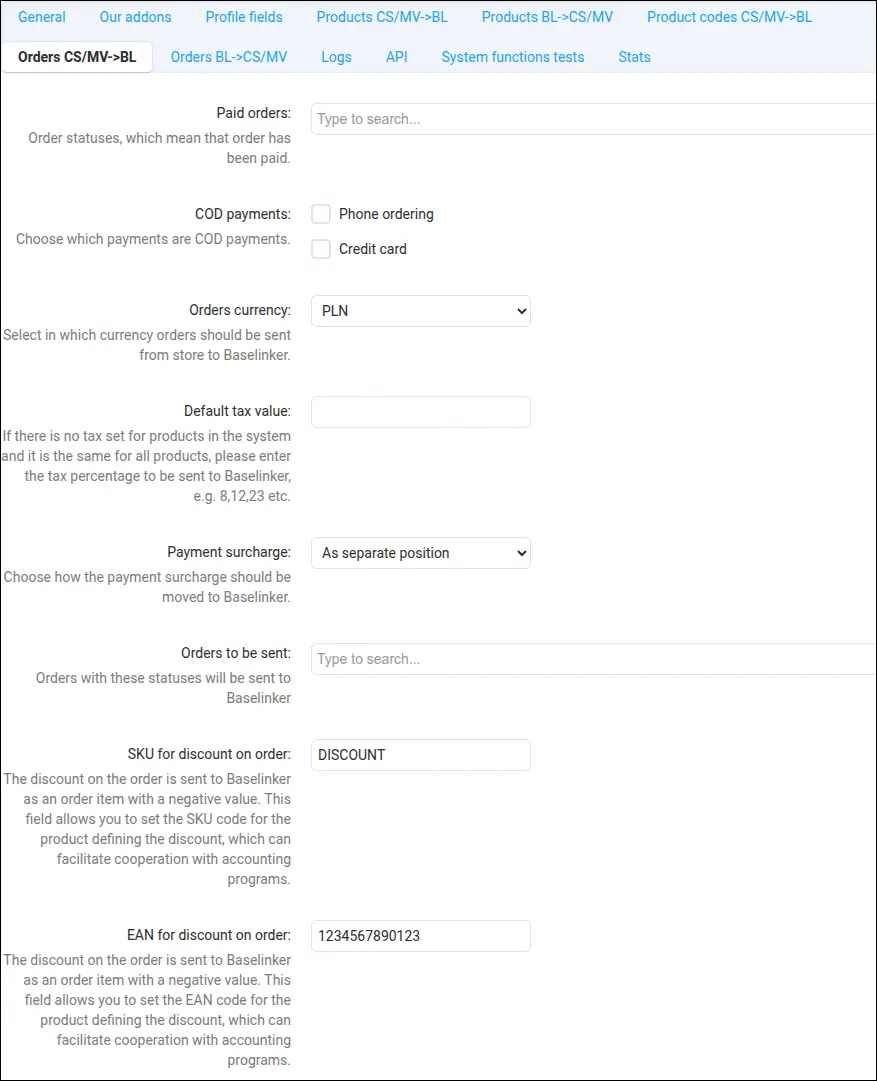
The store decides when an order is ready for BaseLinker. You choose the order statuses to send, the statuses that mean paid and the cash on delivery payments, while an order discount travels as a separate line with its own SKU and EAN, clear for accounting and invoicing software:
Screenshot 5
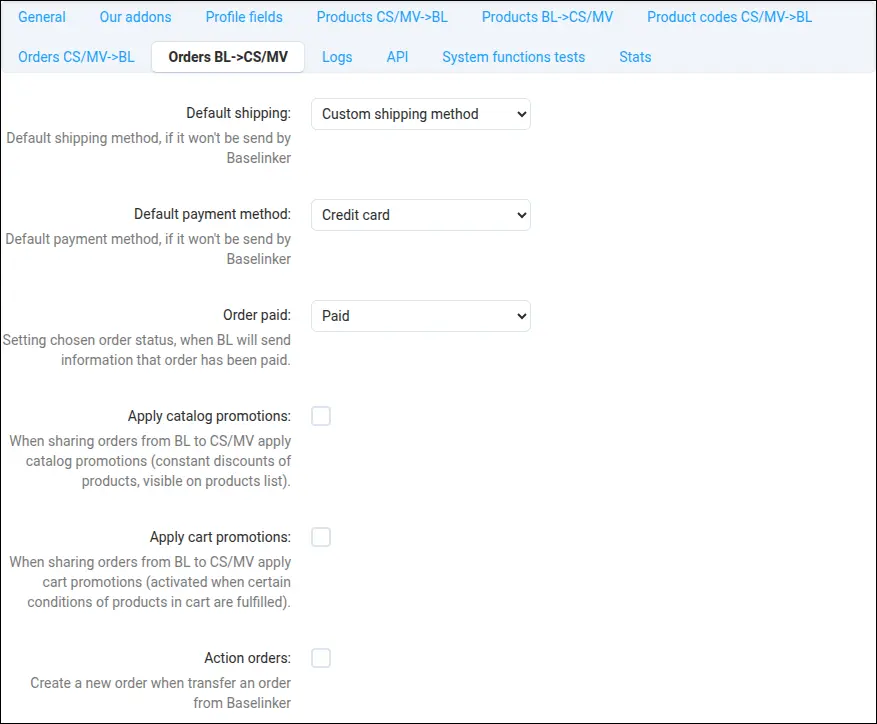
Marketplace orders arrive in the store as regular orders, with a default shipping and payment method, and paid ones receive the chosen status straight away. Three separate switches decide whether the customer, the orders department and the vendor are emailed about such an order. This matters when the marketplace notifies the buyer itself and a second message from the store would only confuse them:
Screenshot 6
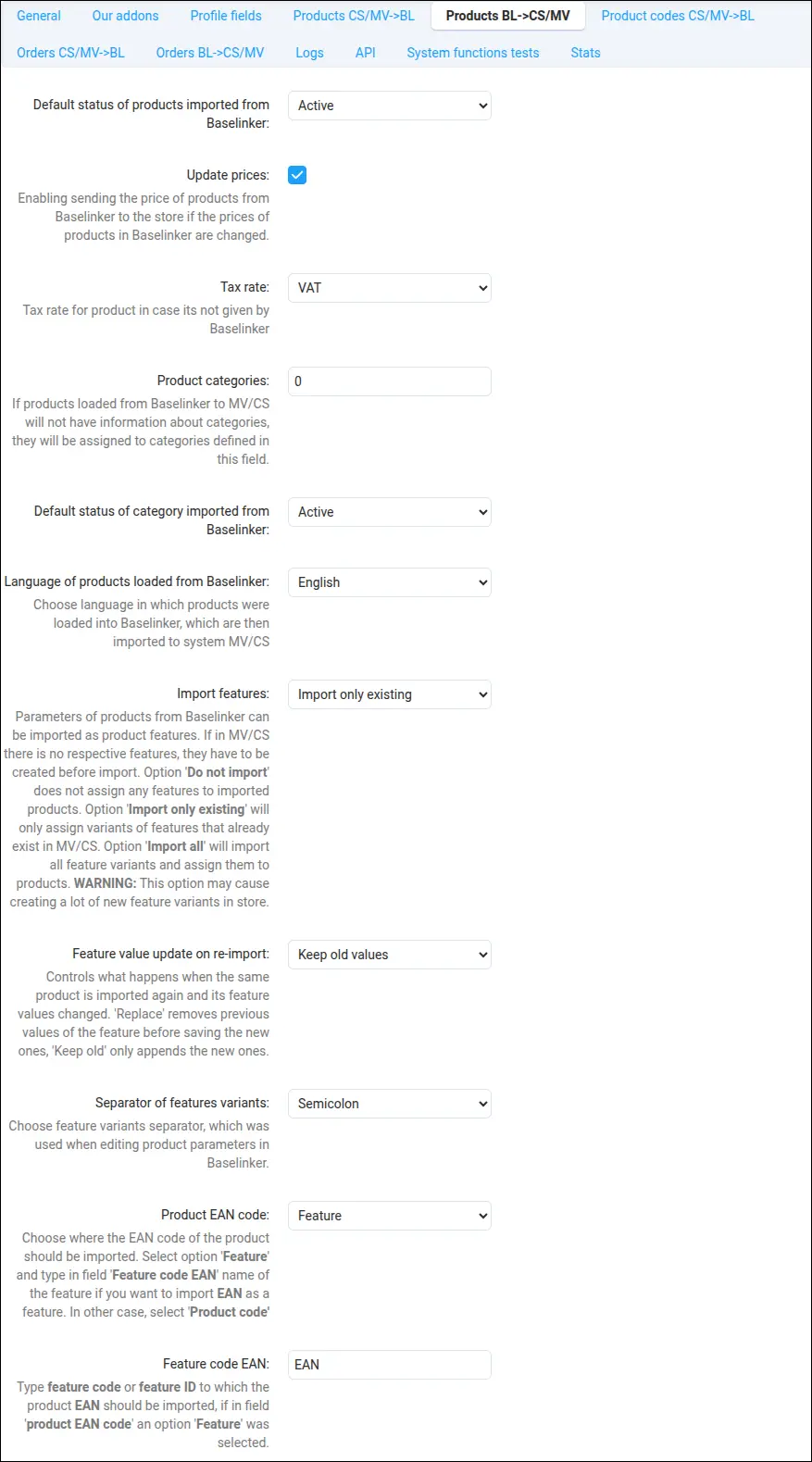
The catalogue can also flow the other way. Products created in BaseLinker arrive in the store with a set status, tax rate, category and EAN, and when importing features you decide whether to add only features that already exist in the store and whether a re-import keeps the current values:
Screenshot 7
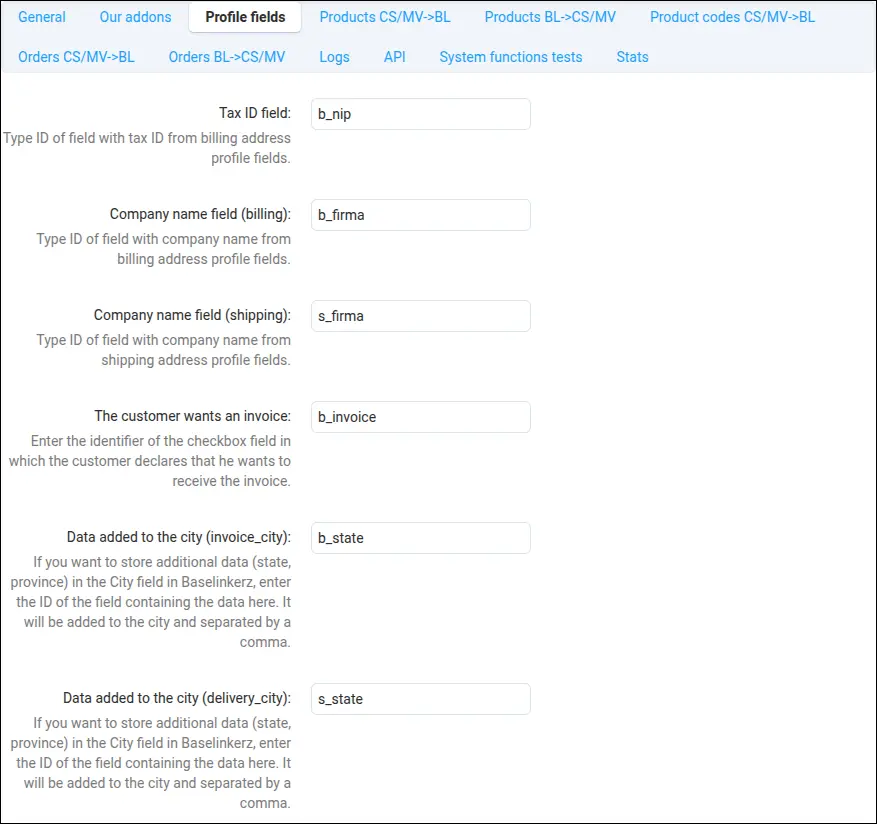
Invoice details need no manual completion. You point to the customer profile fields where the store keeps the tax ID, the company name and the invoice request, and the add-on carries them into the right fields of the BaseLinker order:
Screenshot 8
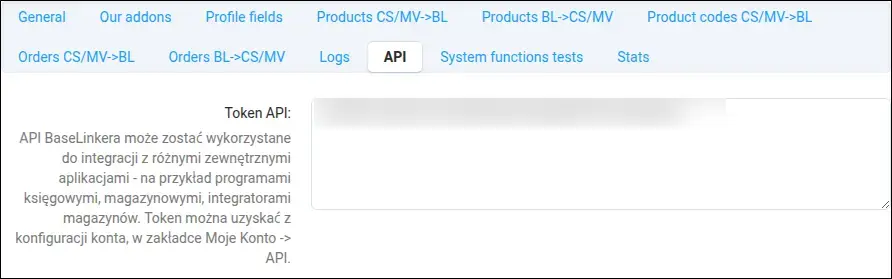
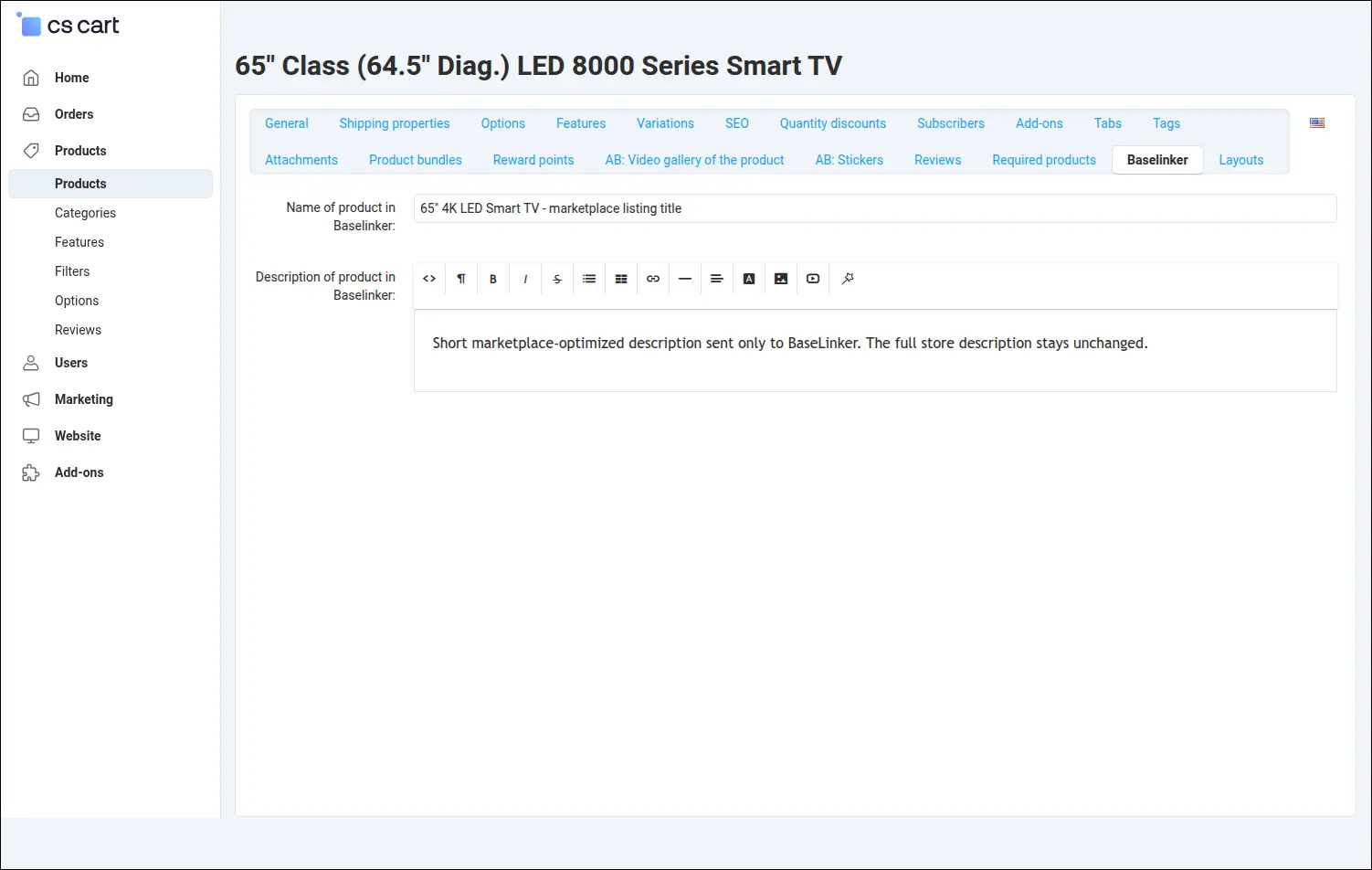
A marketplace listing often needs a different title than the product page in the store. In the product's Baselinker tab you enter a separate name and description that only BaseLinker receives, while the content your store customers see stays unchanged:
Screenshot 9
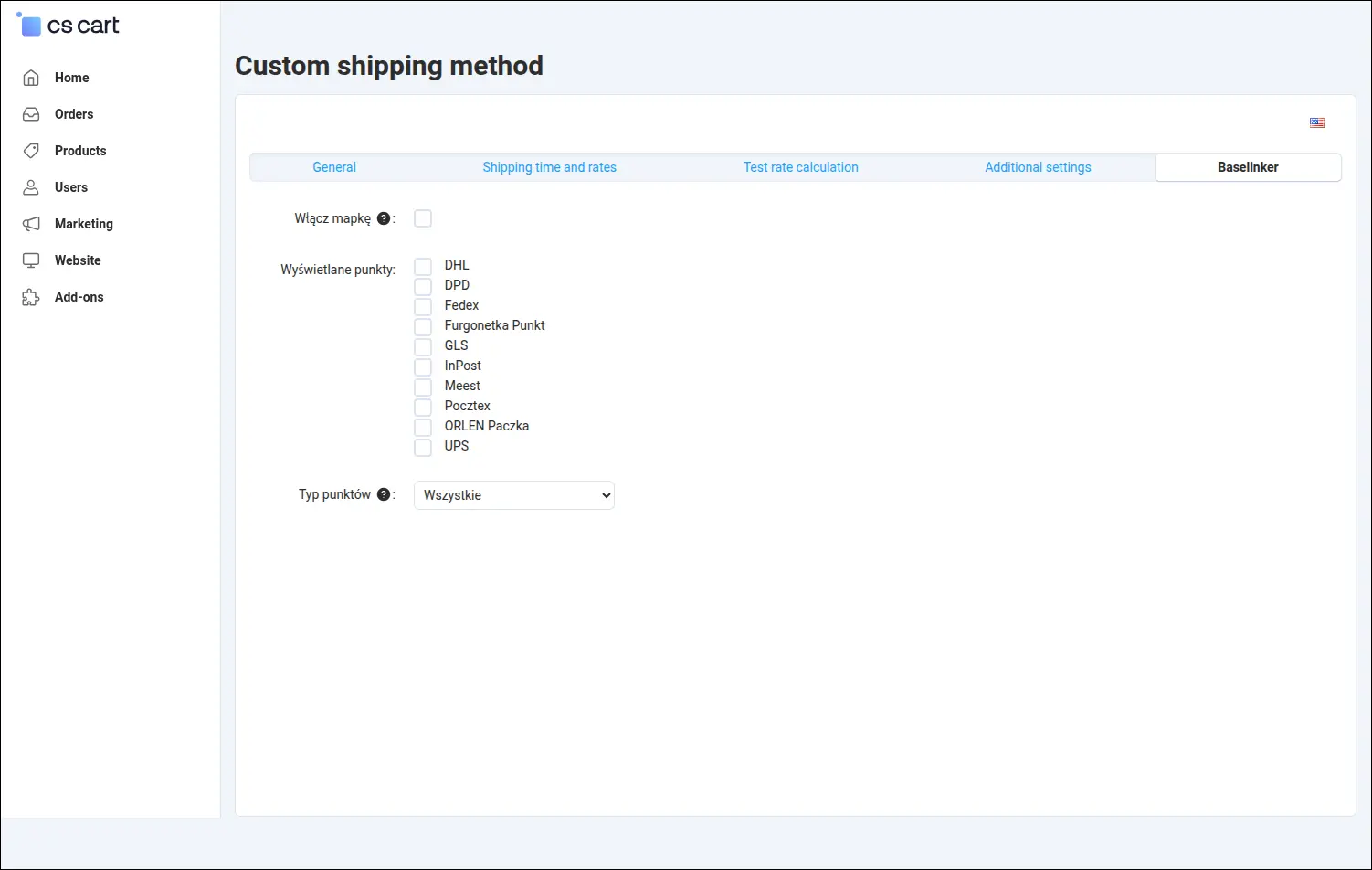
The pickup point map is enabled for a chosen shipping method. You tick the carriers whose points should appear, such as InPost, DPD, Pocztex or ORLEN Paczka, and the type of points. A separate field holds the Furgonetka map API key, without which the map shows no points:
Screenshot 10
This is what the buyer sees. With delivery to a pickup point, the Select point button opens the Furgonetka map at checkout, centred on the customer's address. The filters show only the carriers chosen in the shipping settings, and the list beside the map suggests the nearest points:
Screenshot 11
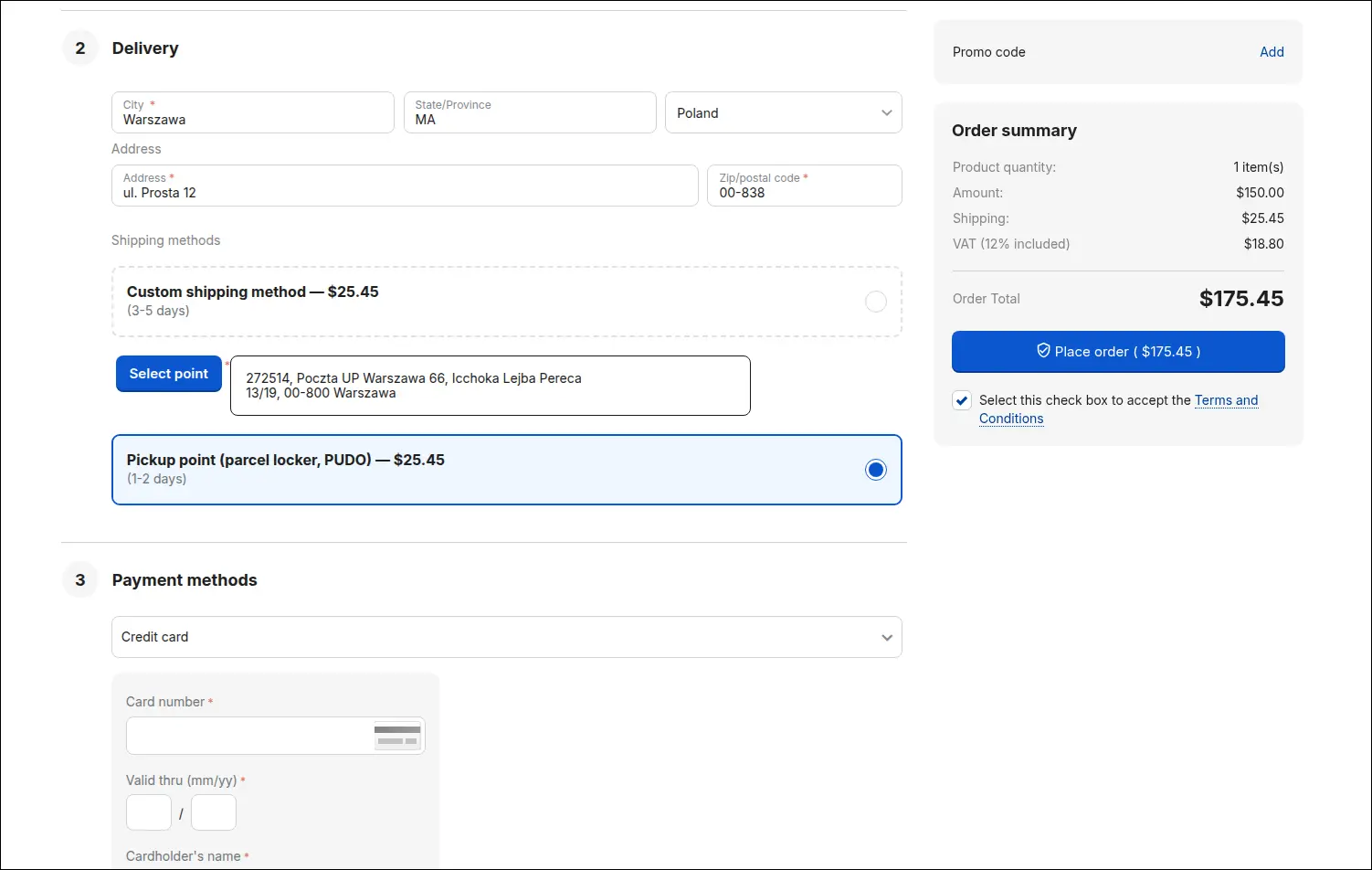
Once a point is clicked, the map closes and its number, name and address appear under the shipping method. Choosing a point is required, so no order reaches the store without a pickup location:
Screenshot 12
The order details show the number under which the order is known in BaseLinker and the point chosen by the customer: its name with address, point code, type and country. The same point reaches BaseLinker, so the label is issued for the right parcel locker from the start:
Screenshot 13
When a shipment is created in BaseLinker, its number comes back to the store. The add-on creates a shipment on the order with the tracking number and records the carrier service name and the parcel tracking link in its comment, so the store team does not have to look for this information in another system:
Screenshot 14
Stores with several warehouses decide where the stock for BaseLinker comes from. For each location you choose the storefronts for which the warehouse is included in synchronisation, and you mark the warehouse that receives the stock sent back by BaseLinker:
Screenshot 15
In Multi-Vendor every vendor can connect their own BaseLinker account. In the vendor profile the operator grants consent for data exchange, and the vendor receives their own communication password and their own data exchange address, under which BaseLinker sees only that vendor's products and orders:
Screenshot 16
BaseLinker access can also become part of what you offer vendors. Tick it in a chosen plan and every vendor on that plan receives it, with no need to grant consent in each profile separately:
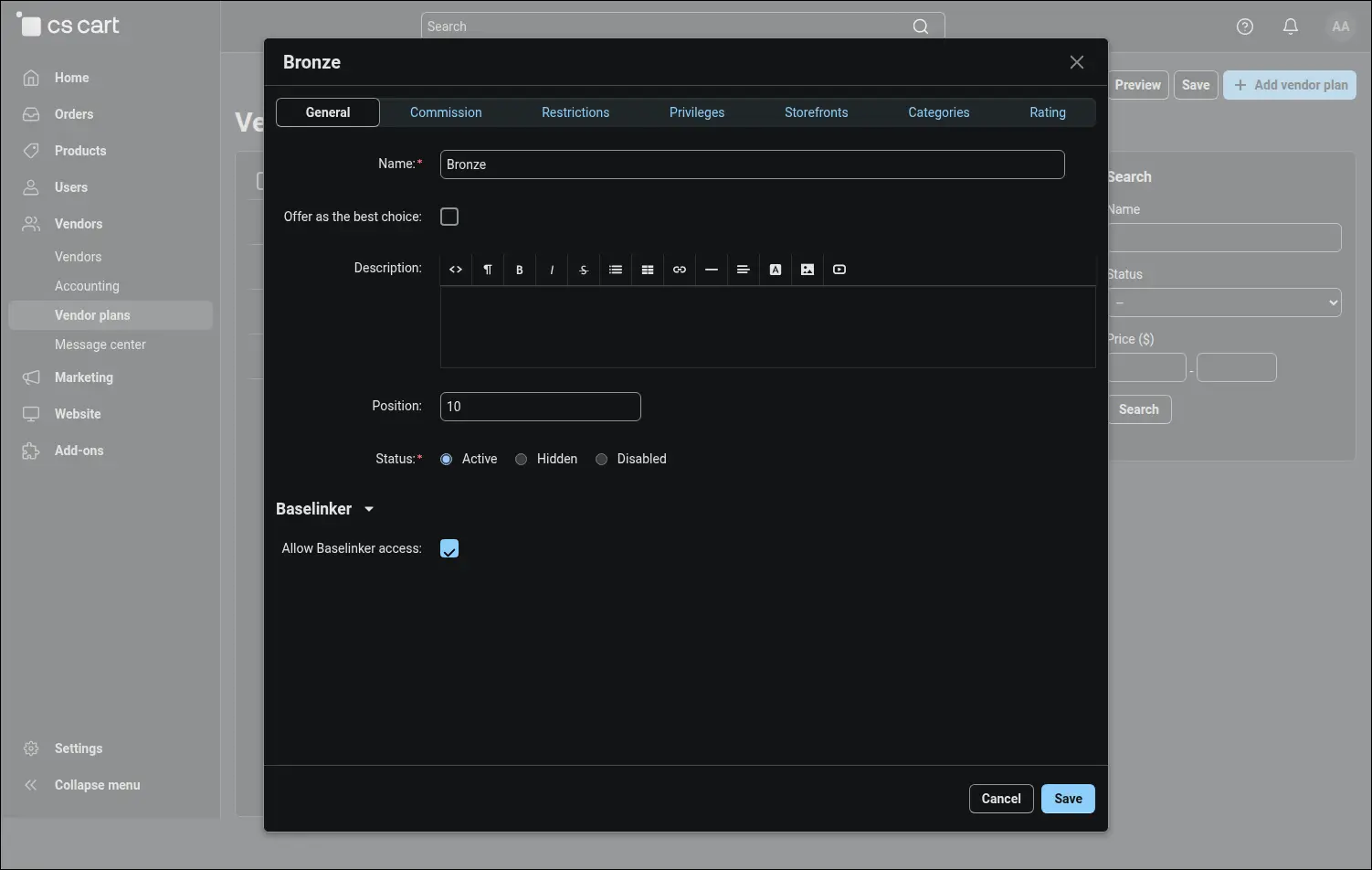
Screenshot 17
The operator keeps control over what vendors may change. On the restrictions list they lock chosen integration settings for all vendors or for a single one, for example the currency of exported products or the payment method assigned to BaseLinker orders:
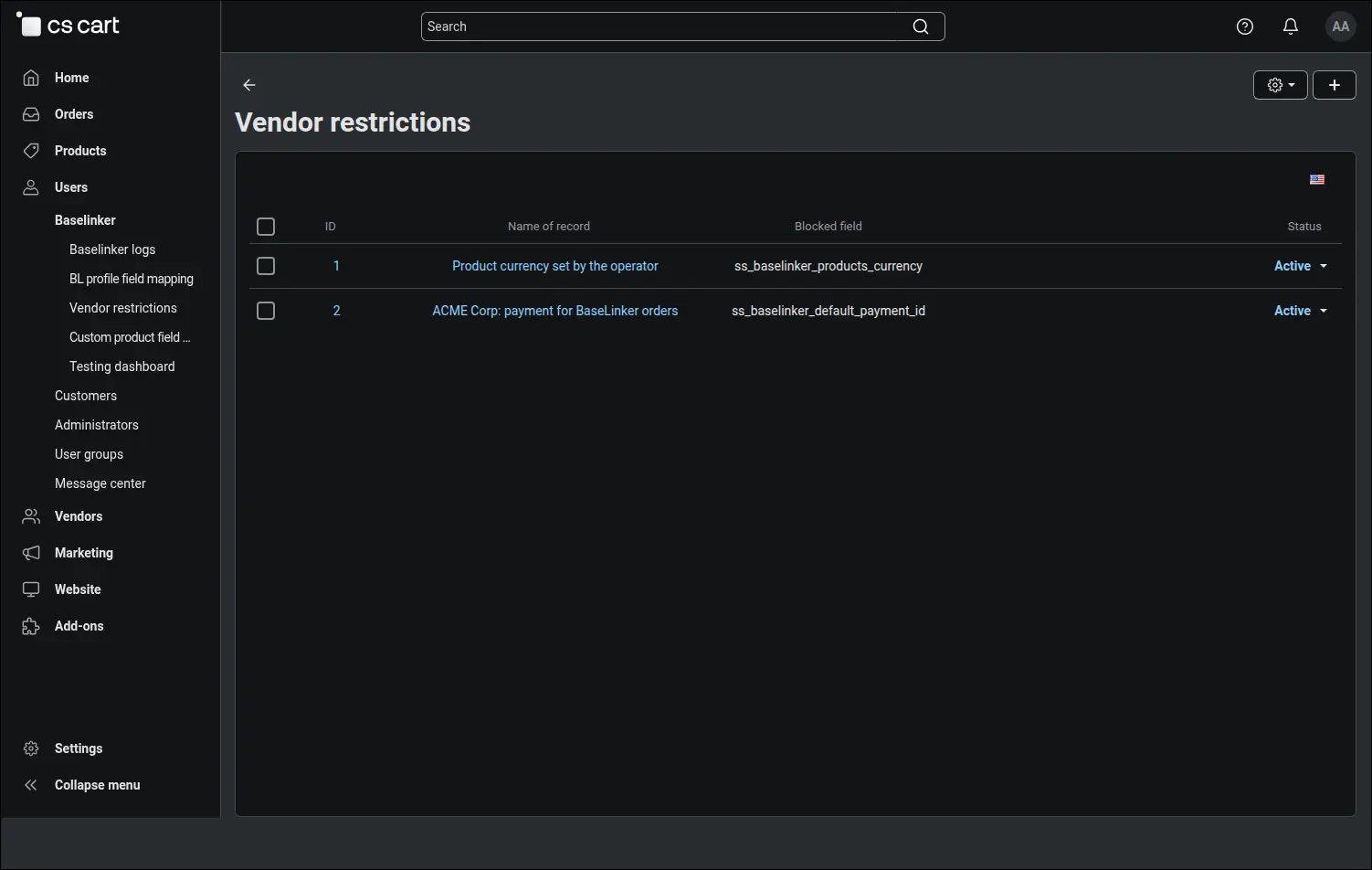
Screenshot 18
This is the vendor's point of view. In their own panel the vendor copies their data exchange address and configures the integration, but no longer sees the fields locked by the operator, nor the access consent itself:
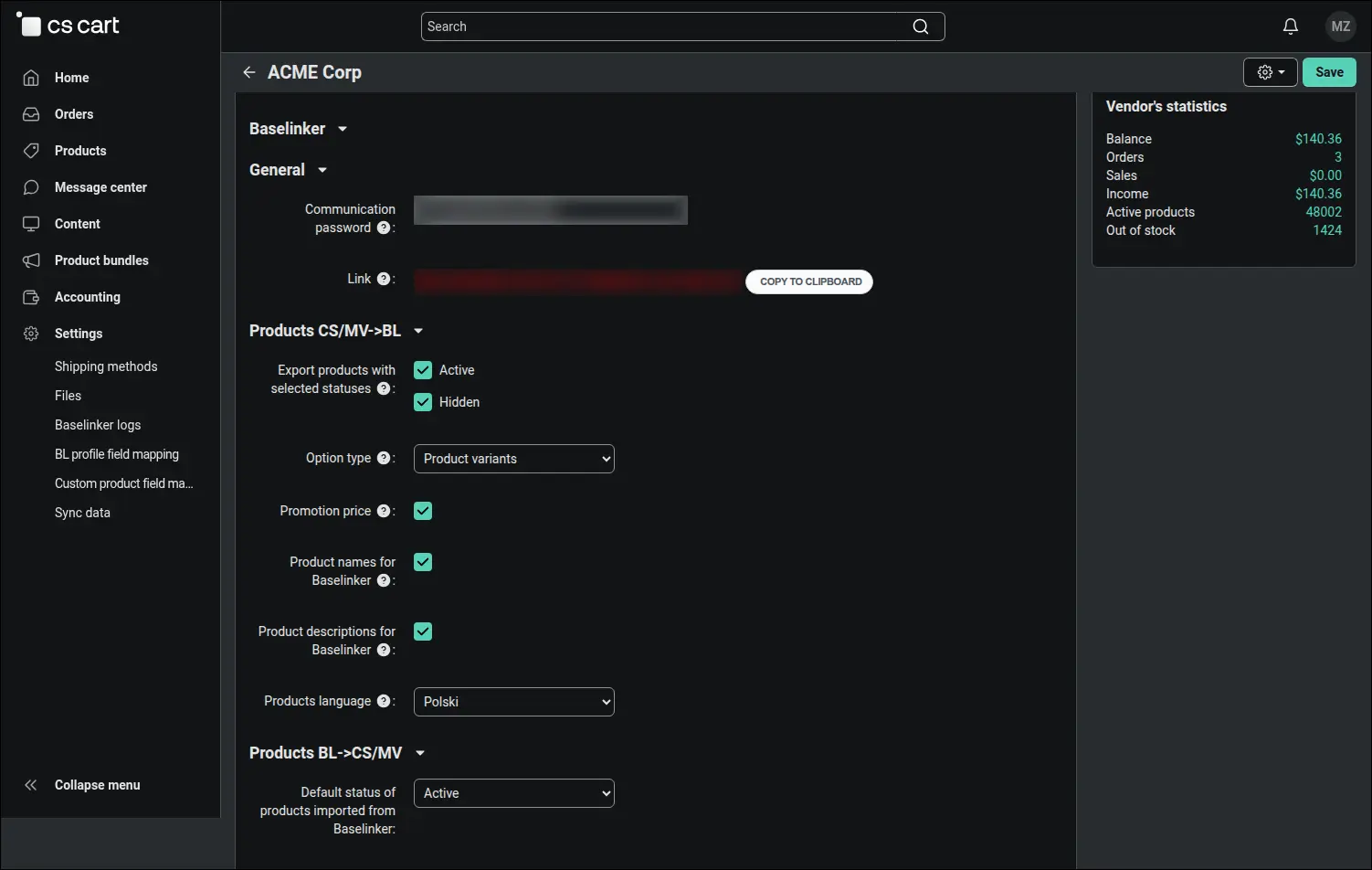
Screenshot 19
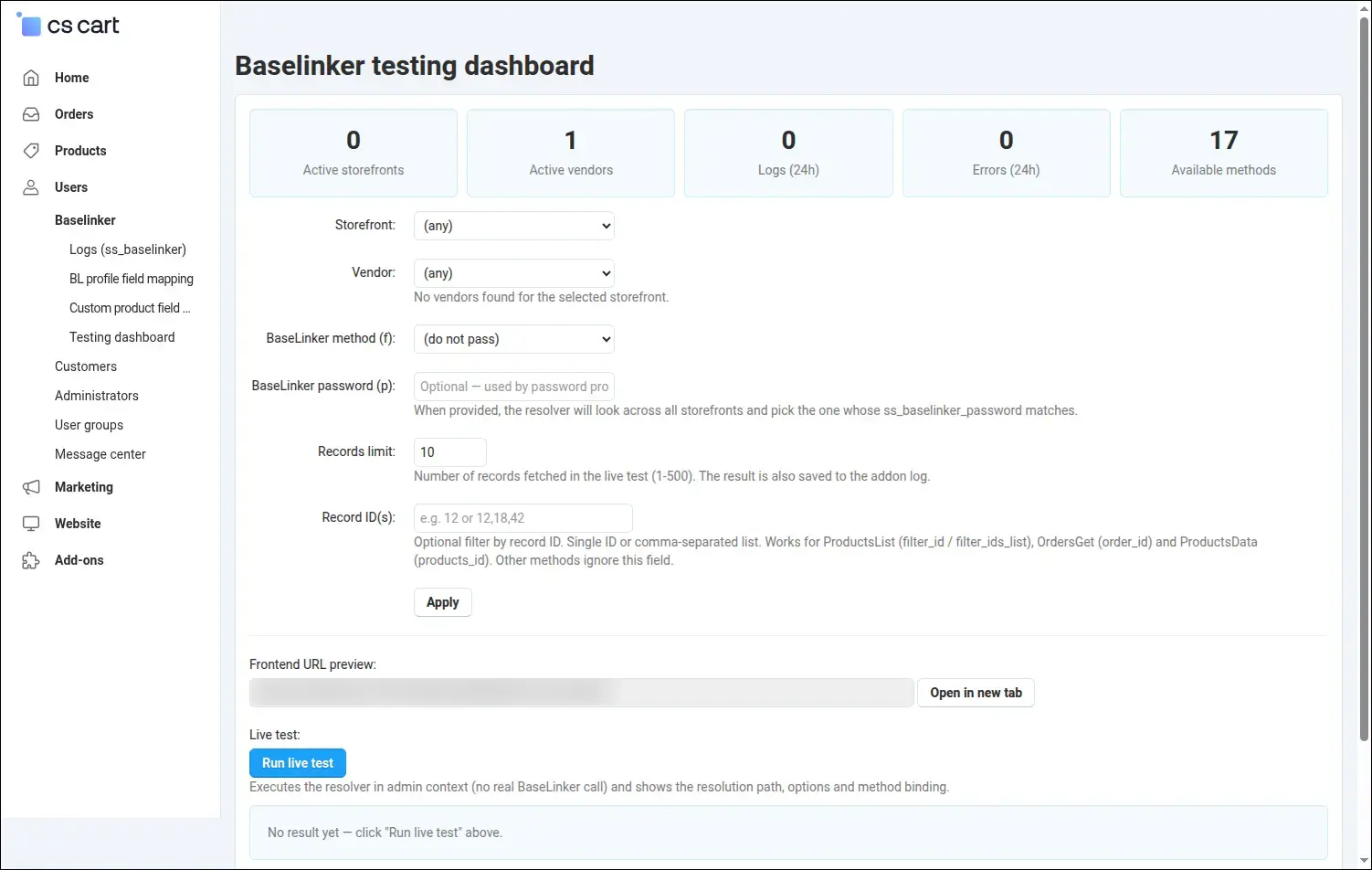
Data beyond the standard fields can reach BaseLinker too. You choose a BaseLinker order field, for example the comments, and compose its content from order field tags, such as the delivery phone number. The table below the form lists the available tags:
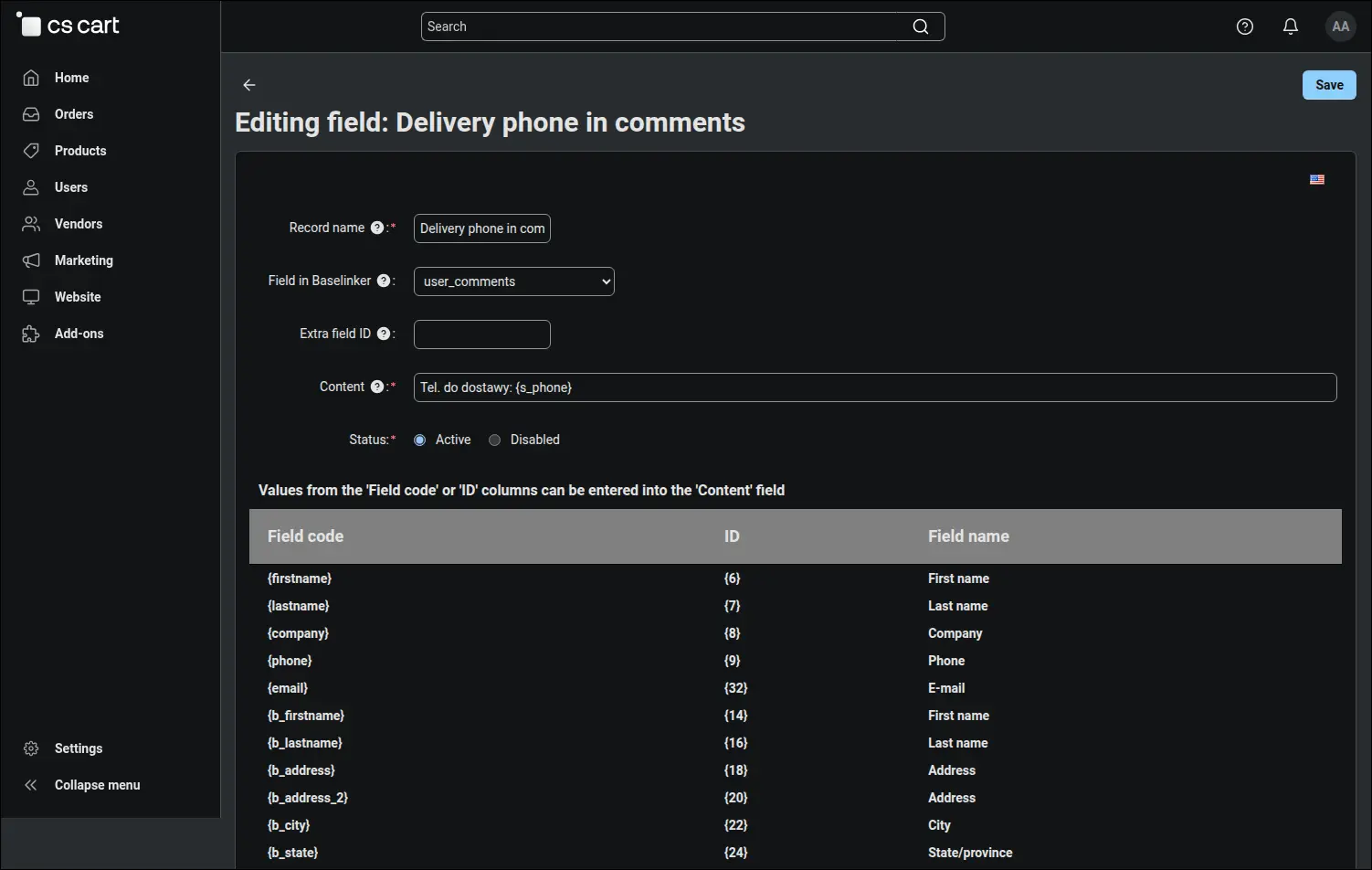
Screenshot 20
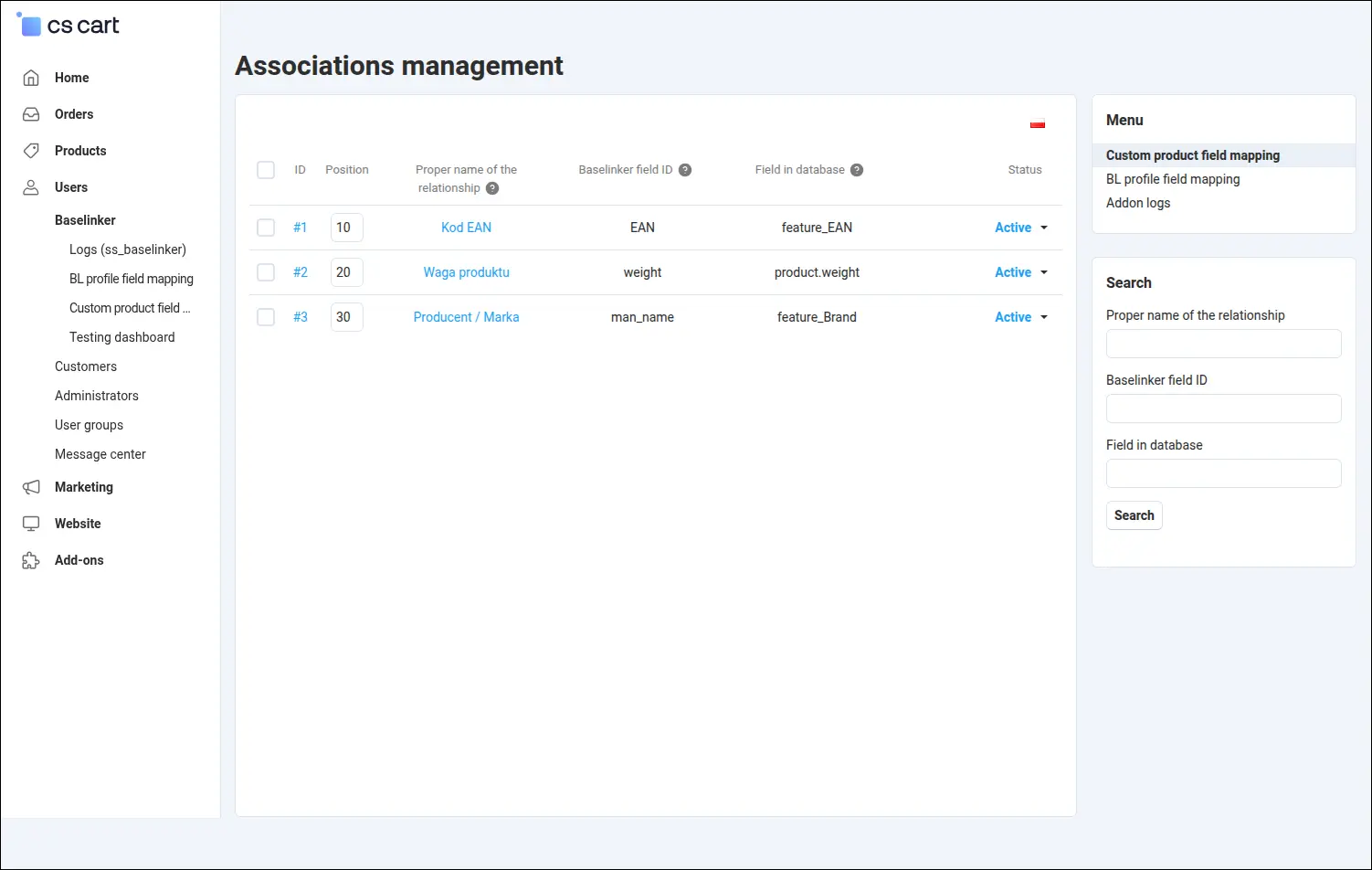
Custom product data travels the same way. You point to a column in the store database, for example the return period, and to the extra product field in BaseLinker where it should go:
Screenshot 21
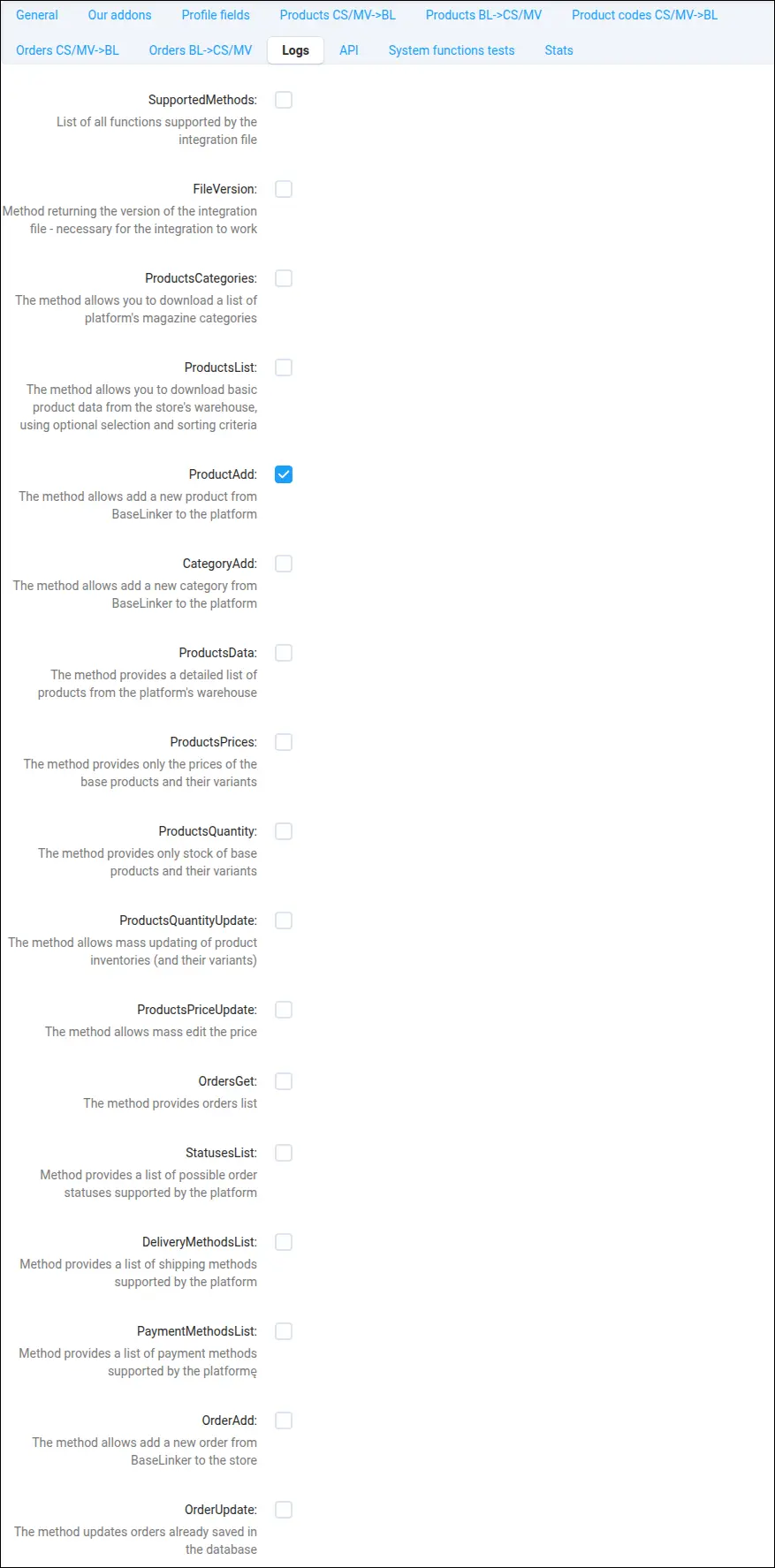
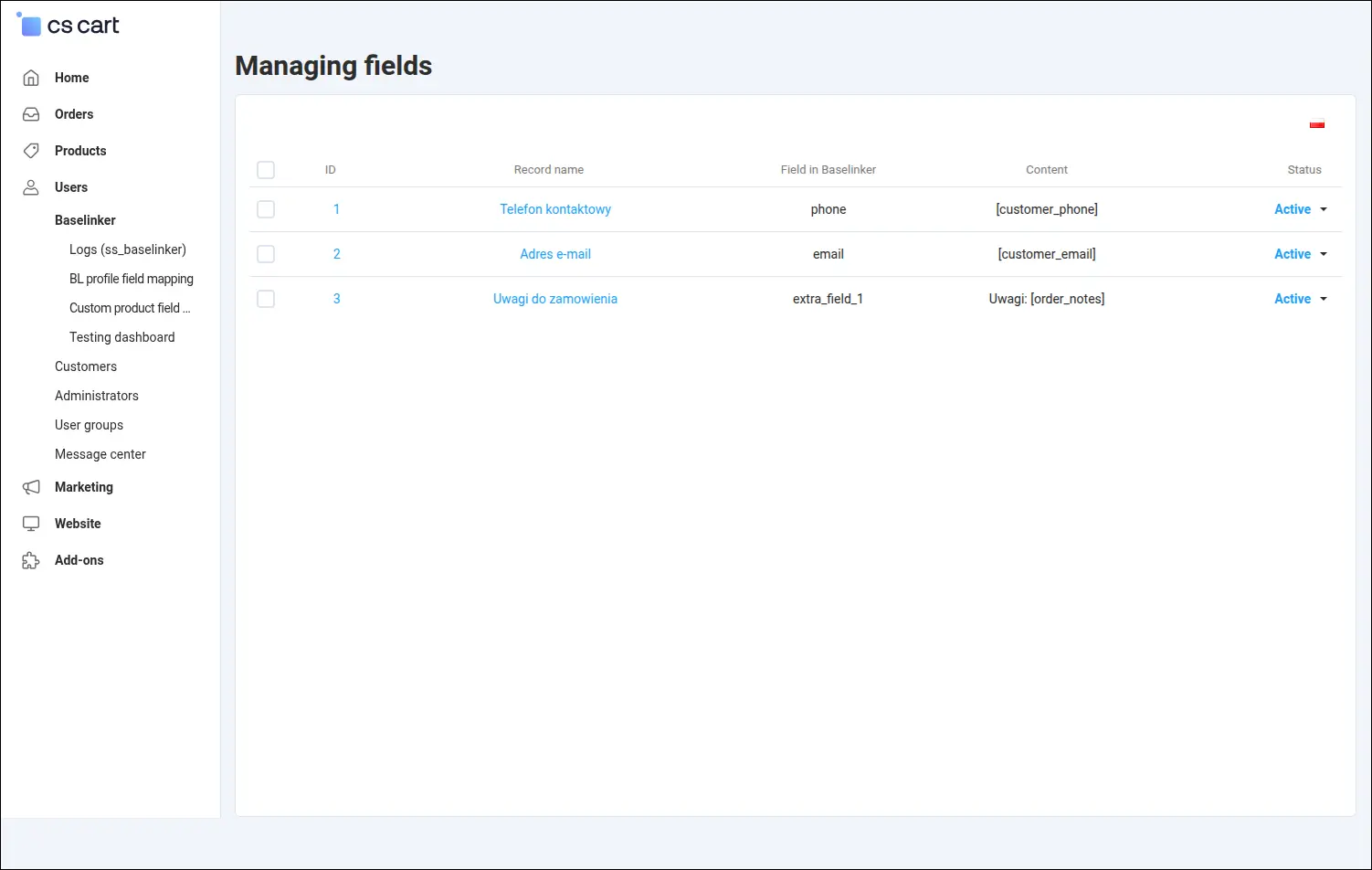
The testing dashboard shows what the store will answer BaseLinker before the first synchronisation starts. You choose a storefront, a vendor and a method, and the test result explains how the add-on recognised the context of the request. The test runs on the store side, without any call to BaseLinker:
Screenshot 22
In Store Builder the integration settings are saved separately for each storefront, and the data exchange address carries the storefront identifier. Each storefront can therefore connect to its own BaseLinker account and serve its own catalogue:
Screenshot 23
Configuration on the BaseLinker side
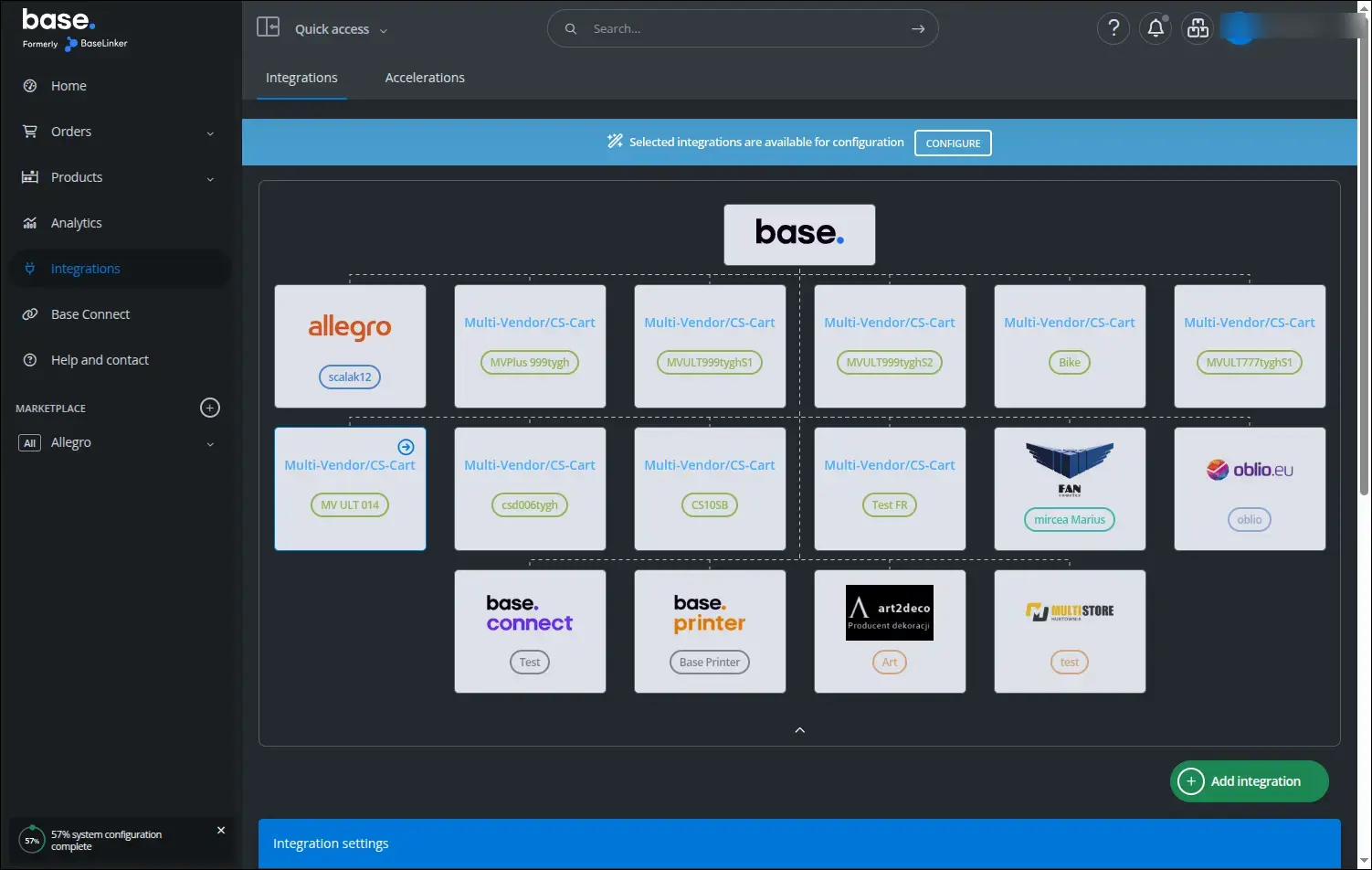
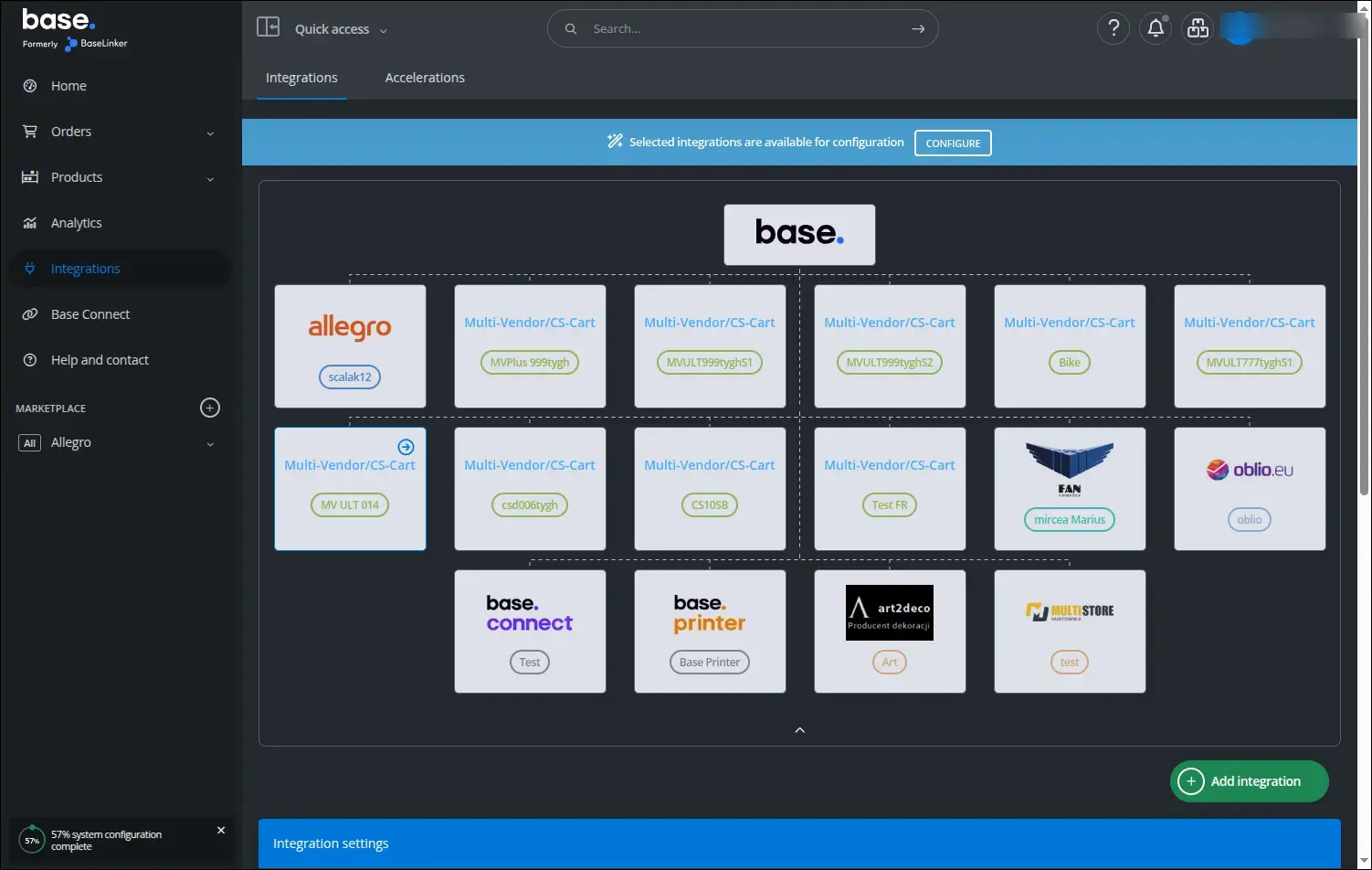
The other half of the connection is set up in the BaseLinker panel. A store connected through the add-on appears on the integrations list as a Multi-Vendor/CS-Cart shop, and this is where you open its settings:
Screenshot 24
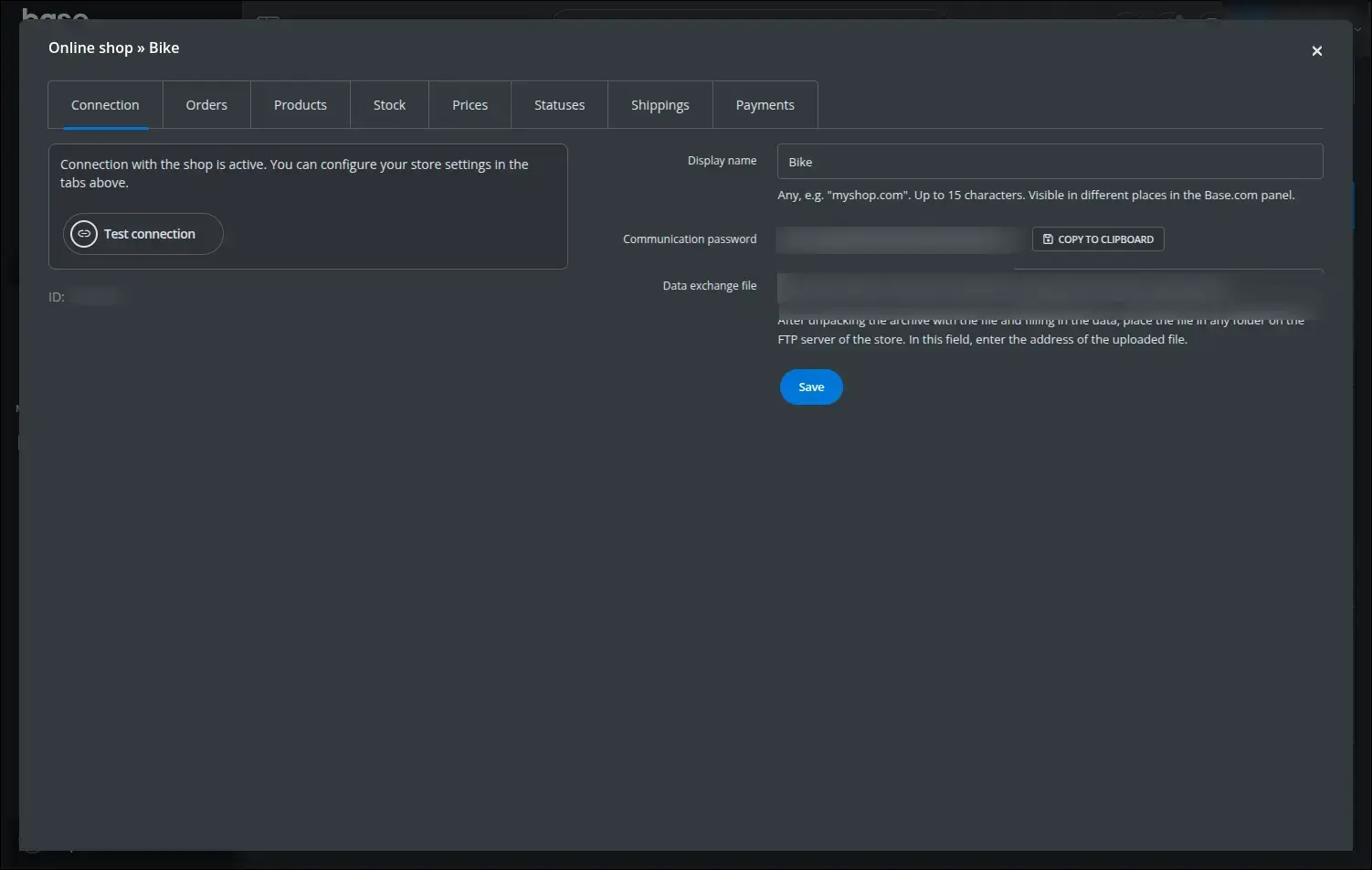
In the Connection tab you paste the communication password and the data exchange file address copied from the store. The connection test button confirms at once that BaseLinker reaches the store:
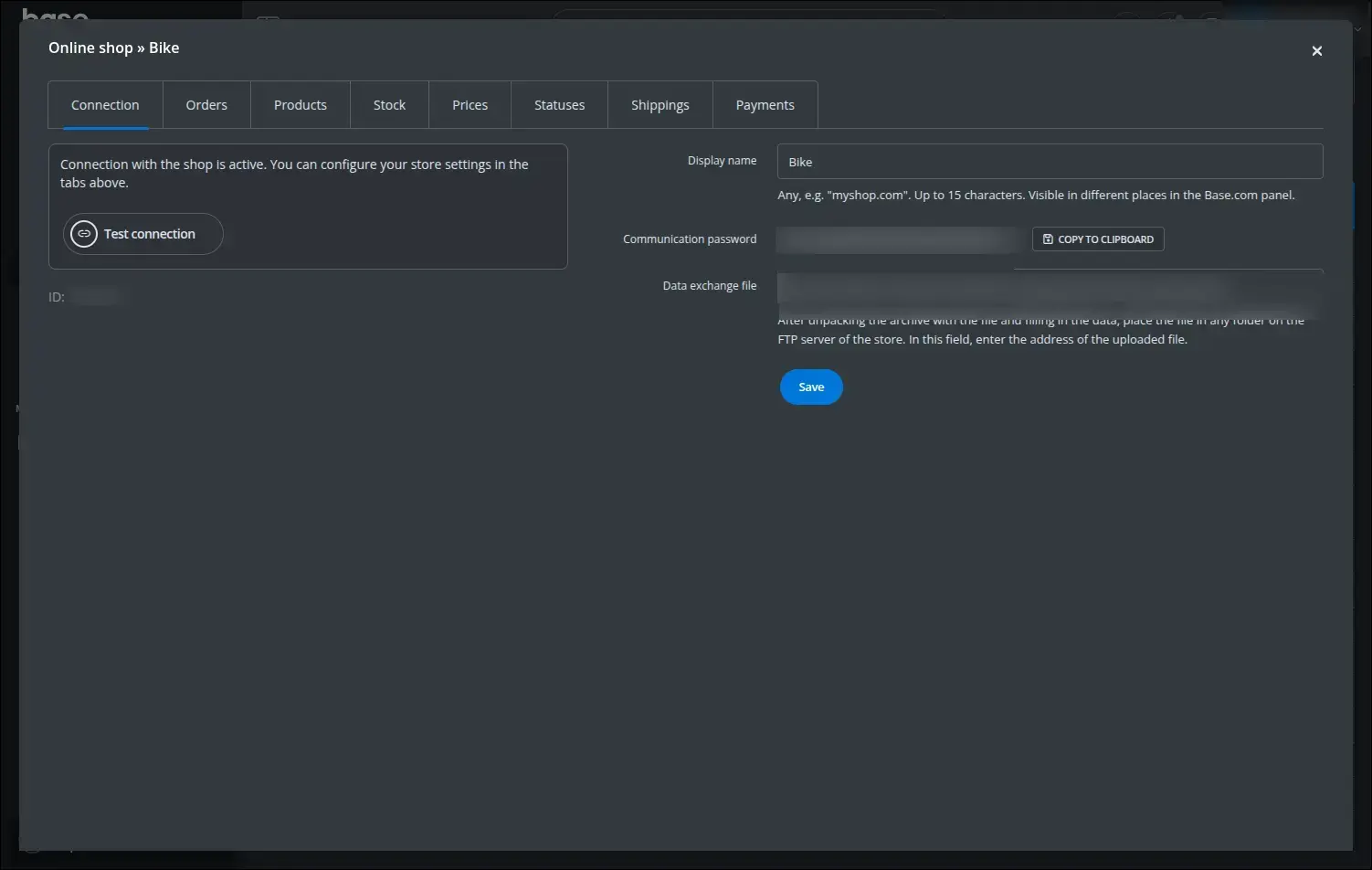
Screenshot 25
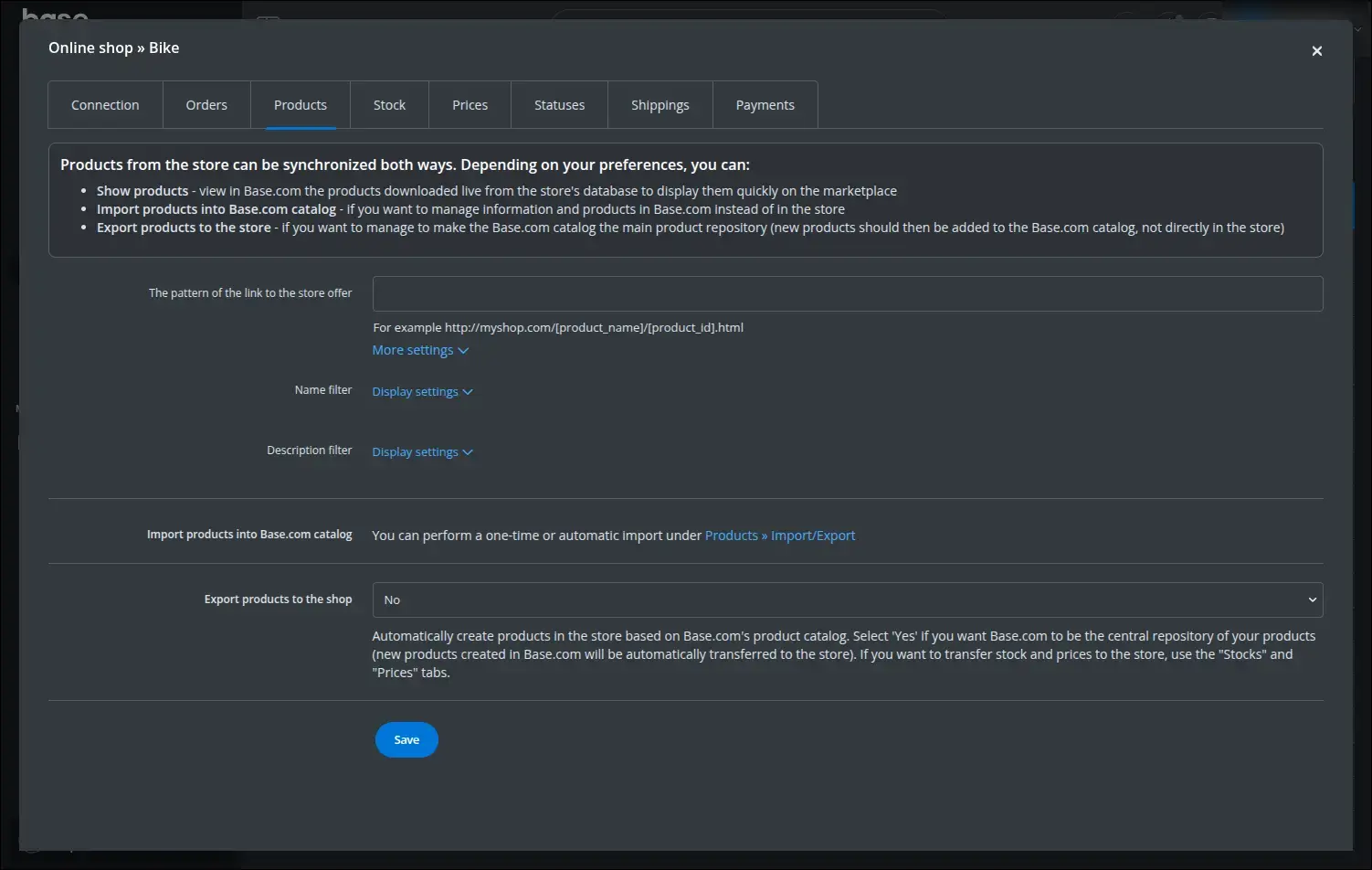
The Products tab defines how BaseLinker uses the store's offer. You set the product link pattern, the name and description filters, and the import into the Base.com catalogue:
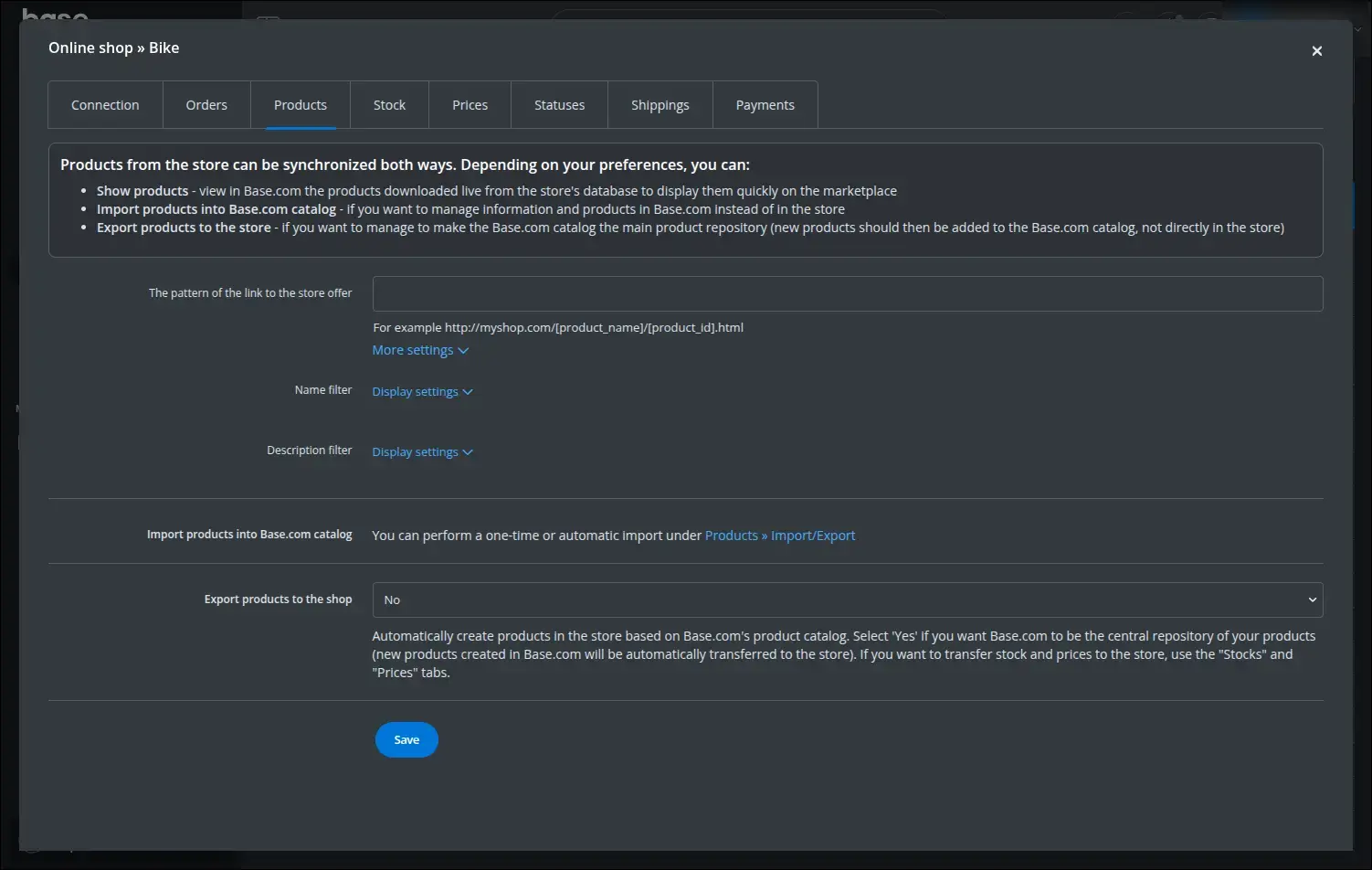
Screenshot 26
In the Stock tab you choose which system is the master, the target warehouse and the synchronisation frequency. When Base.com is the master, stock goes to the store warehouse marked earlier as the one receiving stock from BaseLinker:
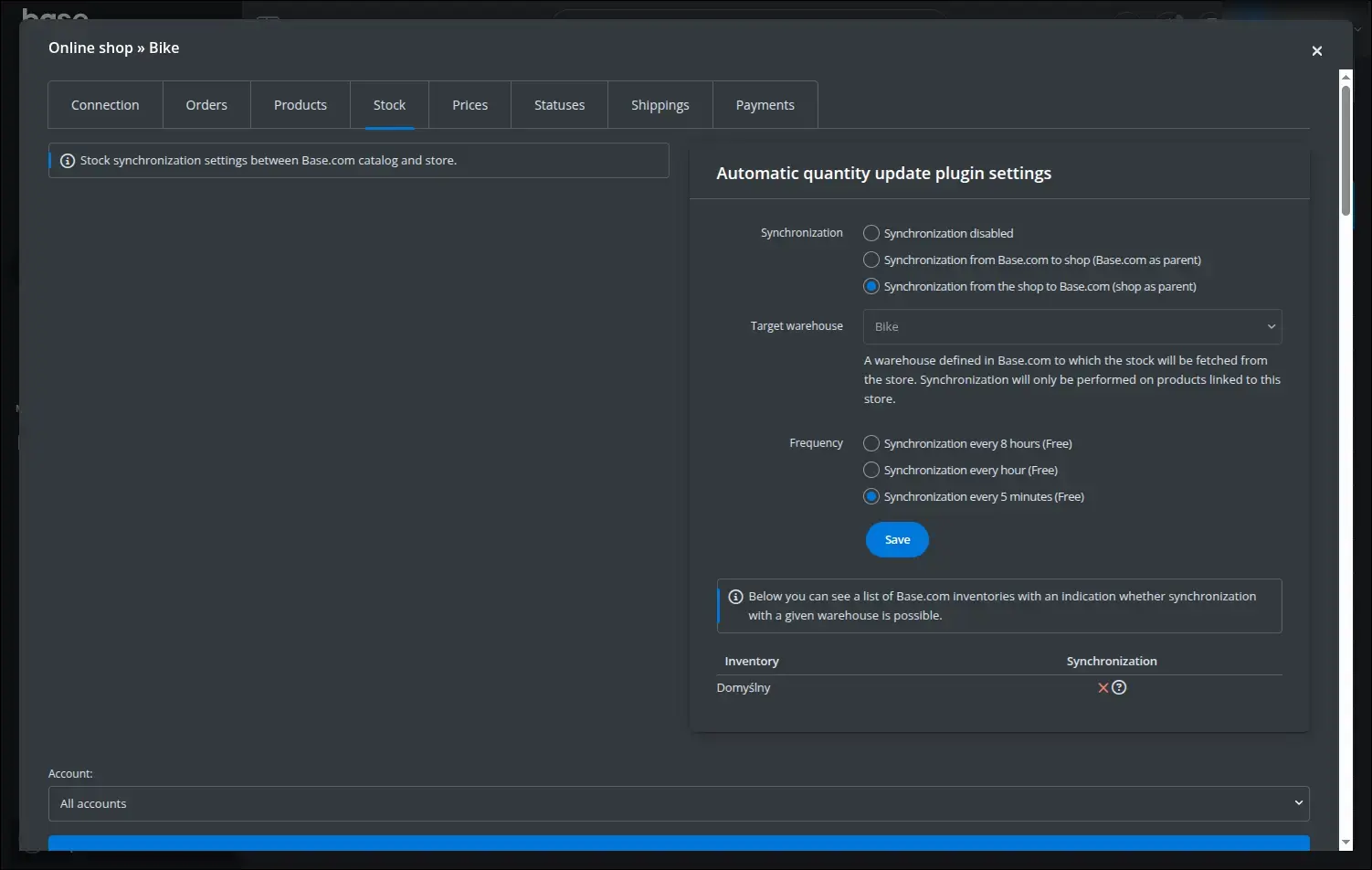
Screenshot 27
Prices follow the same principles: synchronisation direction, price group, rounding and update frequency:
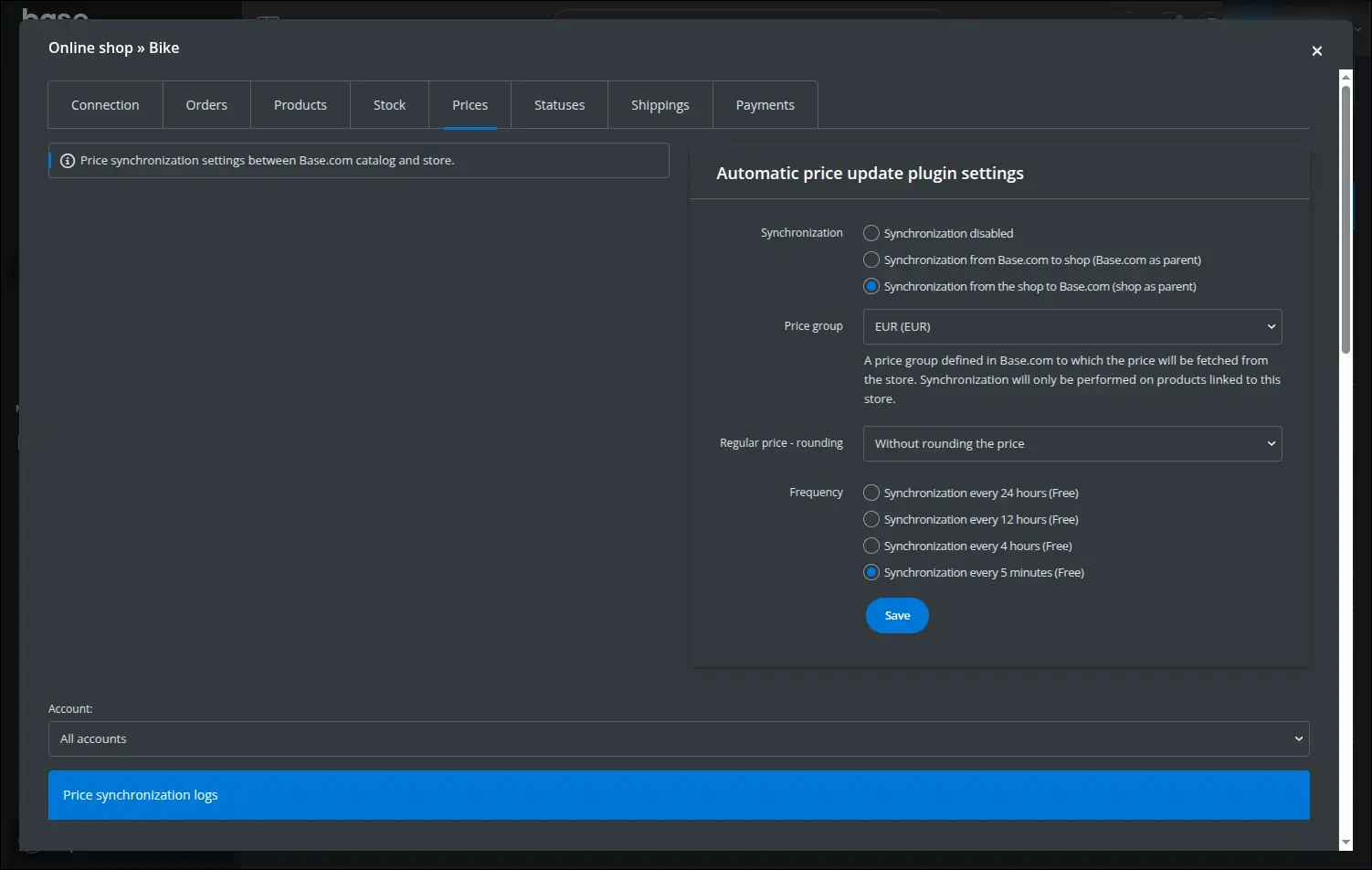
Screenshot 28
The Orders tab controls the exchange of orders in both directions. You decide how often BaseLinker downloads orders from the store, which status they receive and whether marketplace orders should be added to the store:
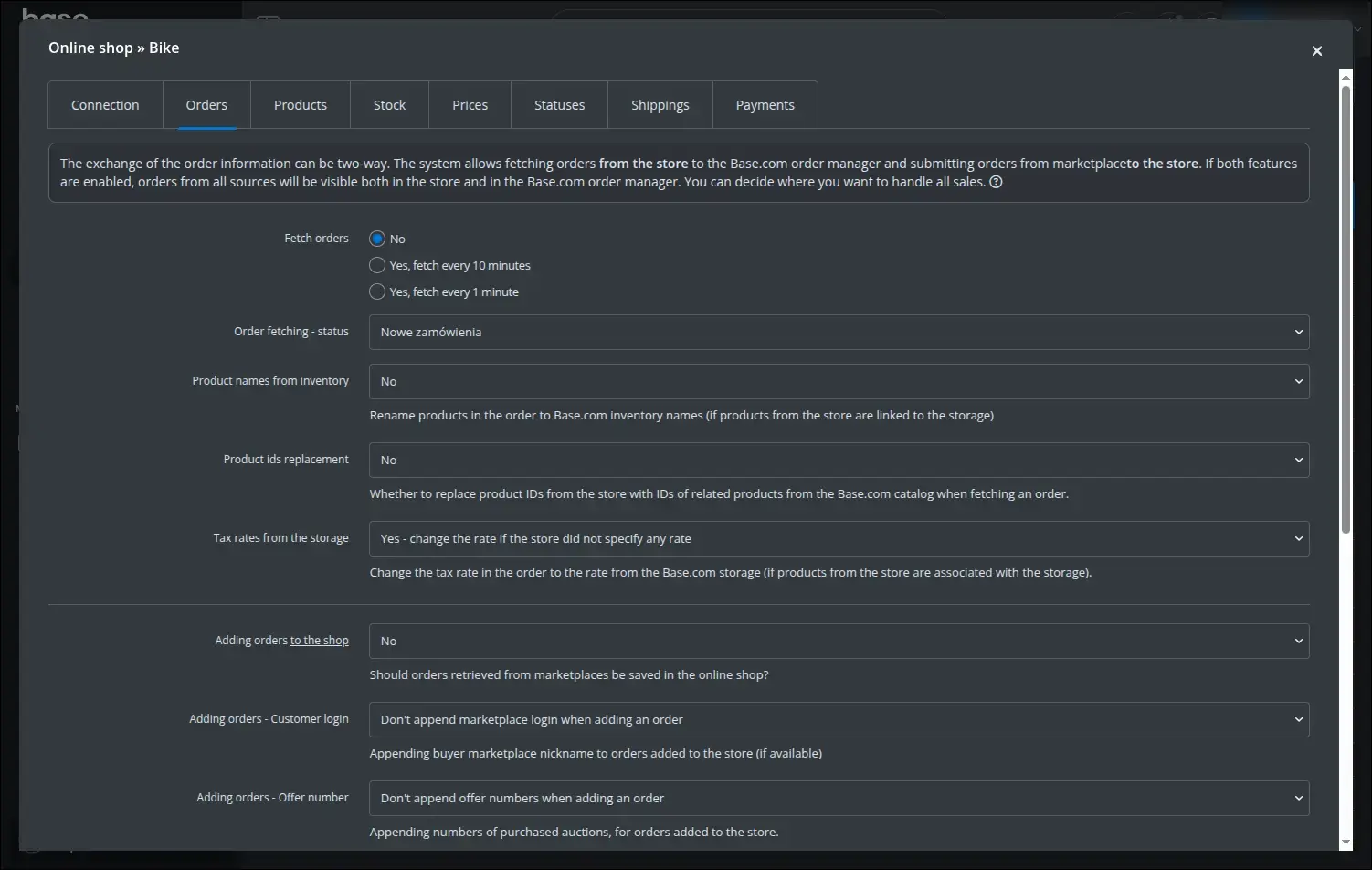
Screenshot 29
The BaseLinker Integration add-on brings order to multichannel selling: stock, prices and orders stay consistent between the store and BaseLinker, and orders from every channel are handled in one tool. In Store Builder each storefront has its own configuration, and in Multi-Vendor each vendor runs their own integration while the operator decides on access and on the range of available settings.
Feel free to contact us and purchase the add-on!
Choose the most convenient form of payment for the add-on. You can pay once and use the add-on. Choosing a subscription payment (monthly or annual) means that you pay for the add-on at regular intervals and have access to the latest versions of the addon and technical support.