


Integration with PayNow (mBank) - pay monthly (subscription)
- View all variations as list
| CODE | Payment method | Price | ||
|---|---|---|---|---|

|
436
ss_paynow
2026-09-30
1.1.1.9
|
750.00 PLN
(Price without tax) |
||

|
715
ss_paynow_sub_1Y
2026-09-30
1.1.1.9
|
375.00 PLN
/year
(Price without tax) |
||

|
714
ss_paynow_sub_1M
2026-09-30
1.1.1.9
|
37.50 PLN
/month
(Price without tax) |

- — 12 months guarantee for all our add-ons
- — add-ons sold to entire world
- — stable, flexible, high-quality products
- — competitive prices, attractive discounts
- — quick and competent technical support
- — installation in 24 hours
- — personalized solutions - we'll write any add-on for you
An add-on for Store Builder and Multi-Vendor that connects your store to the mBank Paynow payment gateway, where customers pay by instant bank transfer, card or BLIK. A payment confirmed by Paynow moves the order to the paid status on its own, and the store team refunds the whole amount or part of it straight from the order page, without signing in to the operator's panel. The mBank Paynow integration takes over the everyday work with money that returns with every single order in an online store.
See how it works
Key Features
- Paynow at checkout, with the full list of channels or with one selected channel, such as card, BLIK or a specific bank.
- BLIK entered at checkout, with a waiting page for approval in the banking app and a second attempt after a rejection.
- The paid status set automatically after a signed notification from Paynow.
- Full or partial refunds from the order page, also triggered by a status change and calculated without shipping costs.
- Refunds of vendor orders in Multi-Vendor, limited to the total of the given vendor's order.
- Order search by transaction ID, buyer details sent to Paynow, payments in the mobile app and conversion of the amount to PLN.
The whole payment configuration fits into a single payment method window. This is where you enable the sandbox test mode, set the beginning of the payment description and the default refund reason, choose the channel and tick BLIK on the store page. Below, the add-on displays a ready Notification address and Return address, and on the Paynow side you only need to paste the notification address into the operator's panel:
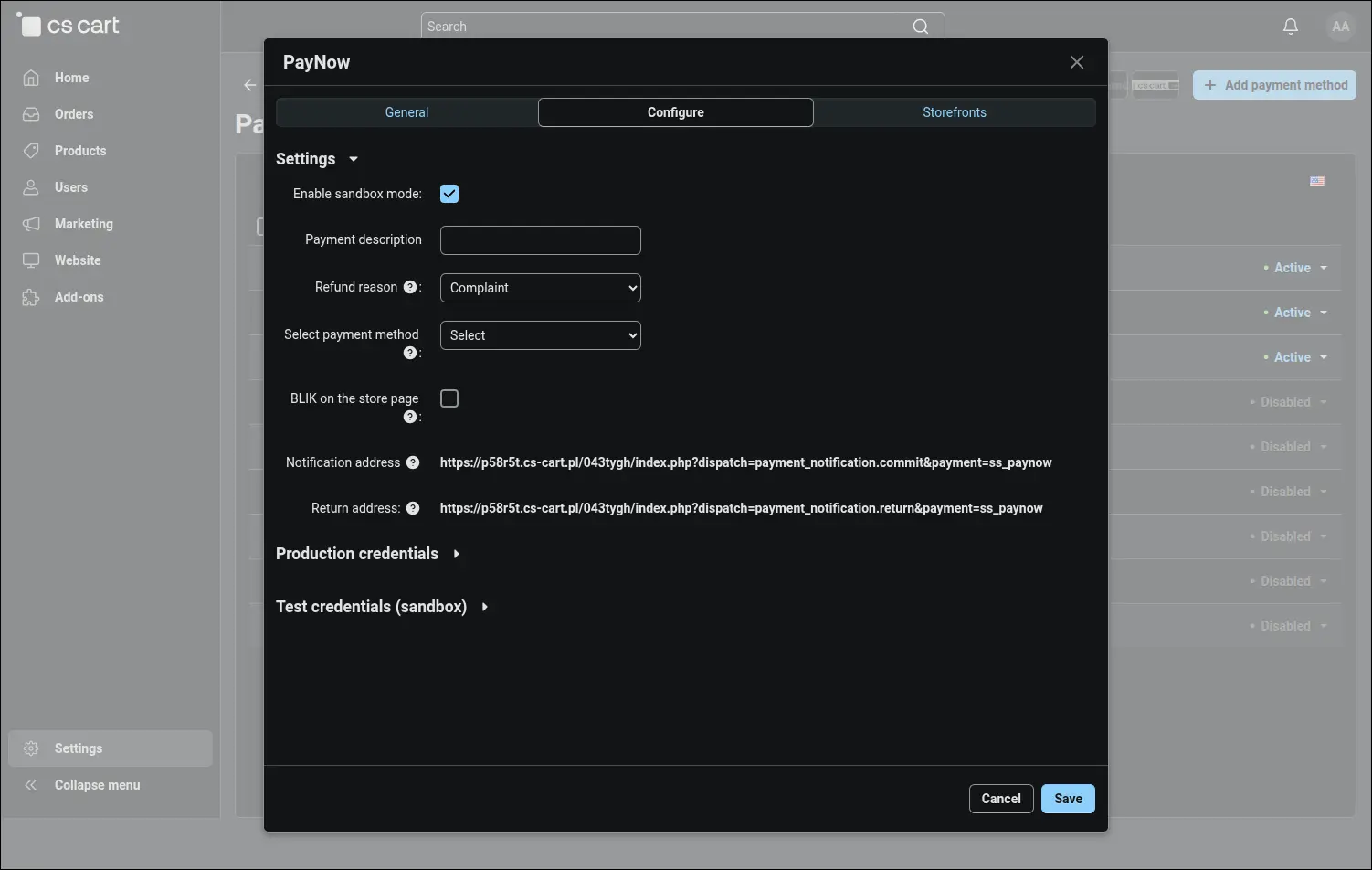
Screenshot 1
The API key and the signature key are entered separately for the live account and for the test environment. The store can rehearse the entire payment and refund process in the sandbox and then switch to real payments by changing a single field, without retyping any keys. Uninstalling the add-on disables the Paynow methods instead of deleting them, so a reinstallation during an update keeps their settings:
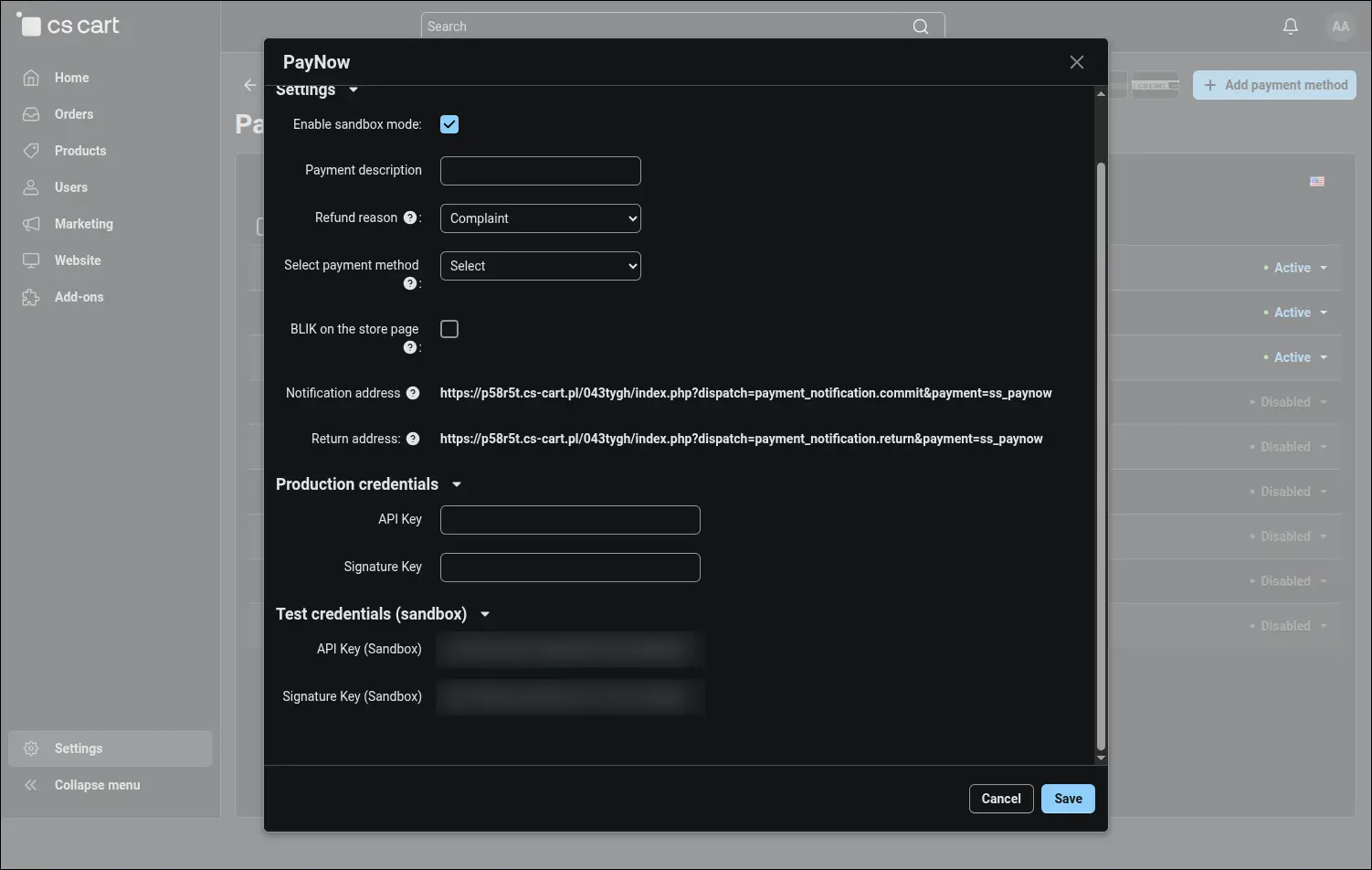
Screenshot 2
The Select payment method list shows the channels active on the store's account, loaded directly from Paynow. Choosing one of them sends the customer straight to card, BLIK or a specific bank, skipping the full list in the gateway. The store can create several Paynow methods, for example separate card and BLIK payments, and show them at checkout as distinct options, while a field left without a choice means the full list of channels:
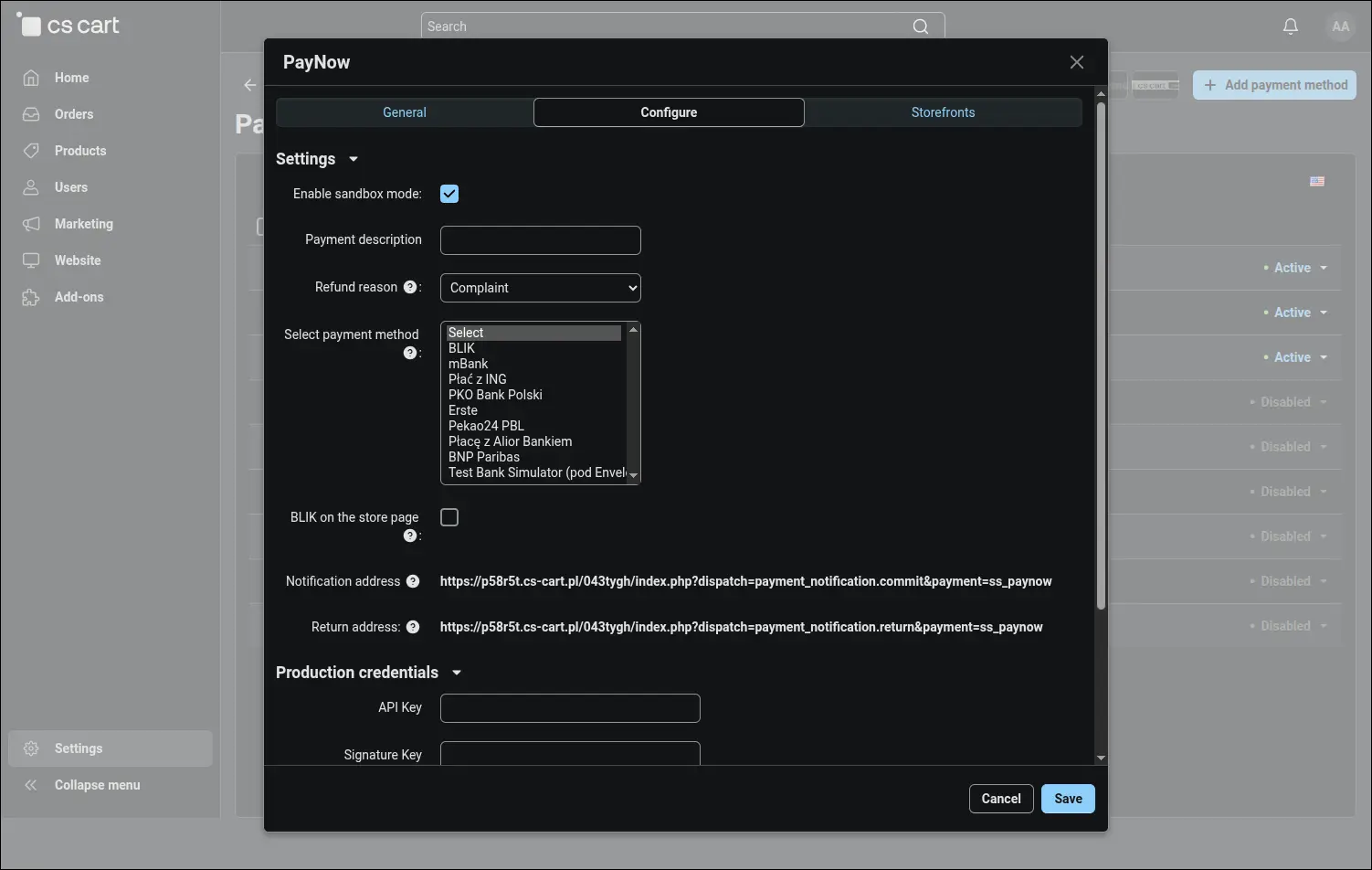
Screenshot 3
At checkout Paynow appears as an ordinary payment method, next to the other ways to pay. The customer selects it, places the order and arrives at the gateway with the amount sent by the store. A repeat payment from the order history follows the same path when the first attempt did not succeed:
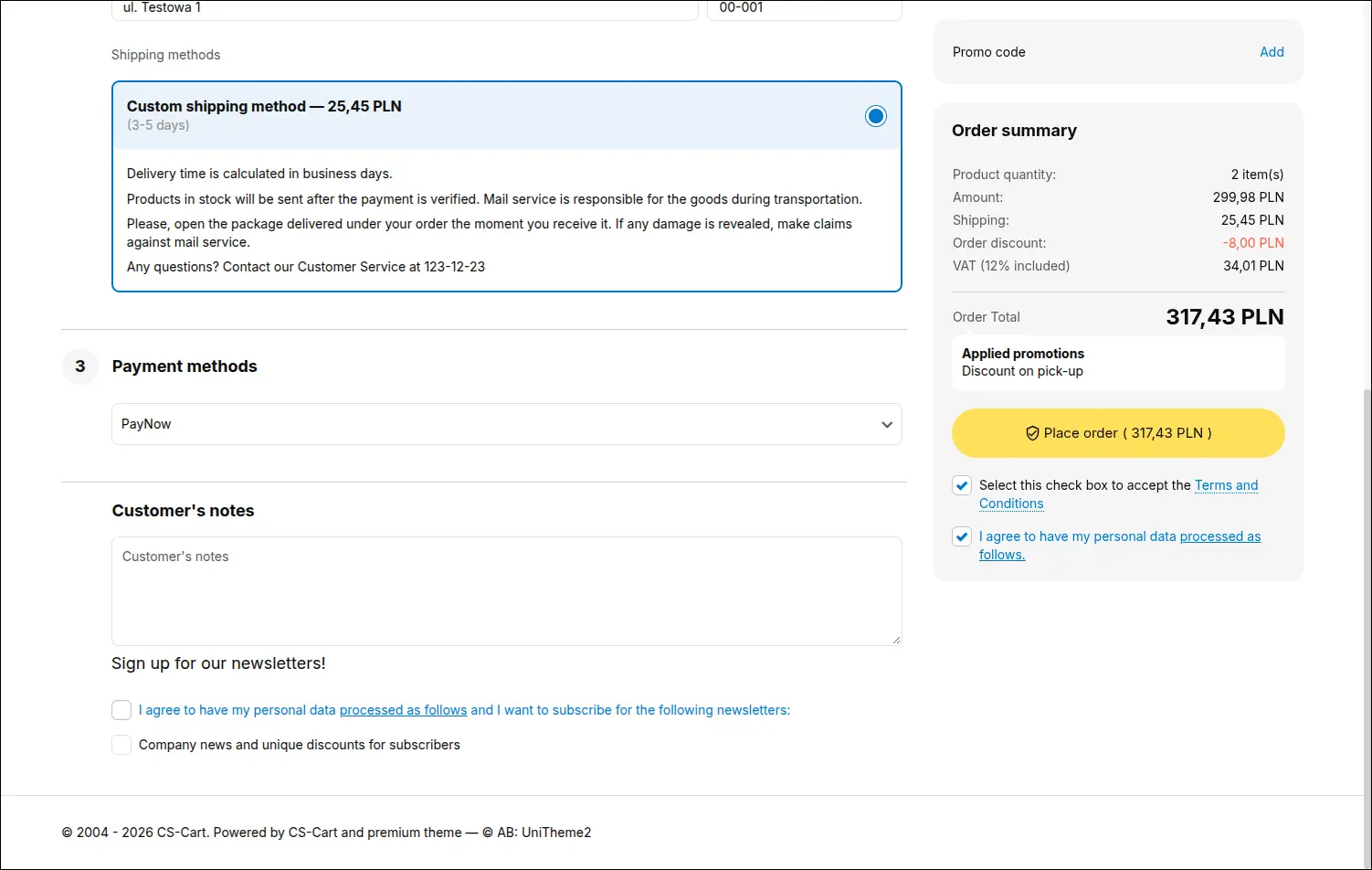
Screenshot 4
When the method leads to the BLIK channel and has the BLIK on the store page option ticked, the customer enters the six-digit code right at checkout and sees the Paynow information clause loaded from the API below the field. The BLIK on the store page service (BLIK white-label) is activated by Paynow at the store's request, contact: support@paynow.pl. Without this activation the customer pays with BLIK after being redirected to the Paynow page, so sales are never put on hold. The code itself is stored neither in the database nor in the logs:
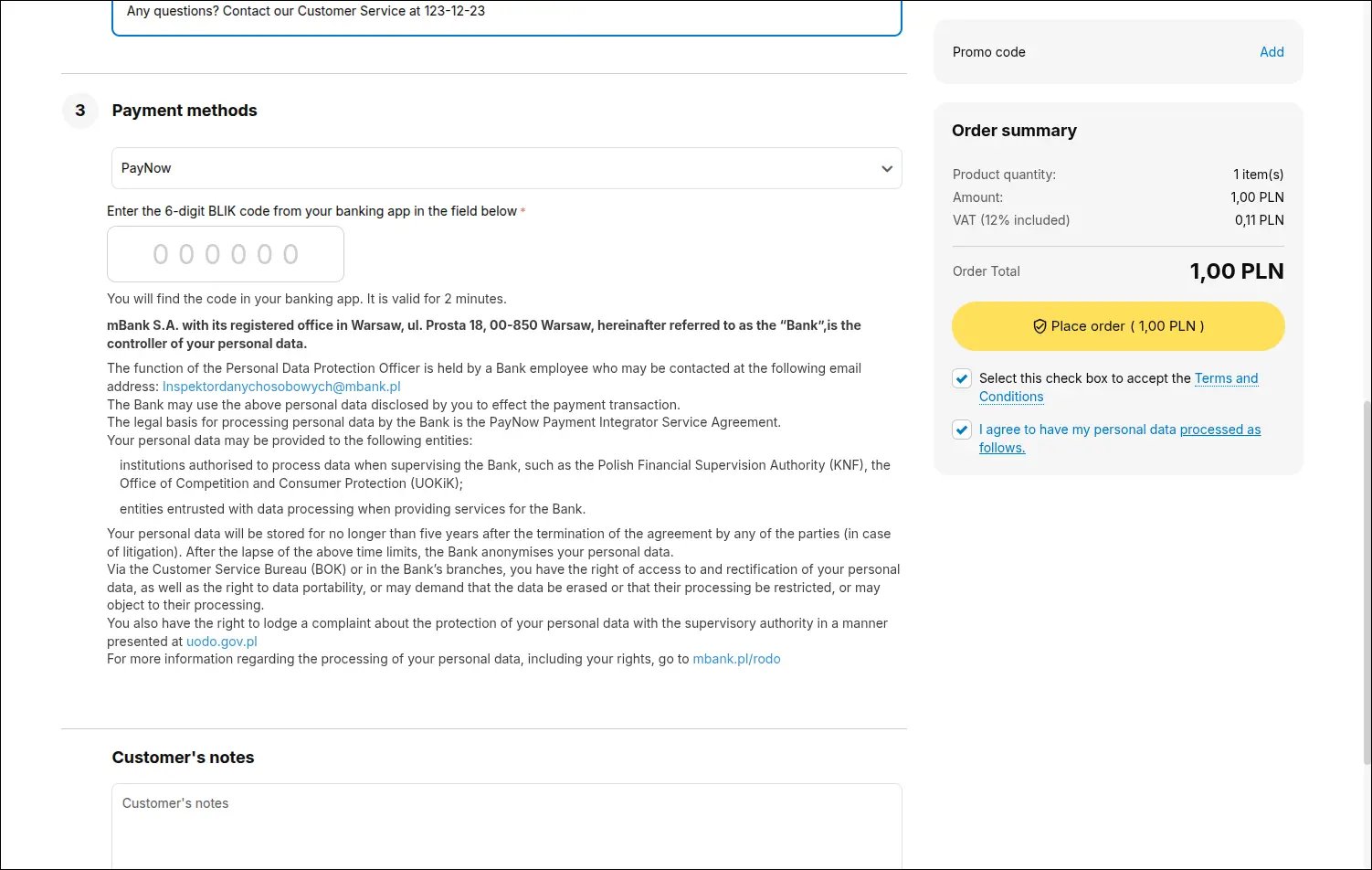
Screenshot 5
After placing the order the customer sees a waiting page with the order number, the amount due in PLN and a countdown. Two short steps remind them to open the banking app and approve the amount. Once the bank confirms the payment, the page moves on to the order summary by itself, so the customer is never left staring at an empty screen:
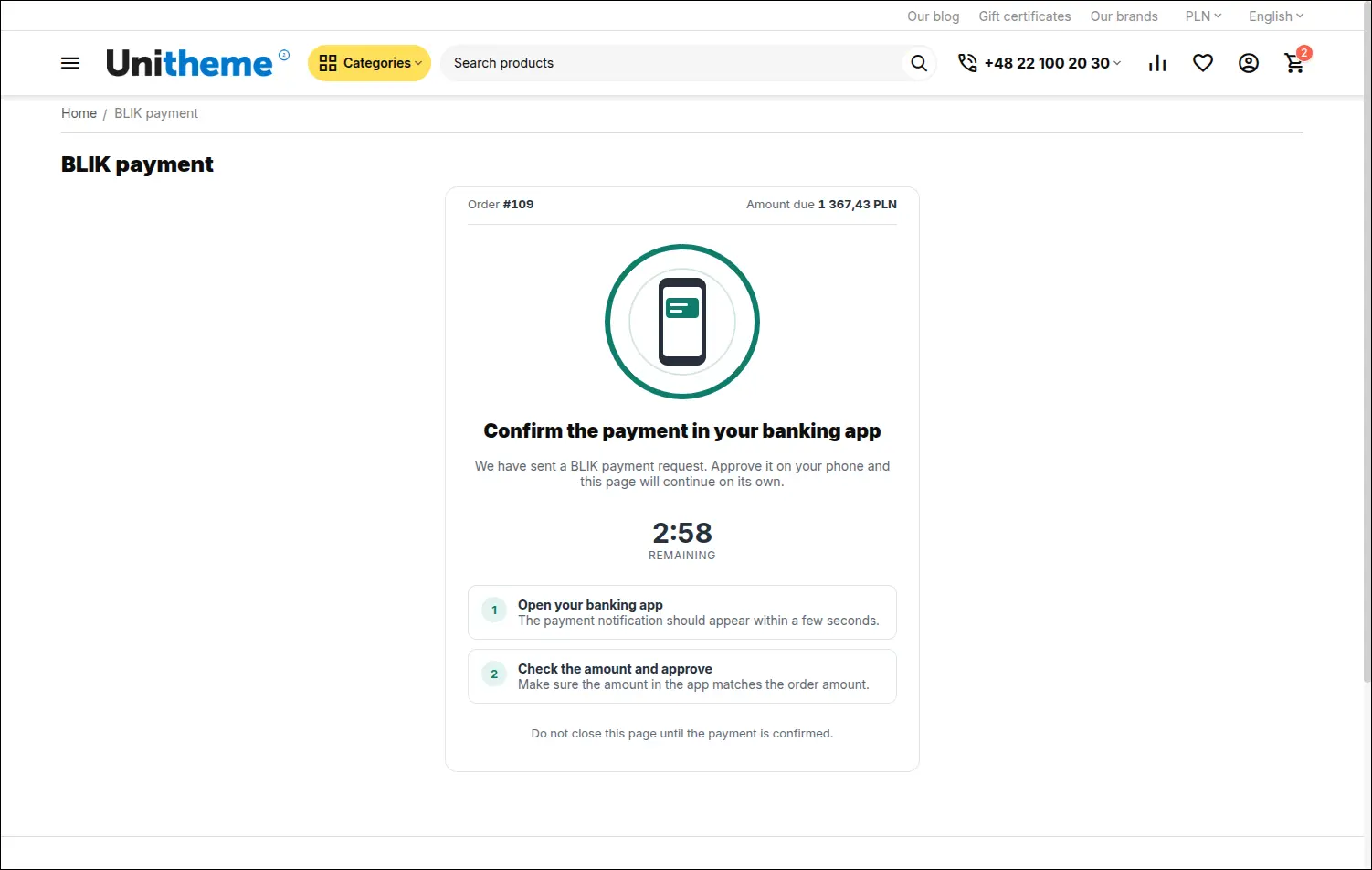
Screenshot 6
A rejection in the banking app or an expired code does not end the purchase. The same page shows a message and a field for a new code, and the customer completes the payment without placing the order again. The number of attempts per order is limited, which protects the store from abuse:
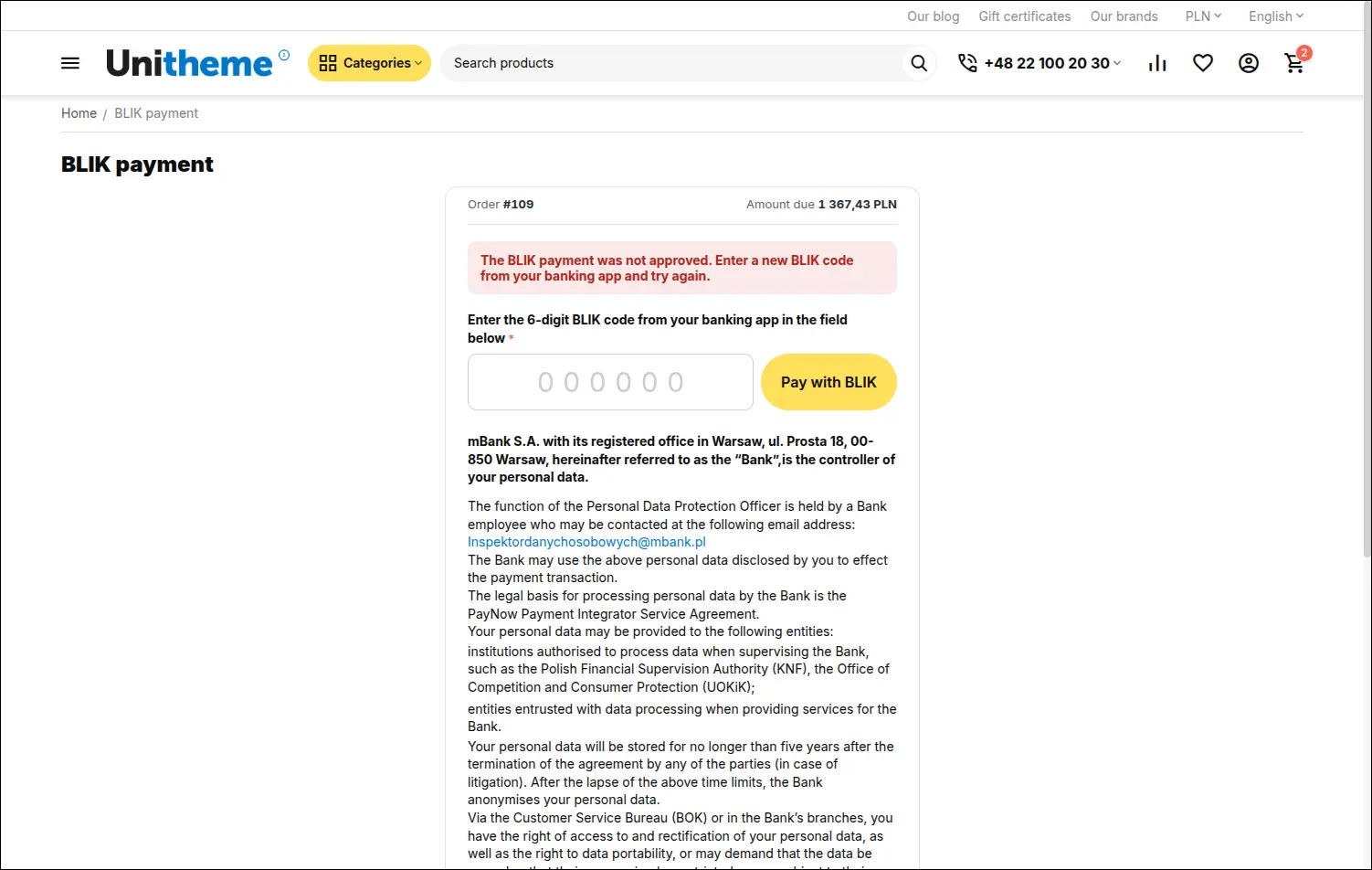
Screenshot 7
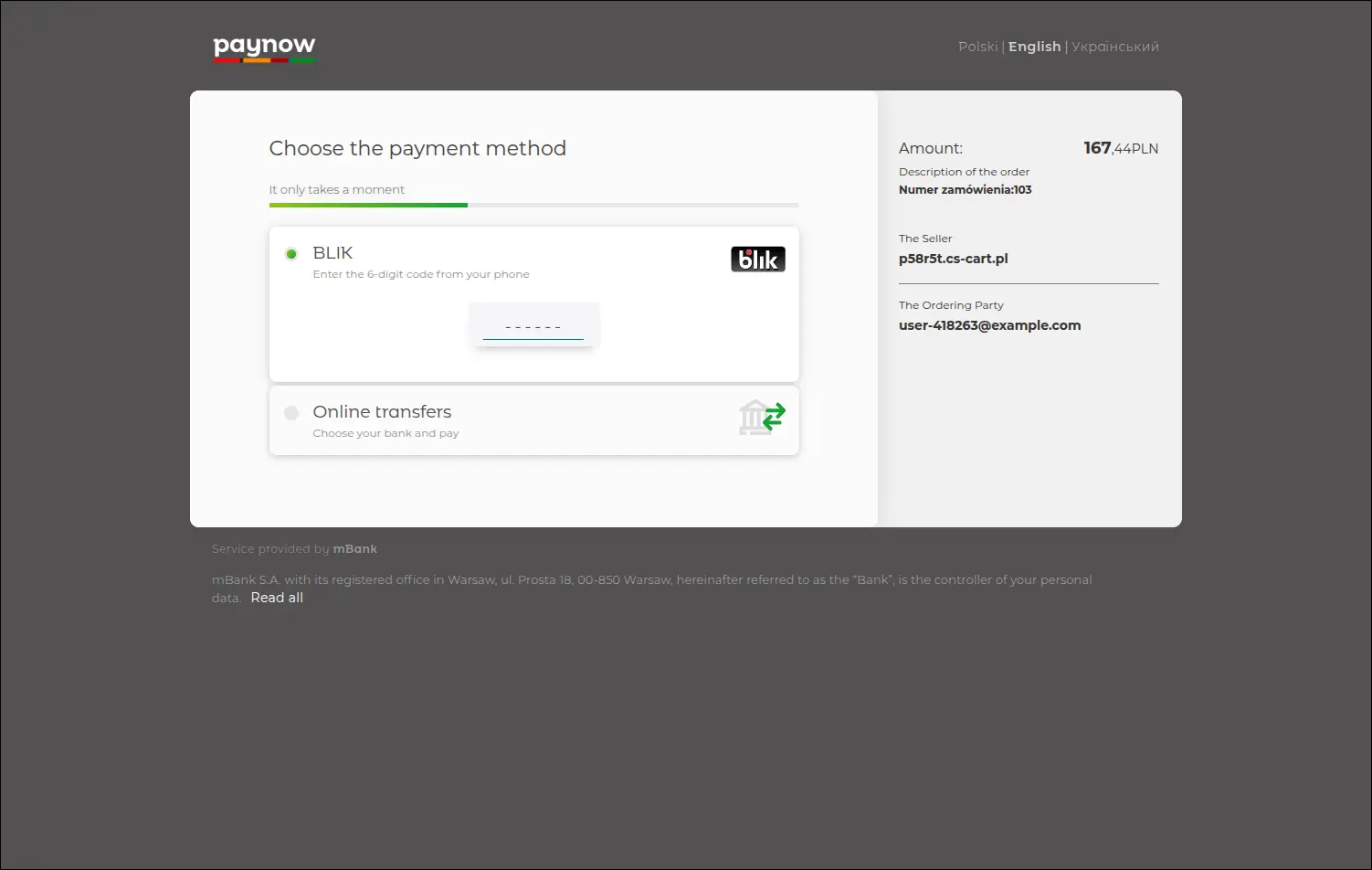
With a redirect payment the customer lands in the Paynow gateway and sees the amount and the description with the order number sent by the store. After paying, they return to the storefront where the order was placed, and if the bank has not yet confirmed the payment, they receive a courteous note not to pay a second time:
Screenshot 8
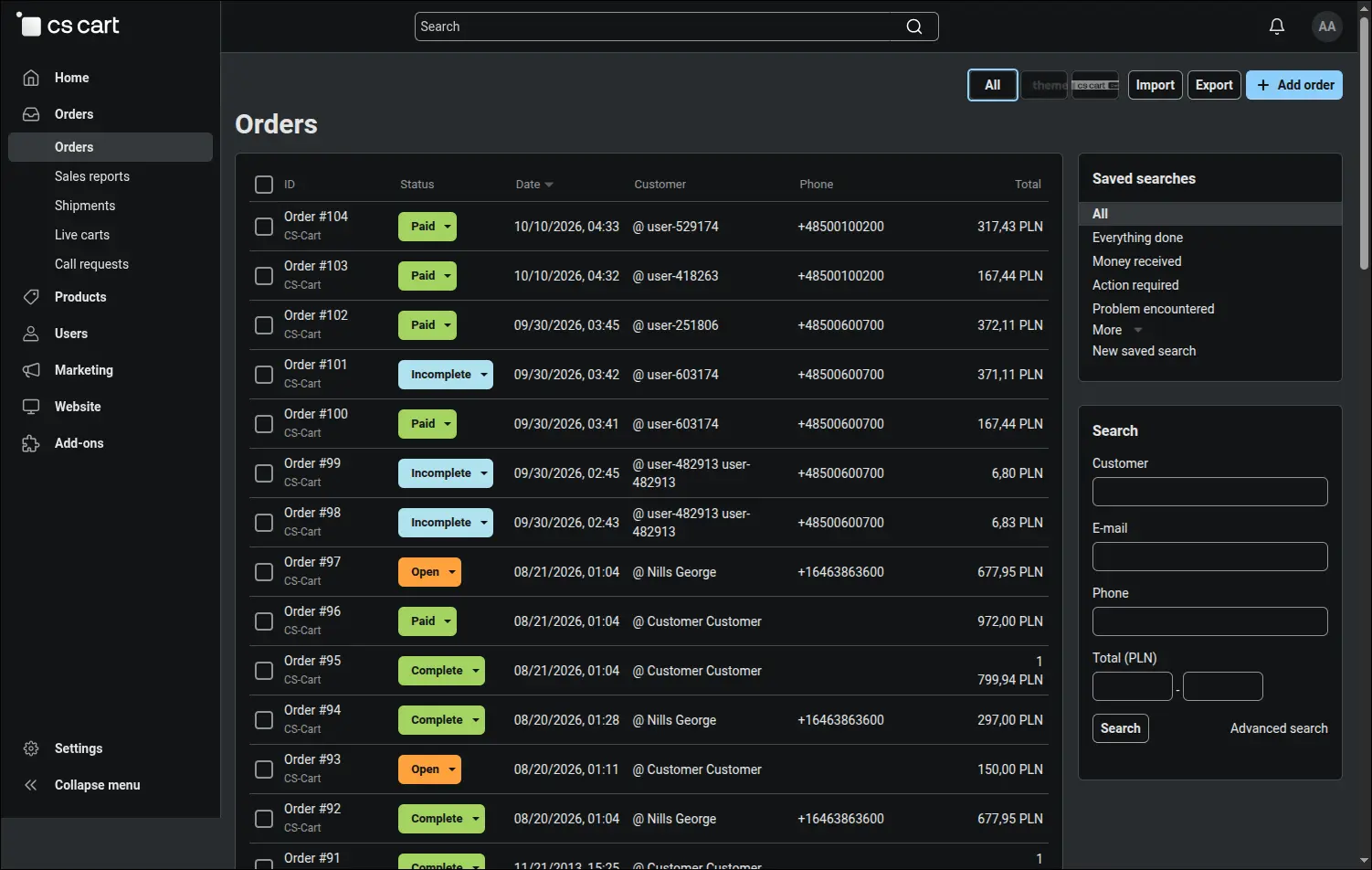
Paynow confirms the payment with a signed notification, and the add-on accepts it only with a valid signature and only for the payment registered for the given order. The order moves to the paid status without any involvement of the store team, so nobody has to match payments against the order list, and a forged notification cannot mark an order as paid:
Screenshot 9
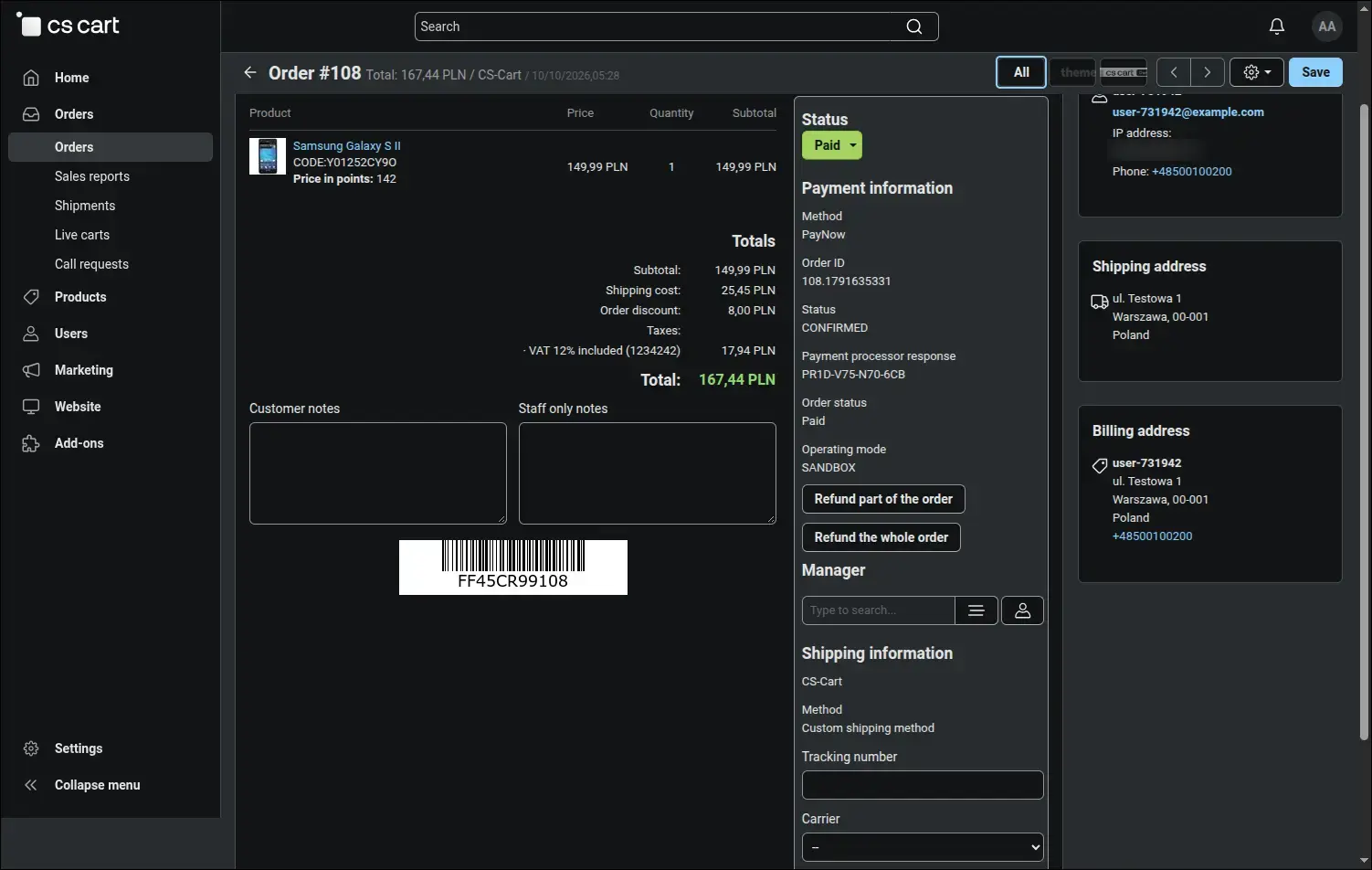
The order page gathers all the payment information: the Paynow payment number, its status and the operating mode in which it was accepted. Right below wait two buttons, a partial refund and a refund of the whole order. The full refund stays available after a partial refund as well and then returns the remaining amount to the customer:
Screenshot 10
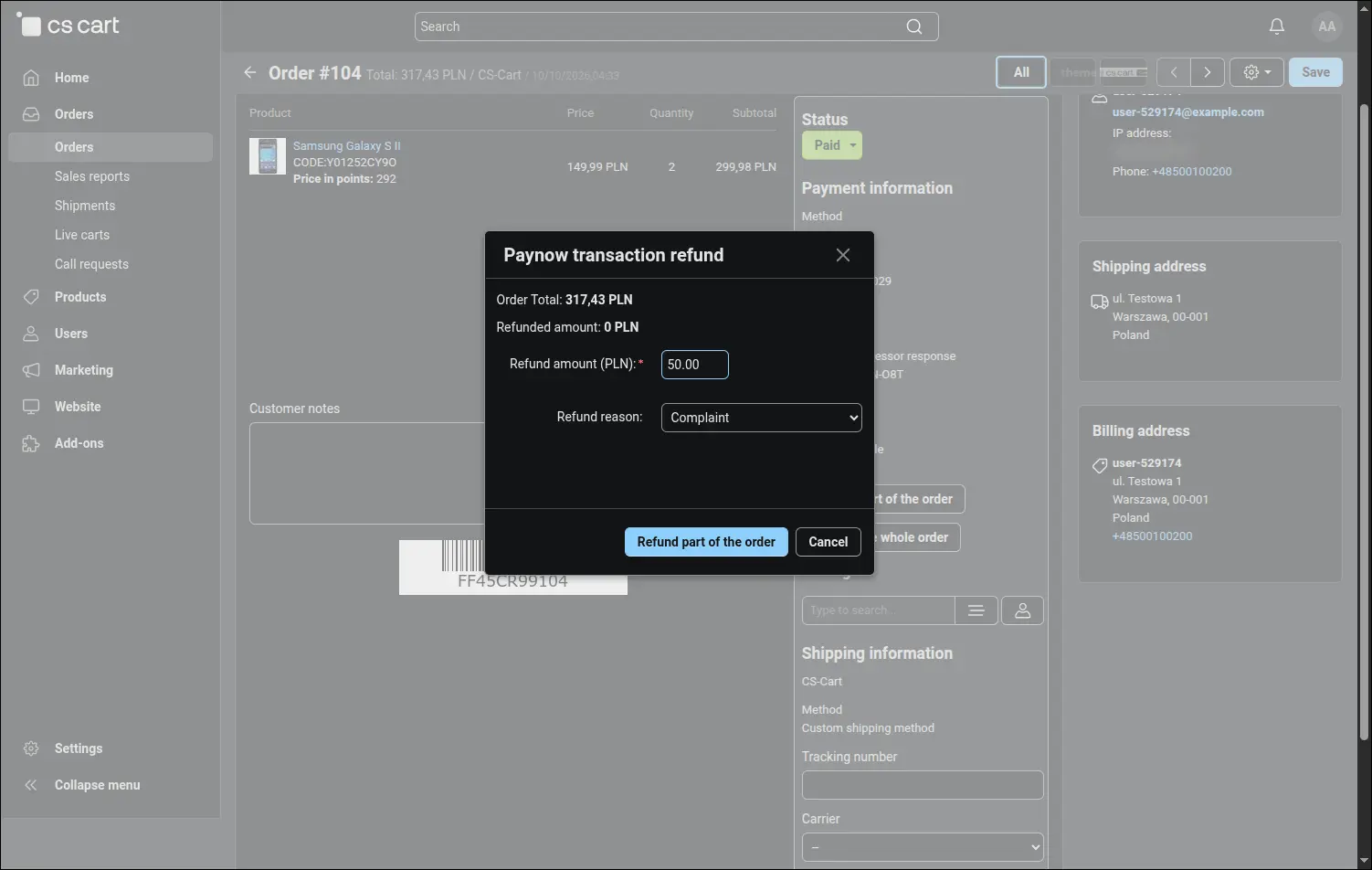
The partial refund dialog shows the order value and the amount already refunded, and the Refund amount field proposes what can still be returned. The team enters the amount in PLN, with a comma or a dot, and picks the refund reason sent to Paynow. An amount higher than the one left to refund is rejected, and when the store enables refunds without delivery, the limit leaves out the shipping cost:
Screenshot 11
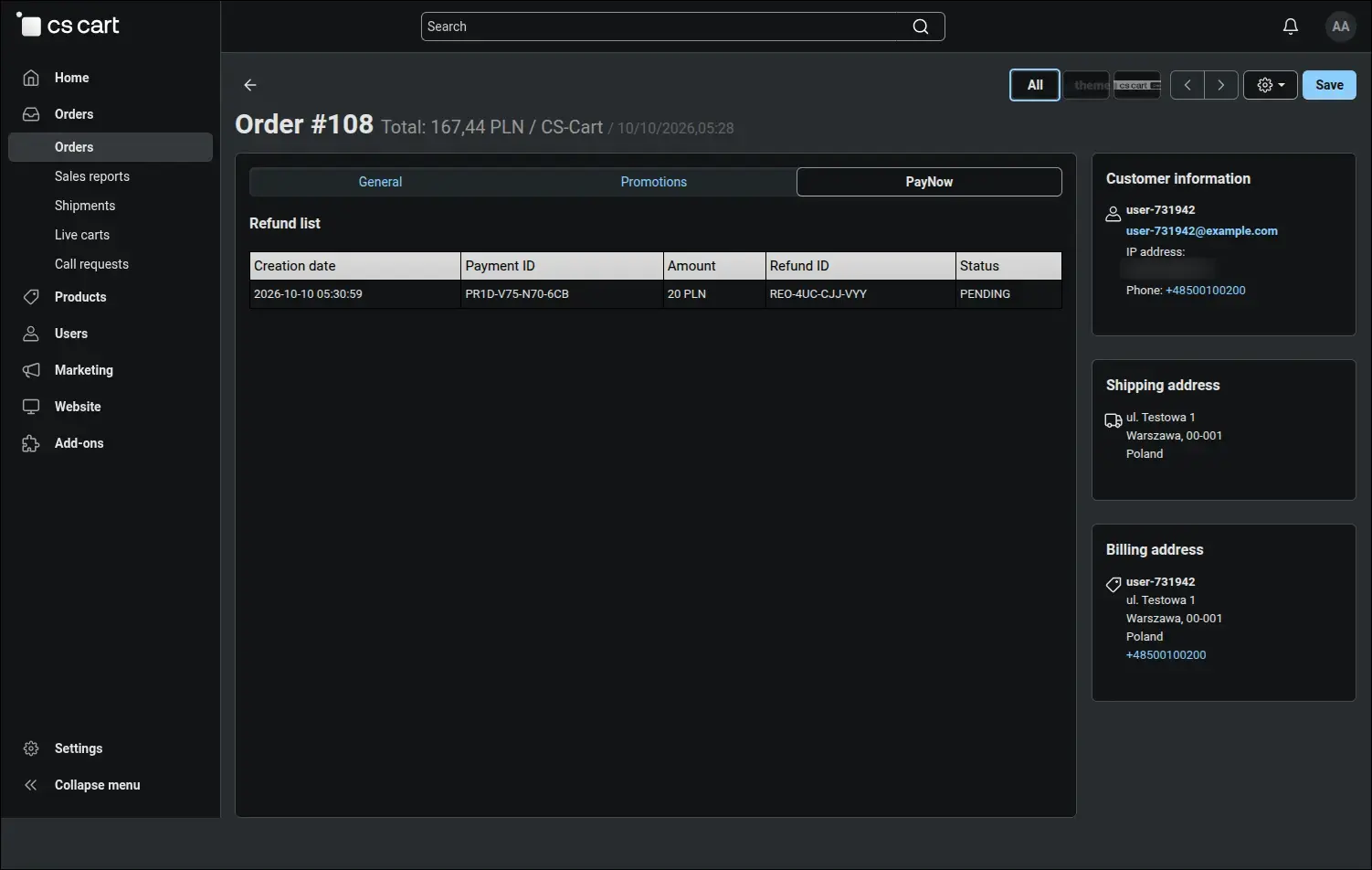
The PayNow tab on the order page keeps a list of refunds with the date, payment ID, amount, refund ID and the status assigned by Paynow. Answering a customer's question about a refund comes down to opening the order. In Multi-Vendor the parent order also shows the refunds of its vendor orders in this place:
Screenshot 12
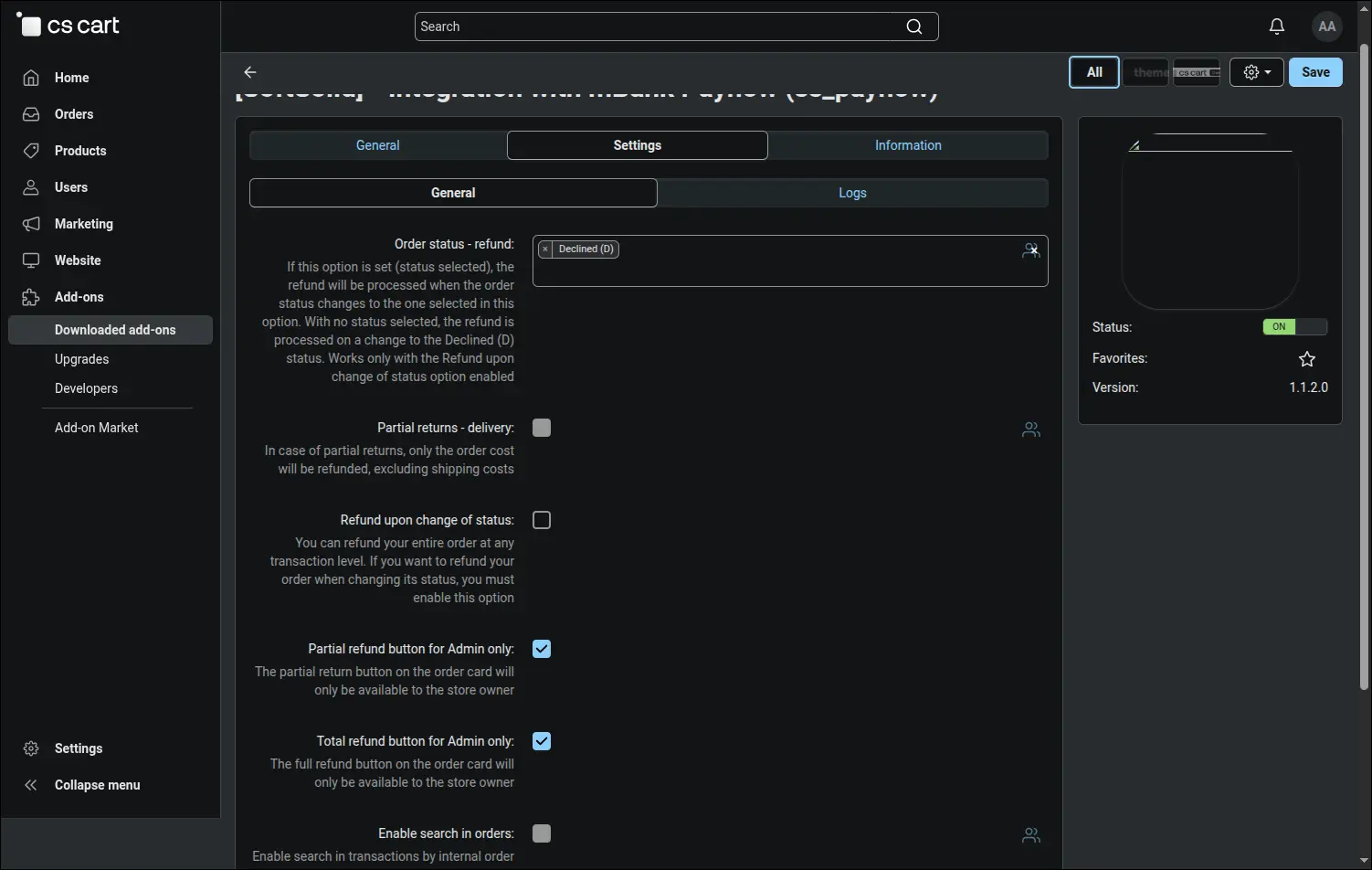
In the add-on settings the store defines its refund rules: the statuses that trigger an automatic refund, partial refunds calculated without shipping costs and whether the refund buttons are visible to the administrator only. After a fresh installation the automatic refund is triggered by the Declined (D) status, provided the Refund upon change of status option is enabled. The same place lets you enable order search by payment ID and sending the buyer's first name, last name and address to Paynow:
Screenshot 13
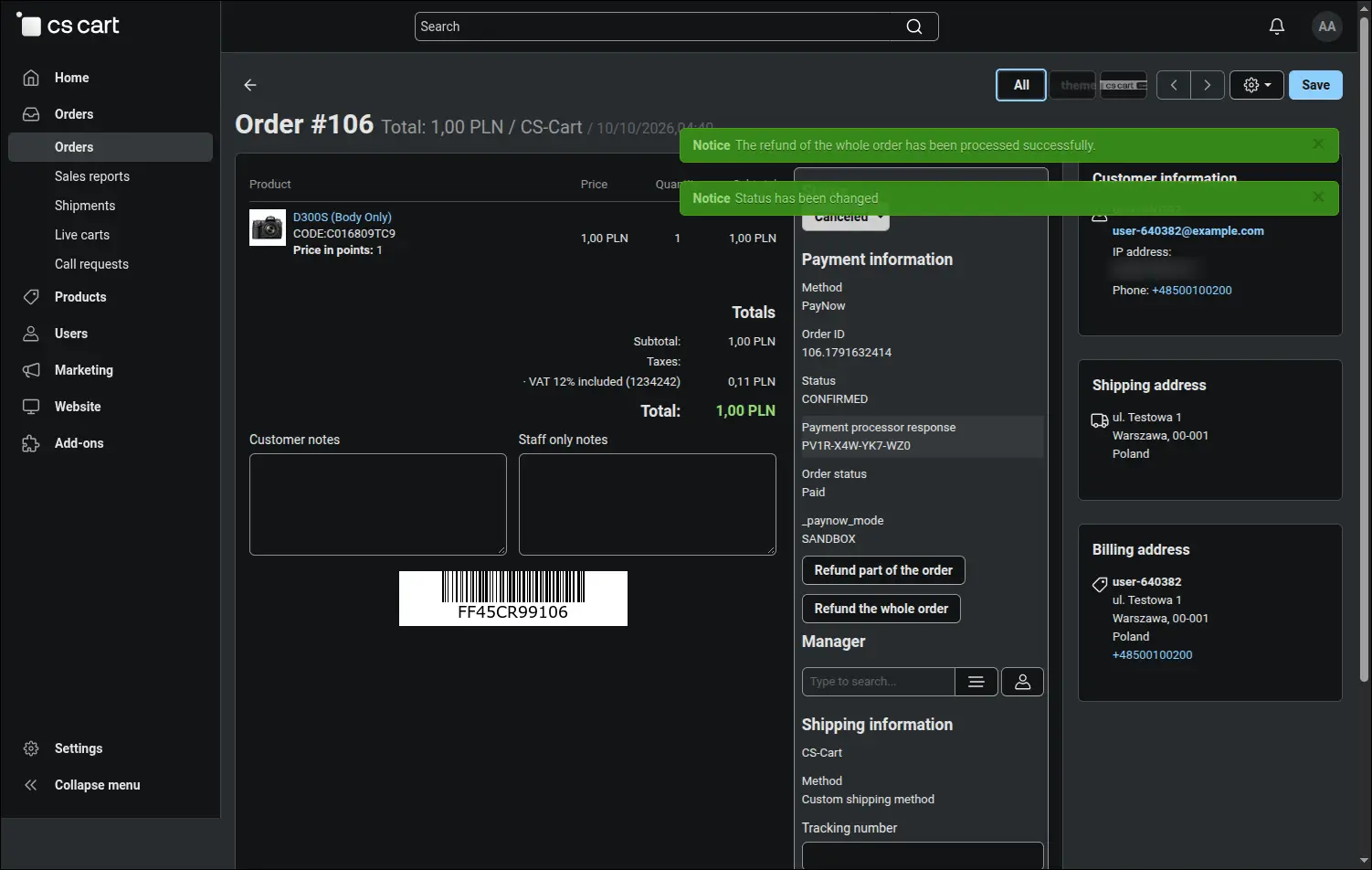
With the refund upon status change enabled, it is enough to move the order to one of the selected statuses, for example Canceled, and the add-on requests the refund of the remaining amount on its own, confirming it with a message. The money goes back to the customer the moment the order is cancelled, so no refund slips through during a busy day. If Paynow rejects the refund, the panel shows a warning and the new order status is kept:
Screenshot 14
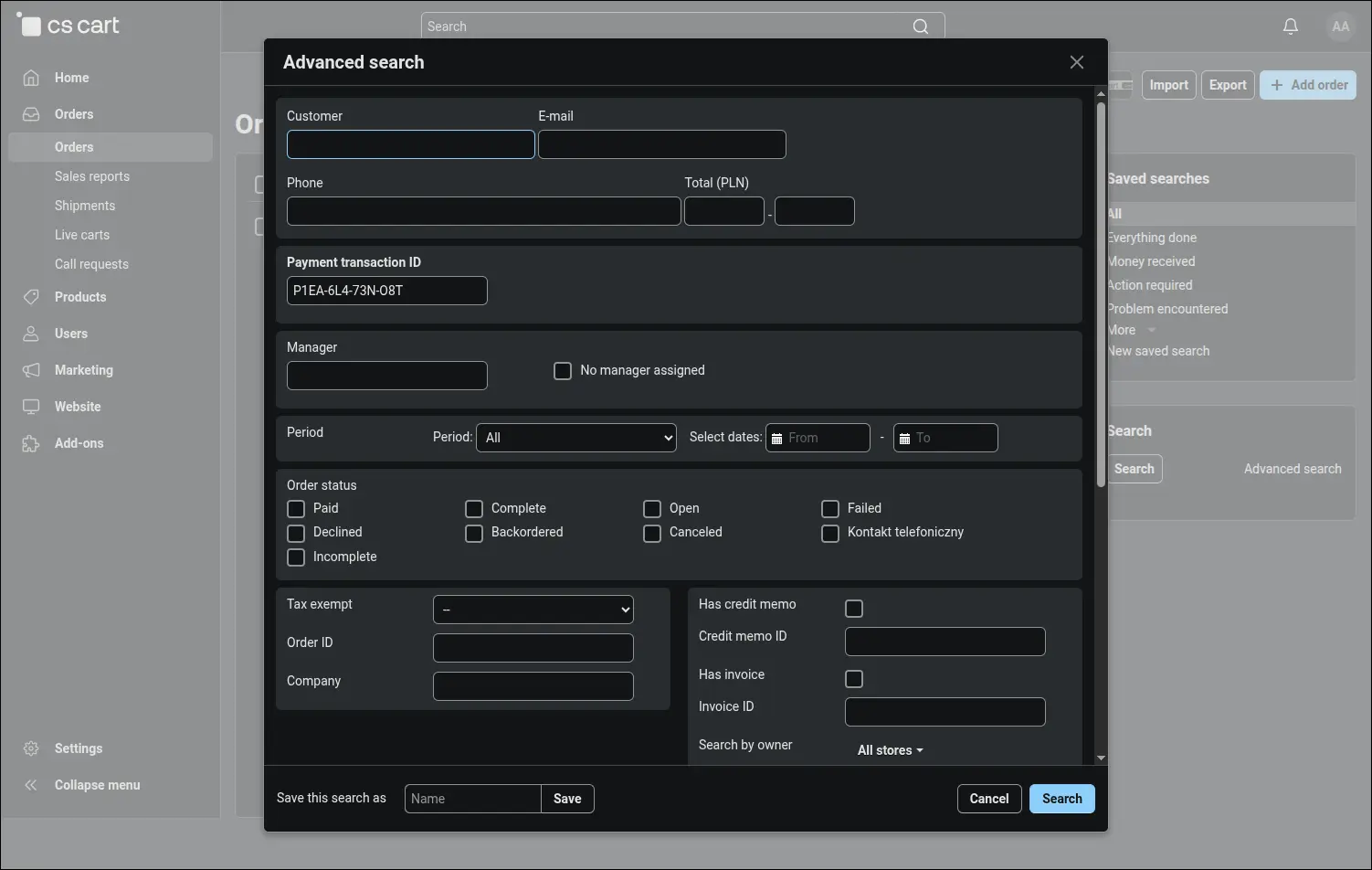
The advanced search of the order list gains a Payment transaction ID field. When the accounting team or a customer gives the transaction number from a Paynow statement, the store team enters it in full or just a fragment of it:
Screenshot 15
A moment later the order list shows the one order this transaction belongs to, ready to be opened and handled:
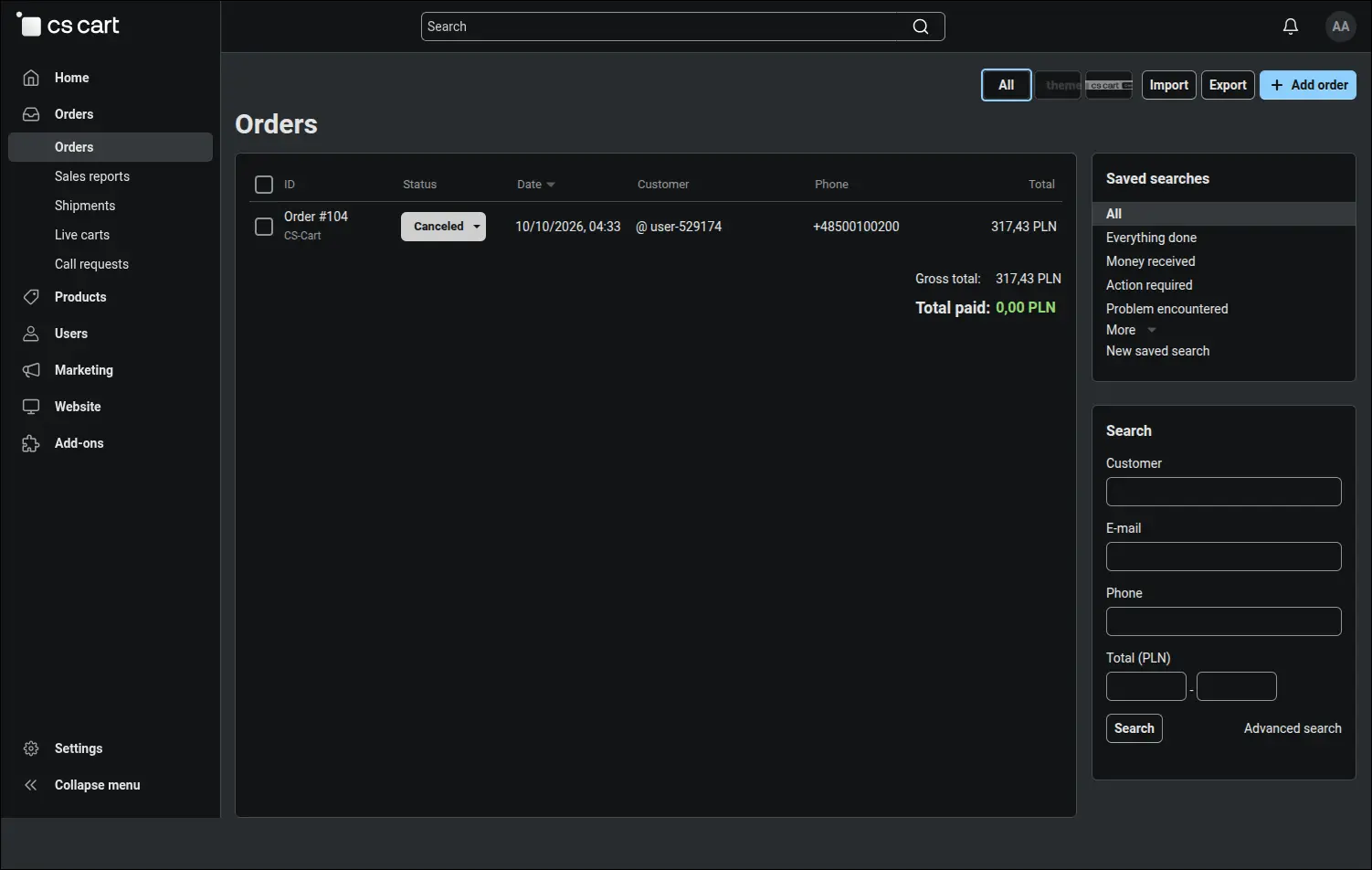
Screenshot 16
In Multi-Vendor the customer pays with one transfer for products from several vendors, and the add-on settles refunds without disturbing this shared payment. A vendor order refund is charged to the payment of the whole cart, but it never exceeds the total of that vendor's order, and the sum of all refunds never exceeds the amount paid. The refund upon status change works on vendor orders as well, and the platform administrator decides whether vendors see the refund buttons. The diagram shows this mechanism with sample amounts:
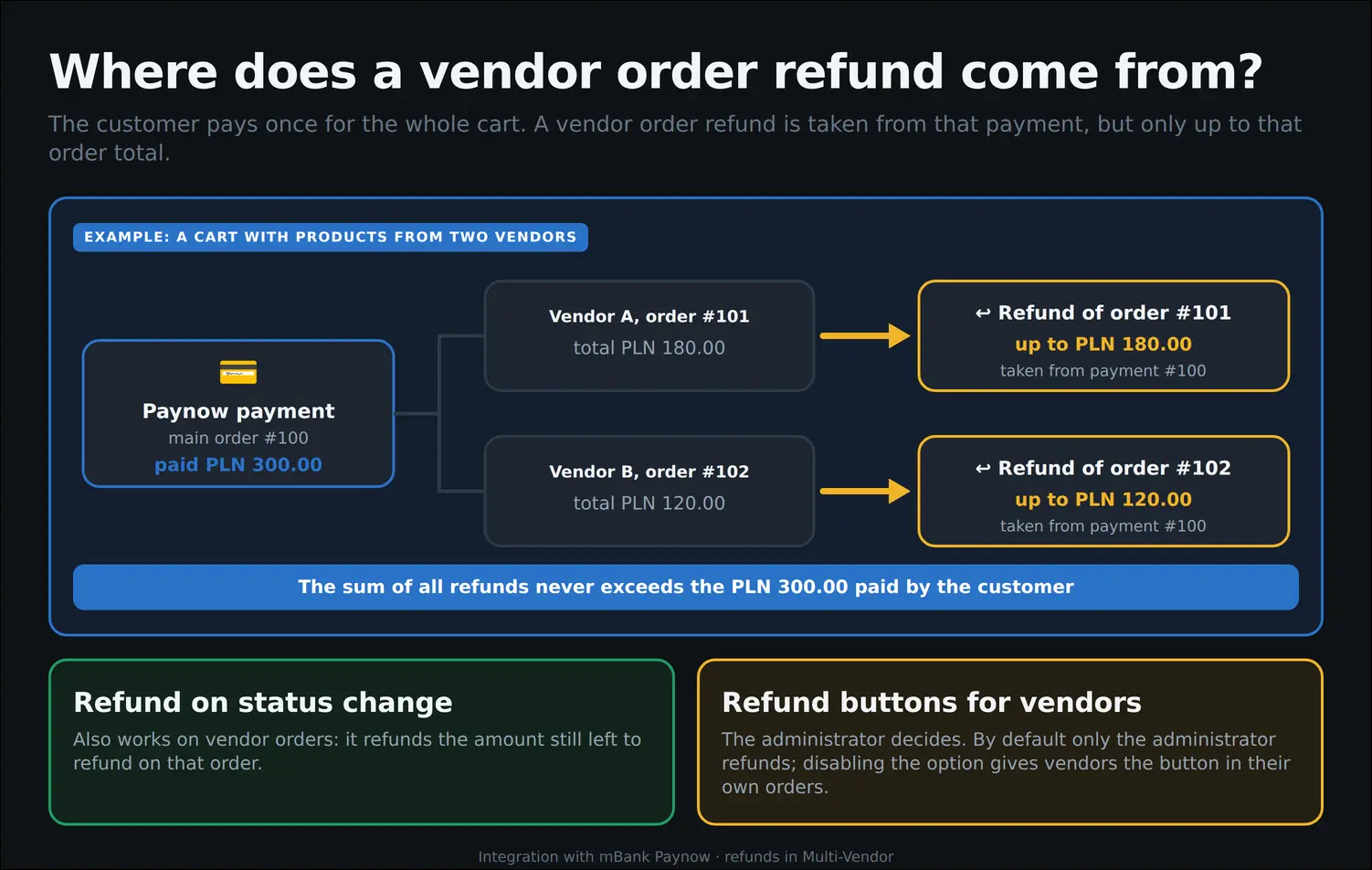
Screenshot 17
On the Paynow side the store performs a single configuration step, and only once. In the Paynow panel, among the settings of shops and payment points, it enters the notification address copied from the payment method in CS-Cart. Paynow sends its payment notifications to this address, and these notifications let orders change their status on their own:
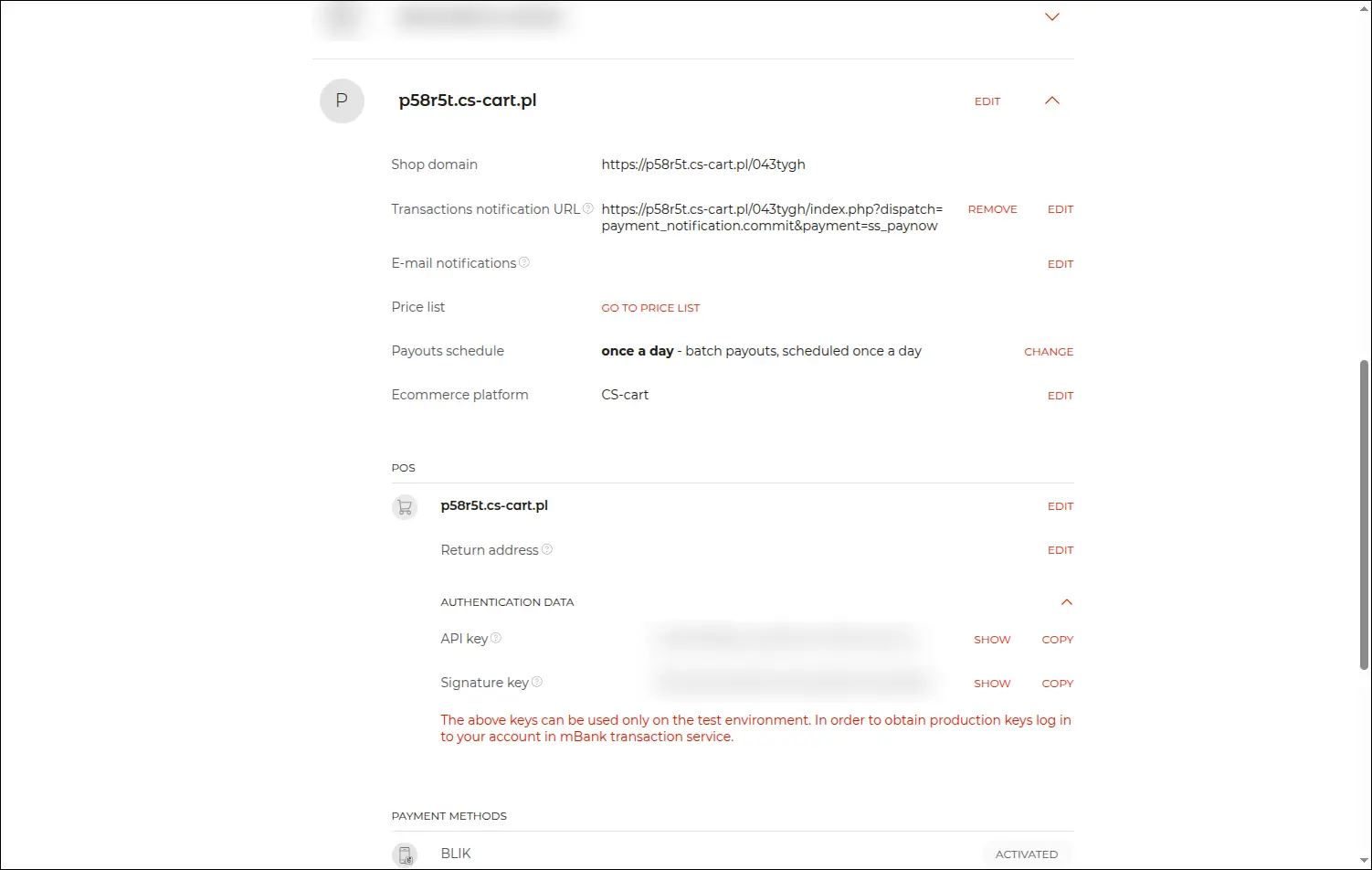
Screenshot 18
Every payment leaves a clear trace of its order in the Paynow panel. The transaction details show a description with the order number assigned by the store, the payment amount and the amount already refunded from the order page. Accountants working in the Paynow panel can match each payment with a specific store order without any guesswork:
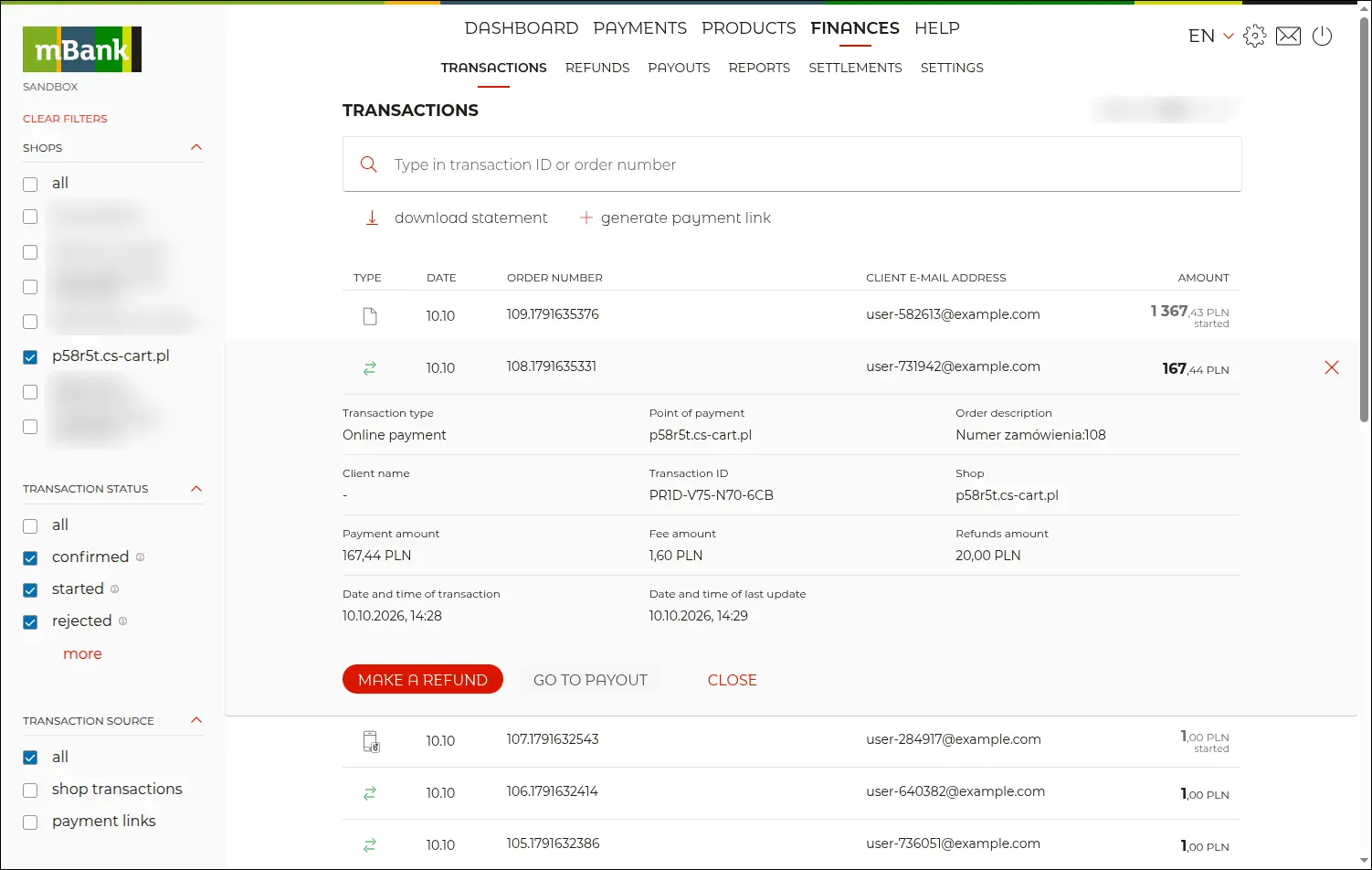
Screenshot 19
Refunds issued in CS-Cart reach Paynow as regular transaction refunds. The refund list in the Paynow panel shows them with the same order numbers and amounts that the store team sees in the PayNow tab of the order page, so both sides keep matching records:
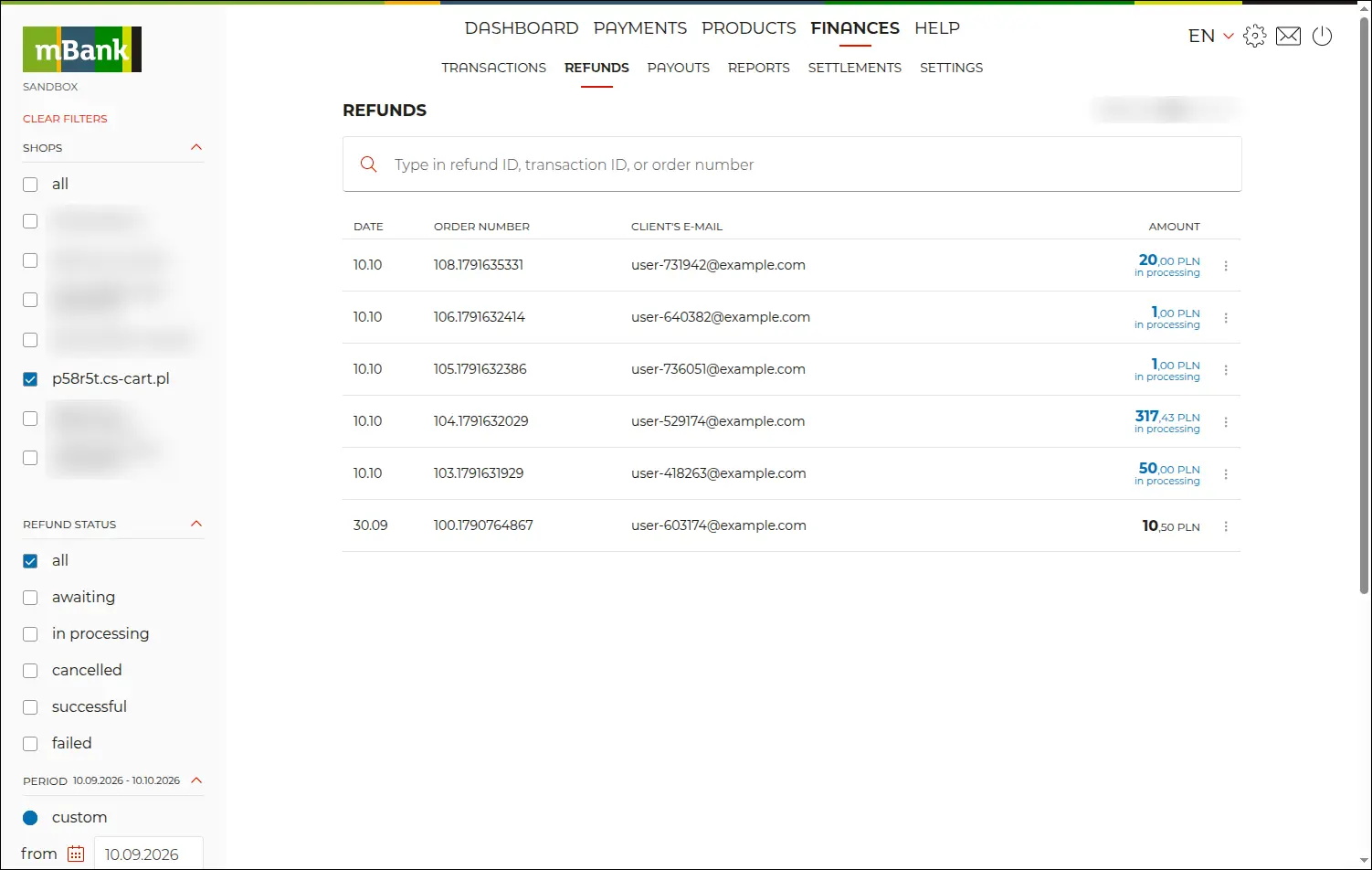
Screenshot 20
The API access key and the signature calculation key, which are pasted into the payment method in CS-Cart, are found in the Paynow panel under the authentication data of the payment point. The sandbox panel issues keys that work only in the test environment, while live keys come from the mBank transaction service, which is why the payment method has separate fields for them. The key values are blurred on the screenshot:
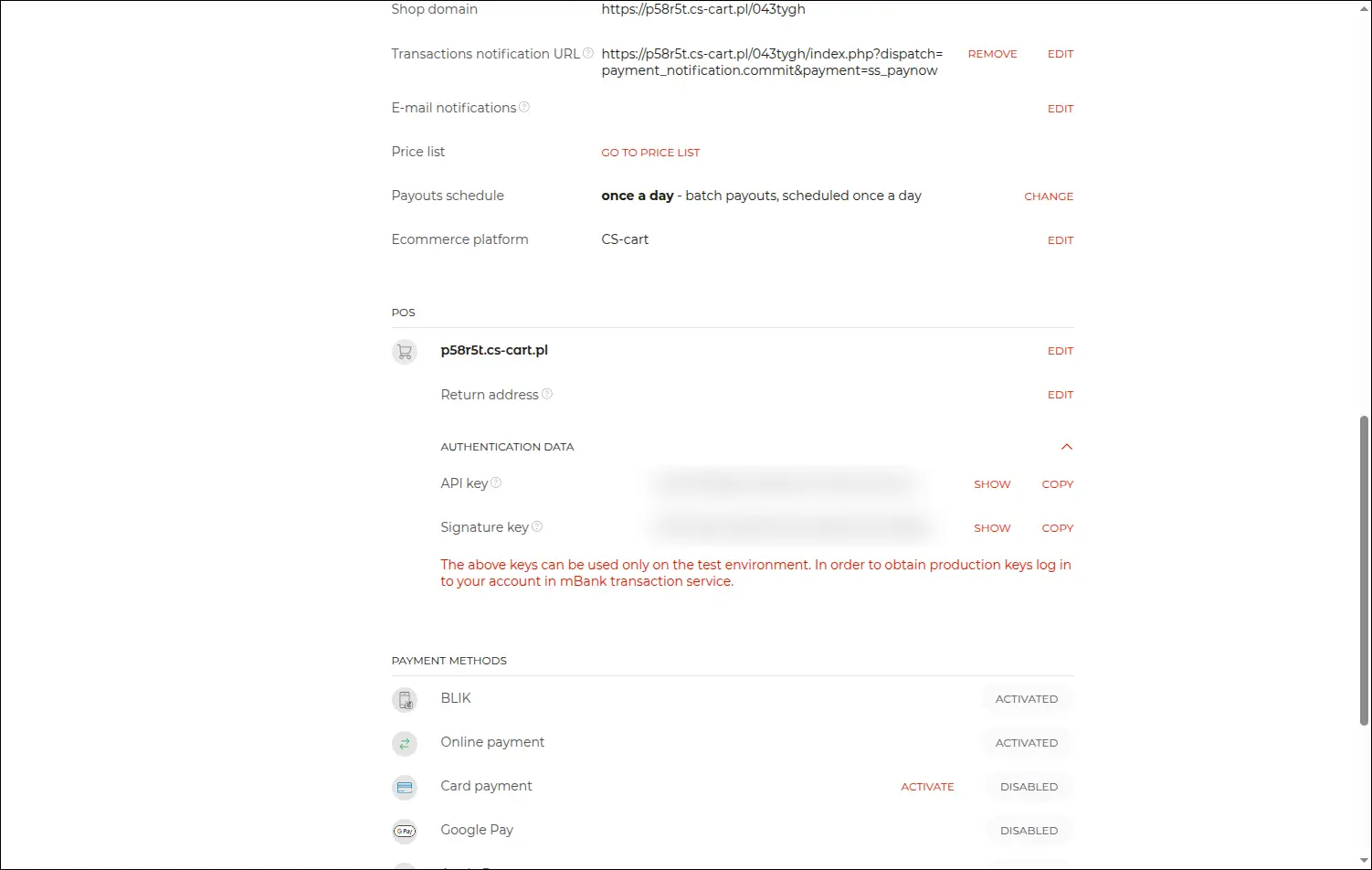
Screenshot 21
The mBank Paynow integration closes the whole money cycle inside the store panel, from the payment, through its automatic confirmation, to a full or partial refund. Customers pay the way they like, with BLIK, a card or an instant transfer, and the store team no longer needs to visit the operator's panel for every refund. The add-on also supports a mobile app built on the Storefront REST API and converts the amount to PLN when the store keeps its prices in another primary currency.
You can buy the add-on with a perpetual license or as a subscription. The license is verified on the SoftSolid server: the add-on sends the store address, the CS-Cart and add-on versions and the e-mail address of the main administrator. It does not send customer data, orders or Paynow keys.
Full walkthrough, 7 minutes
Feel free to contact us and purchase the add-on!
- Monthly subscription
Choose the most convenient form of payment for the add-on. You can pay once and use the add-on. Choosing a subscription payment (monthly or annual) means that you pay for the add-on at regular intervals and have access to the latest versions of the addon and technical support.
- Store Bulider
- Multi-Vendor
- 4.21.x
- 4.20.x
- 4.19.x
- 4.18.x
- 4.17.x
- 4.16.x
- 4.15.x
- No changes
No reviews found